How to Setup Astra Proxy Service Integration using astra-cli
Last updated: August 5, 2026
Introduction
This guide explains how to configure Astra Proxy Service to capture HTTP traffic from client applications such as Postman, Burp Suite, Firefox, and Curl.
Using astra-cli, you can deploy both the Astra Proxy Service, a Dockerized MITM forward proxy, and the Astra Traffic Collector, an OpenTelemetry (OTel)-based collector. Together, these components capture, process, and forward API traffic for observability and inventory creation.
The traffic flow works as follows:
Client applications are configured to use Astra Proxy Service as a forward proxy.
Astra Proxy Service intercepts the traffic and generates traces.
Traces are forwarded to Astra Traffic Collector.
Astra Traffic Collector processes and forwards sanitized traces to the Astra Dashboard.
This guide provides the steps required to configure supported clients and verify that traffic is successfully reaching the Astra platform.
Proxy only observes traffic for hostnames defined in ALLOWED_HOSTS
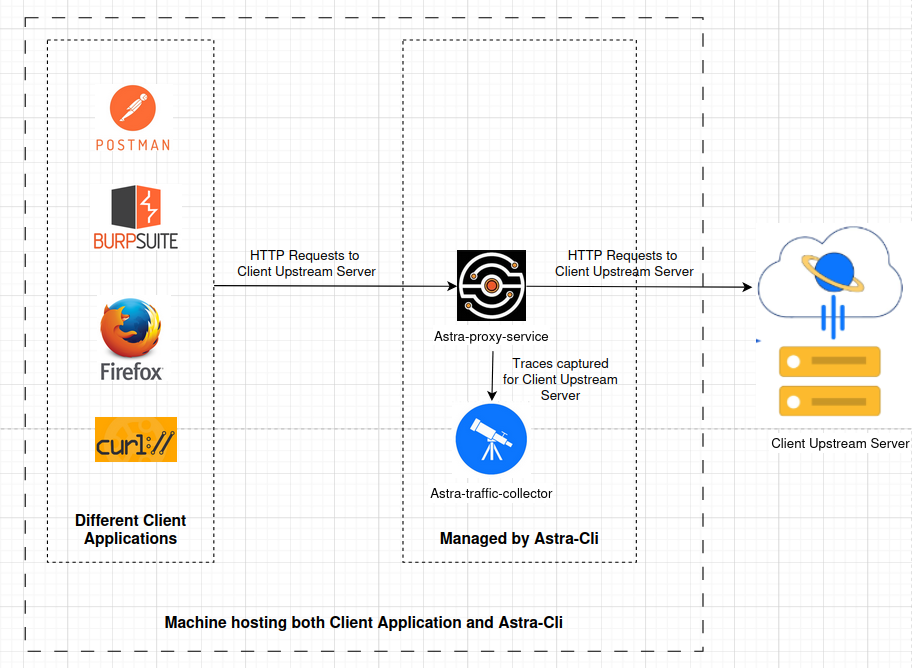
Illustration: High-level integration flow between client applications consuming Astra Proxy Service as a forward proxy to generate otel traces
When to use each client application:
Postman: When you have ready-made requests or a collection which is runnable.
Firefox: When you can manually browse a site you want to observe.
Burp Suite: Ideal for security professionals already using Burp for traffic analysis.
Astra CLI is an on-demand tool. As long as the proxy is running and the client app is configured to use it, traffic will be intercepted. Be sure to disable the proxy settings in your client application once Astra Proxy Service is stopped.
Prerequisites
Install Docker Desktop
Download 'astra-cli' from this Release Page
Supported OS: macOS (Darwin), Windows, and Linux with Architectures:
arm64,amd64Create a working directory where you can place the downloaded binary
Mac users, please choose
/varor/tmpas working directory since Mac may not expose all path for volume mount.Rename downloaded binary to
astra-clifor ease of useIf running on macOS, allow execution in Privacy & Security
Run the following command to verify the
astra-cli
For Mac & Linux:
chmod +x astra-cli
./astra-cli -v
For Windows:
./astra-cli.exe -v
Installation
Step 1 – Create Integrations in Astra Dashboard
Create Astra Traffic Collector and Astra Proxy Instrumentation integration
📄 How to Create Collector Integration for API Observability
📄 How to Create Sensor Integration for API Observability
Securely store all secrets and IDs shown during creation. You will need them for configuration.
Step 2 – Prepare astra.env
Create an environment file astra.env and fill with the following contents
Variable | Description | Example Value |
| Allowed Hostname for which tracing is done. Please give the value given in target |
|
| SensorID aka integrationID generated when you created Astra Proxy Instrumentation in Astra Dashboard |
|
| Collector ID aka integration ID generated when you create ATC in Astra Dashboard |
|
| Secret displayed at the end of creation of ATC integration |
|
| Secret displayed at the end of creation of ATC integration |
|
ALLOWED_HOSTS=https://mydomain.com,extraHost1
SENSOR_ID=12345678-1234-4abc-9def-987654321000
COLLECTOR_ID=12345678-1234-4abc-9def-987654321000
CLIENT_ID=12345678-1234-4abc-9def-987654321000
CLIENT_SECRET=12345678-1234-4abc-9def-987654321000

ASTRA_TRAFFIC_COLLECTOR_ENDPOINT=astra-traffic-collector:4317
TOKEN_URL=https://auth.getastra.com/realms/astra_api_scanner/protocol/openid-connect/token
REMOTE_ADDR_IDENTIFIER_HEADER=x-forwarded-for
Step 3 – Validate the env file astra.env
For Mac & Linux:
chmod +x astra-cli
./astra-cli validate -e astra.env
For Windows:
./astra-cli.exe validate -e astra.envStep 4 – Create a custom collector config config_custom.yaml
Paste the following content
processors:
    filter/custom:
       error_mode: ignore
       traces:
         span:
           - ConvertCase(attributes["http.method"], "upper") == "OPTIONS"
    transform/custom:
       error_mode: ignore
       trace_statements:
         - context: span
           statements:
             - replace_all_patterns(attributes, "value", "^5[1-5][0-9]{14}$", "{{CreditCard}}")
Step 5 – Start Astra Traffic Collector Service
For Mac & Linux:
chmod +x astra-cli
./astra-cli collector quickstart -c config_custom.yaml -e astra.env
For Windows:
./astra-cli.exe collector quickstart -c config_custom.yaml -e astra.envStep 6 – Start Astra Proxy Service
For Mac & Linux:
chmod +x astra-cli
./astra-cli proxy quickstart -p 8181 -e astra.env
For Windows:
./astra-cli.exe proxy quickstart -p 8181 -e astra.envStep 7 – Check Service Status
For Mac & Linux:
./astra-cli collector status
./astra-cli proxy status
For Windows:
./astra-cli.exe collector status
./astra-cli.exe proxy status
You should see the status as Up similar to below:
CONTAINER ID   IMAGE                        COMMAND                  CREATED        STATUS          NAMES
50bf5460e25c   getastra/traffic-collector   "/bin/sh -c '/startu…"   2 weeks ago    Up 2 weeks      astra-traffic-collector
If status is Exited, then kindly take a look at
Troubleshootingsection
How to use Client Applications with Astra Proxy Instrumentation to observe traffic for Allowed_Hosts
Once Proxy + Collector are running, configure client tools to forward traffic through the proxy (localhost:8181)
1. How to configure the forward proxy for Mozilla Firefox browser
Open Settings → Network Settings.
Choose Manual Proxy Configuration.
HTTP Proxy =
localhost, Port =8181.Check Also use this proxy for HTTPS.
Visit http://mitm.it, download & install the Firefox CA cert.
Browse your app → traces are visible in Collector logs. Also you should be able to see the endpoints in Astra Dashboard if the endpoints doesn't exist already.
Disable proxy when done.
2. How to configure the forward proxy for Postman
Open Postman → Settings → Proxy.
Enable Custom Proxy Configuration.
HTTP Proxy =
localhost, Port =8181.
Run requests or collection in postman → traces are visible in Collector logs. Also you should be able to see the endpoints in Astra Dashboard if the endpoints doesn't exist already.
Disable proxy after capture.
3. How to configure the forward proxy for Burp
Open Burp Suite
Go to settings icon located in top right corner
Click on Network in left menu
Click on Connections
Go to Upstream Proxy Servers section
Add an entry with proxy host being
localhostand port being8181.That's it. Now the requests which are passing through your Burp will be captured by Astra proxy as well. Also you should be able to see the endpoints in Astra Dashboard if the endpoints doesn't exist already.
Turn off the Burp suite proxy once all traces are generated.
4. How to configure the forward proxy for cURL
Use
--proxyflag:curl -k --proxy localhost:8181 https://testfire.net/api/v1/accountsyou can skip
-kflag from the above curl if you have CA certificate for your server. You can provide the CAcert by using--cacertflagThat's it. Now the requests which are fired from Curl will be captured by Astra proxy as well. Also you should be able to see the endpoints in Astra Dashboard if the endpoints doesn't exist already.
Upgrade
Docker container upgrade
This process updates the docker container to a new version of the Astra Proxy Service.
Change directory to the place where
astra-cliexecutable is downloadedRun below command:
./astra-cli collector upgrade
./astra-cli proxy upgrade
Upon successful image pull, run this to stop the current container and subsequently remove it
./astra-cli collector remove
./astra-cli proxy remove
Restart the container with newly pulled image
./astra-cli collector quickstart -c config_custom.yaml -e astra.env
./astra-cli proxy quickstart -p 8181 -e astra.env
Troubleshooting
Astra Proxy Instrumentation image pull fails (Mac ARM issue - no matching manifest for linux/arm64/v8)
Solution:
Use this command to pull the image:
docker pull --platform linux/x86_64 getastra/proxy
Now you can quickstart the Astra Proxy Instrumentation by running
./astra-cli proxy quickstart -p 8181 -e astra.env
Astra Proxy Integration or Astra Traffic Collector is in Exited state
Symptoms:
I see the STATUS as Exited when I query using below commands
./astra-cli proxy status
./astra-cli collector status
Causes:
Potential problem with env file
Solution:
Kindly ensure that SENSOR_ID, ALLOWED_HOSTS, COLLECTOR_ID, CLIENT_ID, CLIENT_SECRET are set in
astra.envfile. You can run following command to validate theastra.envfile
./astra-cli validate -e astra.envTraces are not captured by Astra Proxy Instrumentation
Symptoms:
I have configured the astra-proxy-service upstream proxy address in my Postman/Burp/Firefox. I don't see any API endpoint entry in my inventory when I create traces from my application.
Causes:
Requests captured have status code other than 2XX or 3XX.
Solution:
Astra Cli generates the trace only for the 2XX and 3XX response code.
ScopeURI given for
ALLOWED_HOSTSvariable is incorrectMisconfigured
astra.envfileKindly ensure that SENSOR_ID, ALLOWED_HOSTS, COLLECTOR_ID, CLIENT_ID, CLIENT_SECRET are set in
astra.envfile. You can run following command to validate theastra.envfile./astra-cli validate -e astra.env
How to inspect logs of Astra Traffic Collector?
Note that the following command gives full logs of selected service.
./astra-cli collector logsIf you need most recent logs, say last 5 minutes, you can use a small variant of the command by passing in a flag
./astra-cli collector logs --since=5mIf you need most recent logs, say last 1 hour, you can use a small variant of the command by passing in a flag
./astra-cli collector logs --since=1h
If you want to tail the logs, then you can use this command
./astra-cli collector logs --tail=0 -fIf you want to redirect the logs to a file for further inspection, you can use this command
./astra-cli collector logs --since=1h > collector.log 2>&1How to view the detailed instruction on how to setup Astra Proxy Instrumentation and Astra Traffic Collector using Astra-cli
./astra-cli instructionsDifferent Commands available with Astra-Cli for Astra Proxy Instrumentation
astra-cli proxy status      : Check proxy container status
astra-cli proxy logs        : View proxy container logs
astra-cli proxy logs -f     : Follow proxy container logs
astra-cli proxy stop        : Stop the proxy container
astra-cli proxy remove      : Stop and Remove the proxy container
astra-cli proxy upgrade     : Upgrade the proxy image
Different Commands available with Astra-Cli for Astra Traffic Collector
astra-cli collector status   : Check collector container status
astra-cli collector logs     : View collector container logs
astra-cli collector logs -f  : Follow collector container logs
astra-cli collector stop     : Stop the collector container
astra-cli collector remove   : Stop and Remove the collector container
astra-cli collector upgrade  : Upgrade the collector image
Using start command for astra-proxy
Assuming that astra-cli is located under /tmp
./astra-cli proxy start --network=astra-obs -p 8181:8080
-v /tmp/.mitmproxy:/root/.mitmproxy
--env-file env.env --entrypoint mitmdump getastra/proxy -k -s
/app/capture.py --mode upstream:http(s)
://HOSTNAME:PORT --upstream-auth USER:PASSWORD