Overview - Astra Pentest Certificates page
Last updated: June 2, 2026
Summary
The Certificates page in your Astra dashboard is where you manage, view, and share all pentest certificates issued to your organization. A certificate is issued after a successful pentest and full remediation of discovered vulnerabilities, and serves as publicly verifiable proof that your systems have been tested and secured. This page is the central hub for controlling certificate visibility, sharing certificates with partners or customers, and tracking their validity.
You can access the certification page in Astra dashboard under PTaas Section → Certificates.
Use Cases - Who should read this
Security and Compliance Leads use this page to track which assets have valid certificates and when renewals are due, ensuring the organization stays continuously compliant with standards like PCI-DSS, ISO 27001, HIPAA, and SOC2.
Sales and Business Development teams use certificates as a trust signal during enterprise deals — many large clients require proof of regular pentesting before signing contracts. Sharing a publicly verifiable certificate link removes friction from that process.
Founders and CTOs at SaaS companies display the certificate on their website or trust center to signal a security-conscious posture to prospects and existing customers without sharing sensitive pentest report details.
Vendors and Partners who receive a certificate link from a customer can independently verify its authenticity using the certificate's unique ID on Astra's verification page, without needing access to the customer's dashboard.
Key Functionalities
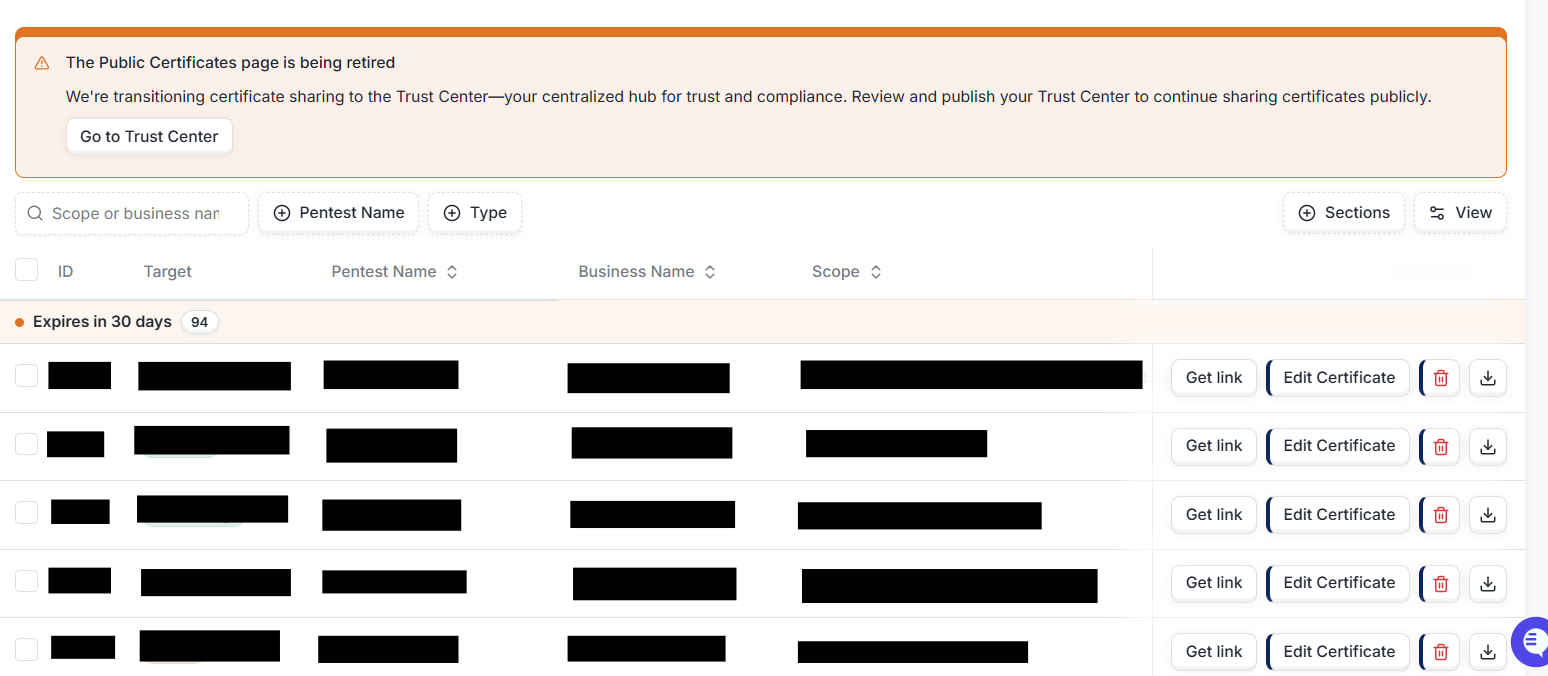
The header section provides a summary of your certificates through the following key metrics:
Total Certificates Issued- The total number of certificates that have been issued.
Valid Certificates- The number of currently active and valid certificates.
Expired Certificates- The number of certificates that have passed their validity date.
Filtering
You can filter the certificates list by:
Pentest Name
Pentest Type
Certificate Sections
Certificates are organized into three sections:
Active- Certificates that are currently valid.
Expired- Certificates that are no longer valid.
Expires in 30 Days- Certificates approaching their expiry date.
Certificate Details
Each certificate in the main view displays the following details:
ID
Target
Pentest Name
Business Name
Scope
Issues On (issue date)
Valid Till (expiry date)
Available Actions
The following actions can be performed on each certificate:
Get Link- Copy or share a link to the certificate.
Edit Certificate- Modify the certificate details.
Delete- Permanently remove the certificate.
Download- Download a copy of the certificate.
Steps to share the certificate with customers or partners
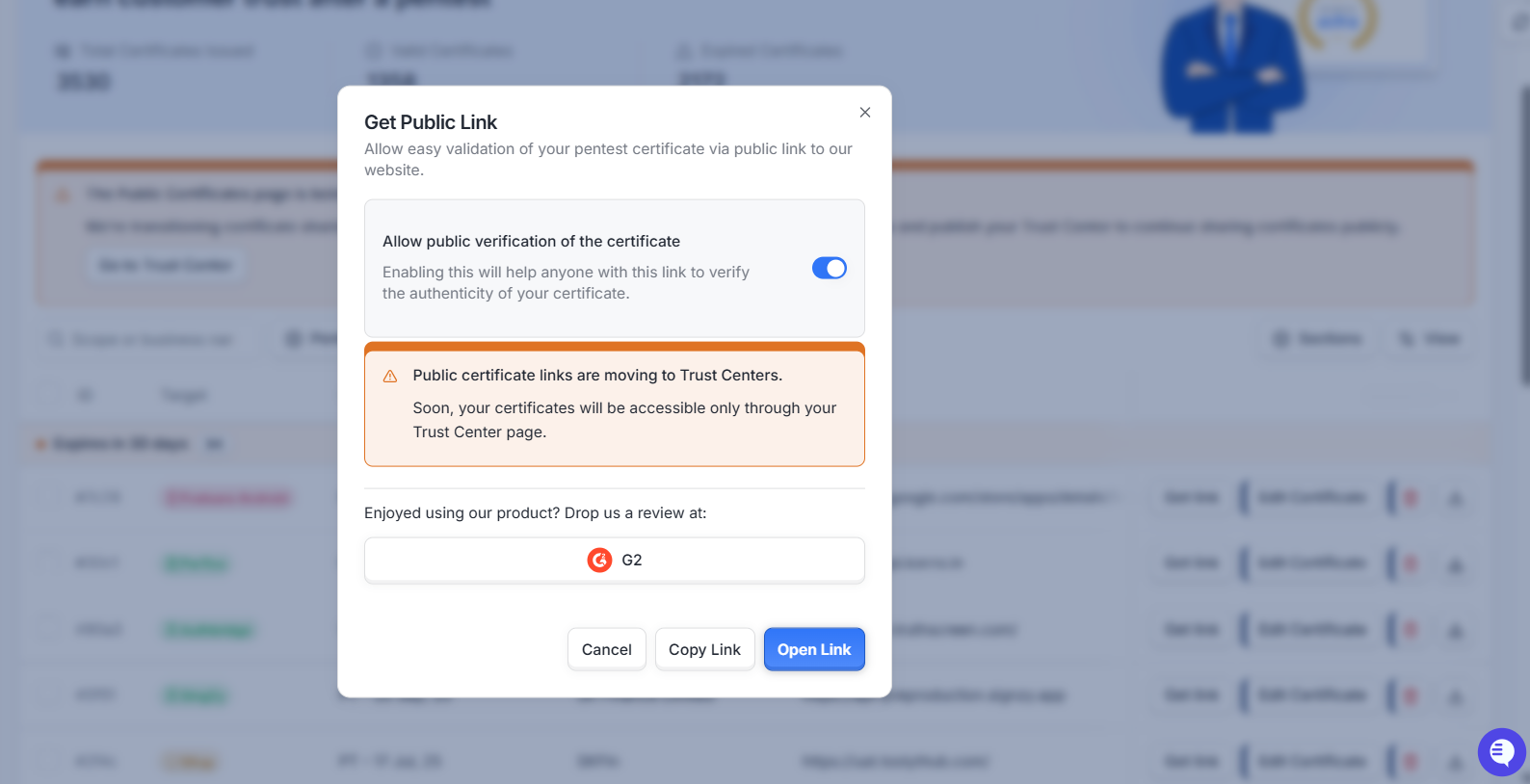
Click on the “get link” button for the required certificate
Toggle for public verification link
Click “open link” for preview of the certificate or “copy link” for direct link.
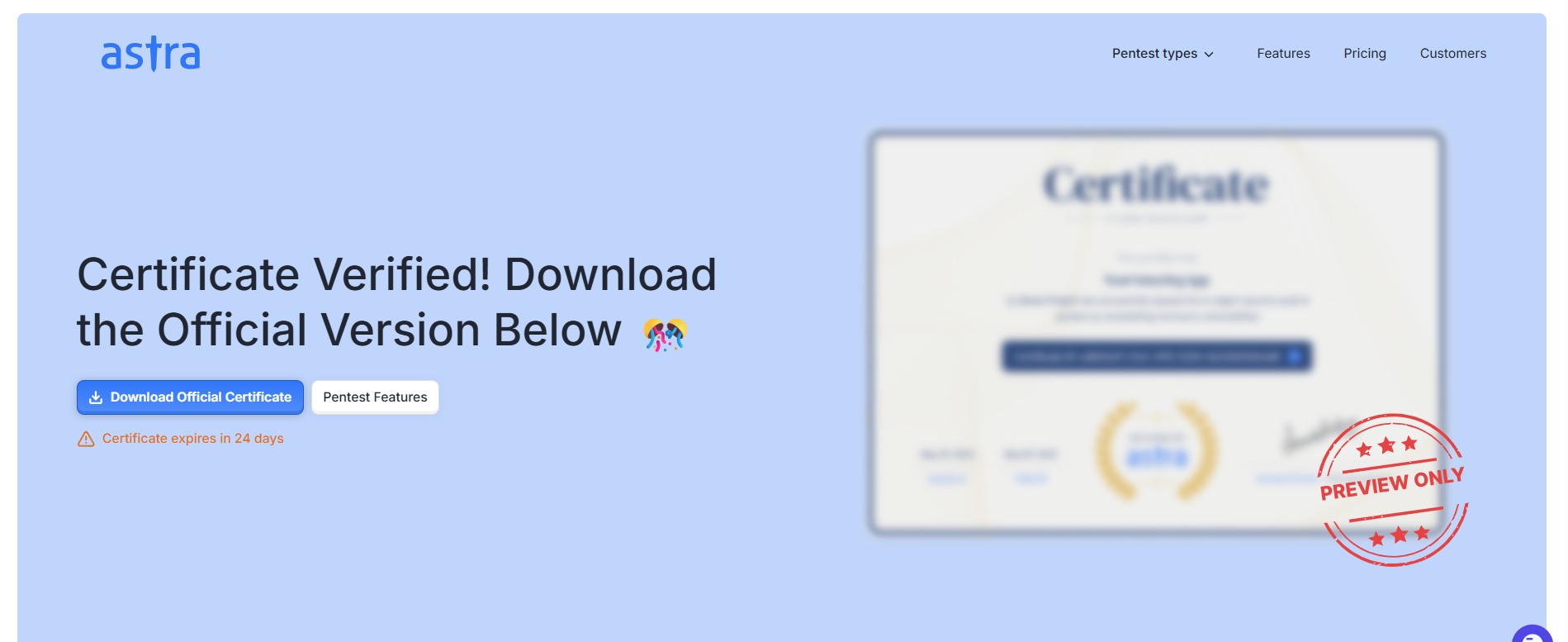
Sample of the certificate can be found in link here: :https://my.getastra.com/vapt/verify/certificates?certificateId=adfd4a2f-21a3-4ff8-8354-bb250658cbd8
Best Practices
Keep your certificates active and current
Renew before expiry by scheduling your next pentest at least 30 days before the current certificate expires. Gaps in certification can affect compliance audits and stakeholder trust.
Enable public verifiability for external sharing
When sharing certificates with customers, partners, or auditors, always toggle on "Make the certificate publicly verifiable" from the Certificates page. This lets recipients verify authenticity directly on Astra's website using the certificate's unique ID, adding credibility without requiring them to log in.
Use the public link instead of PDF for external parties
The public link is harder to forge and always reflects the current status of the certificate. Reserve PDF downloads for internal records or formal document submissions where a static file is required.
Extend before you expire
If your certificate is within its 180-day validity window and you have made minor updates to your application, request a vetted scan to extend validity by another 180 days rather than going through a full pentest. This saves time and cost. Note that any critical, high, or medium severity vulnerabilities found during the vetted scan must be fixed before the extension is issued.
Go for a new pentest after major releases
If your application has gone through a significant version update, new feature rollout, or architectural change since the last pentest, a vetted scan is not sufficient. Initiate a new pentest to ensure the certificate reflects a comprehensive and current assessment.
Download certificates in bulk when managing multiple targets
Use the multi-select option in the Certificates table to download certificates for several targets at once, especially useful before compliance reviews or board presentations.