Overview : Pentests page
Last updated: June 8, 2026
Summary
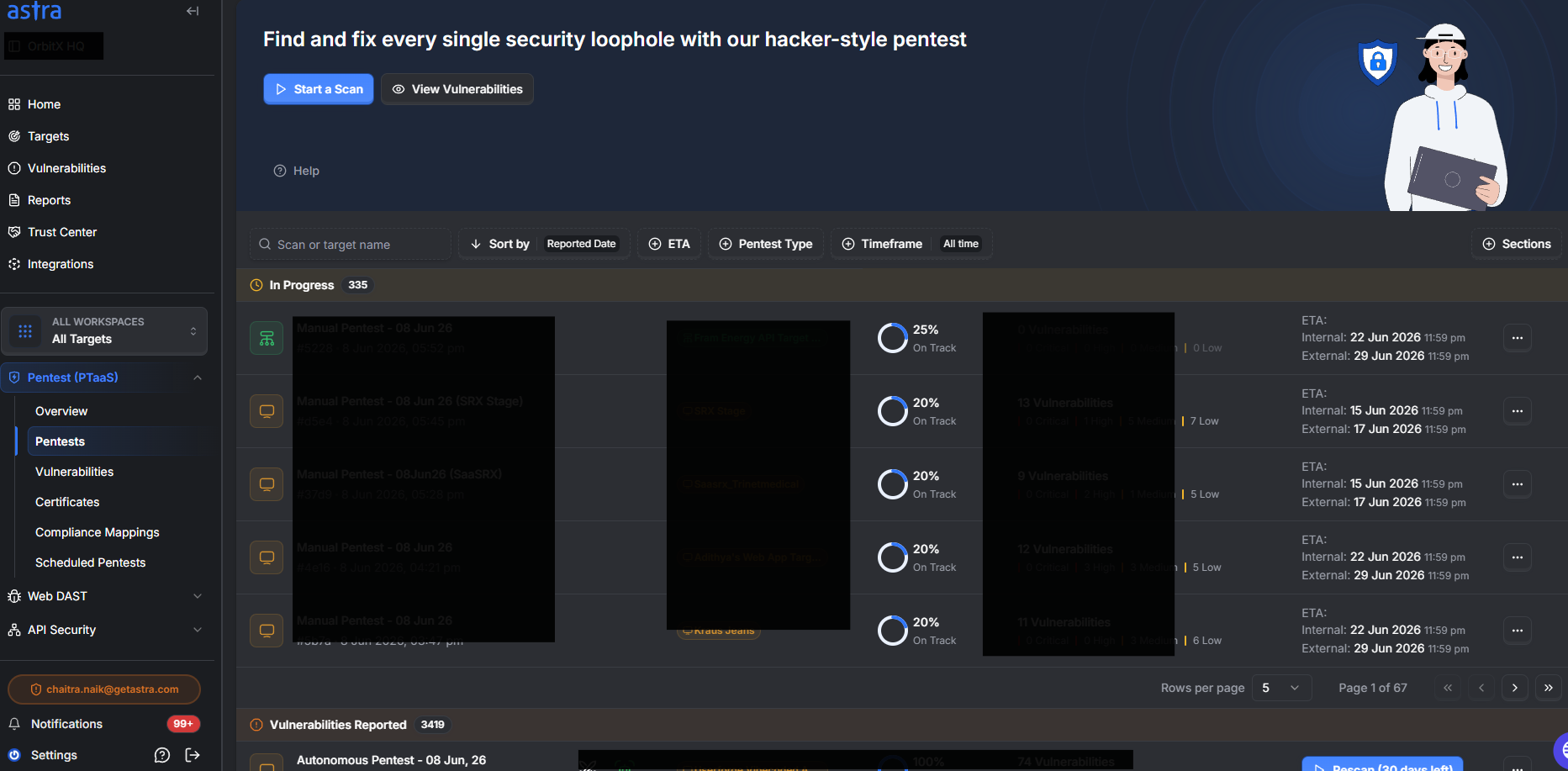
The Pentest List Page provides a centralized view of all your manual pentests across every target, organized by stage. It lets you track progress, manage vulnerabilities, and take action at each step of the pentest lifecycle.
Who Should Read This
Security leads use this page to monitor the status of active assessments across multiple targets. Developers use it to track which vulnerabilities need fixing and when rescans can be requested.
Key Functions
Stats Bar shows the total number of pentests completed in the last 30 days, past year, and overall.
Sectioned Tables organize pentests by their current stage:
In Progress — active scanning and analyst assessment is underway; ETA reflects when vulnerabilities will be reported to you
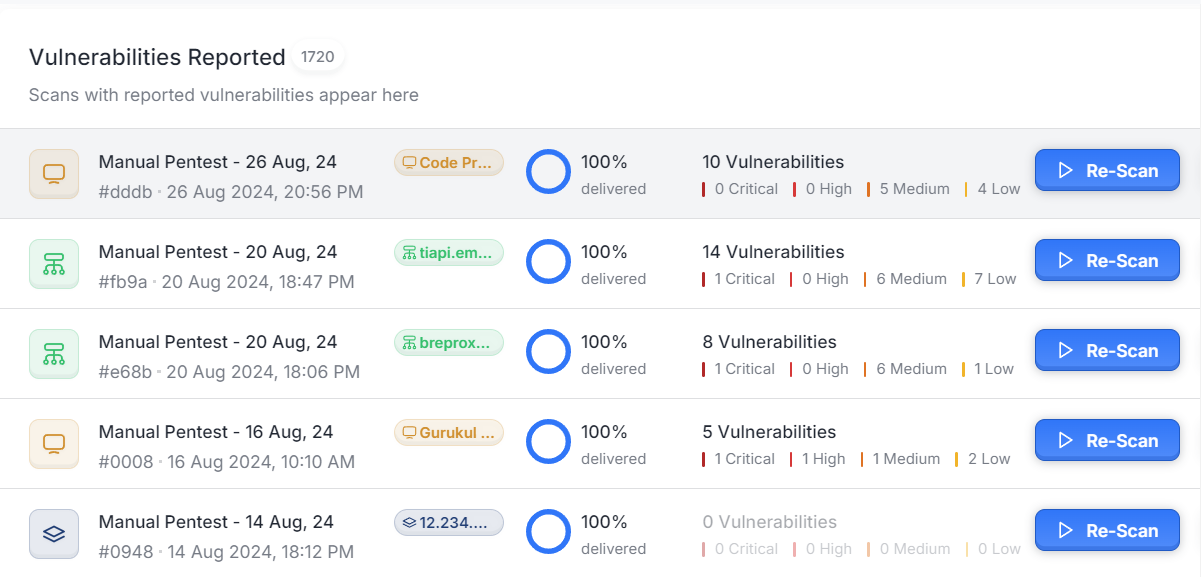
Vulnerabilities Reported — analysts have shared findings; fix and mark vulnerabilities as ready for review before requesting a rescan
Rescan In Progress — engineers are verifying your fixes; up to two rescans are available per pentest
Completed — pentest is at 100%; report and certificate can now be generated
Pentest Table Row shows scan name and ID, start date, target name and type, current progress percentage and stage, and a vulnerability count broken down by severity.
How to start a Pentest?
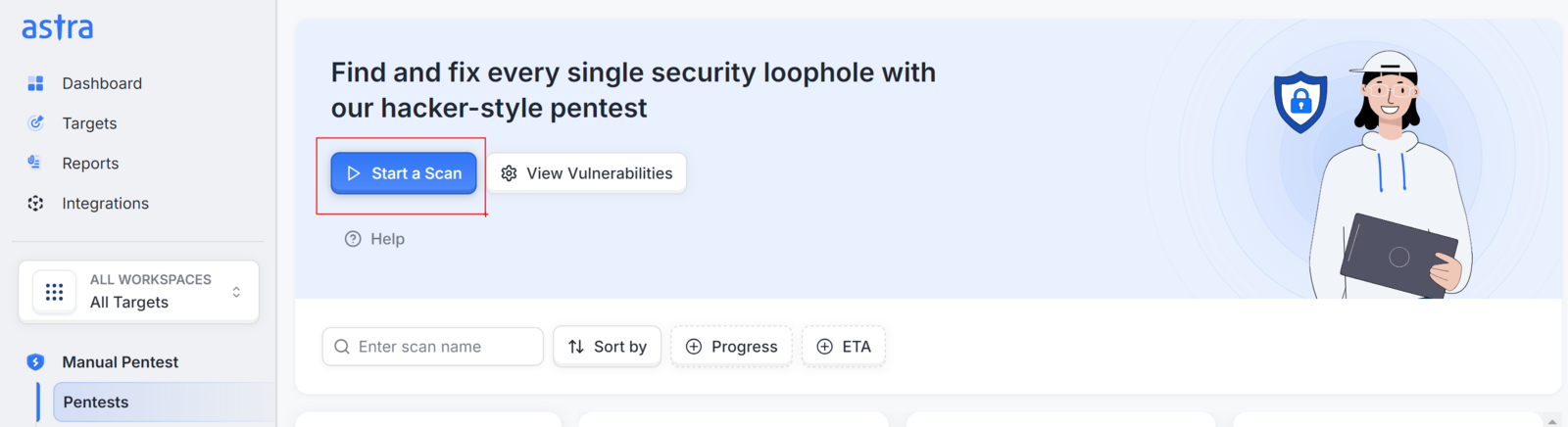
To start a pentest, click the 'Start a Scan' button to initiate a new scan from available scan types. You can also review vulnerabilities across your targets by selecting 'View Vulnerabilities,' which will direct you to the Vulnerabilities page.
Available Actions
Click Start a Scan to initiate a new pentest
Click View Vulnerabilities to go to the Vulnerabilities page
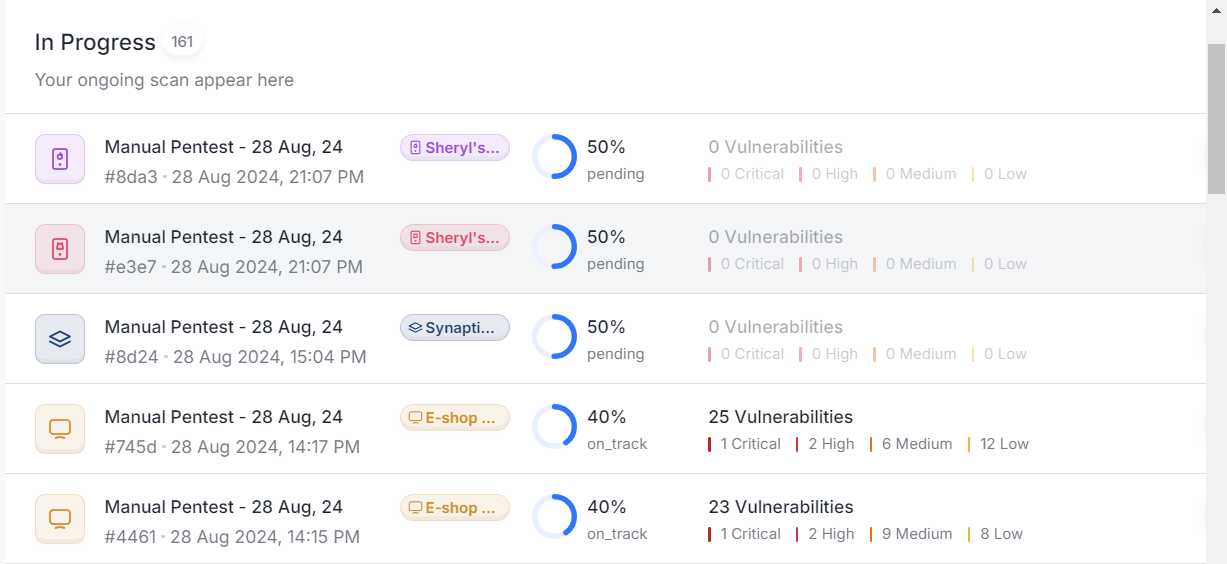
Click any pentest title to open the Pentest Details page
Click the Re-scan button on any row in the Vulnerabilities Reported table to request a rescan
Use the search bar to find pentests by scan name
Use Sort By to order pentests from newest to oldest or vice versa
Use Filters to narrow by stage or ETA status
Use the kebab menu (three-dot button) on any row to delete a pentest
Best Practices
Request a rescan only after fixing at least 50% of vulnerabilities and marking each fixed item as ready for review. This ensures engineers can validate the maximum number of fixes in a single pass and preserves your available rescan quota.
Troubleshooting
If no pentests appear on the page, confirm that your target has been verified and set to active, then start a scan. Pentests only appear after a scan has been initiated.