How to Create and Configure Trust Center for your Targets
Last updated: August 7, 2026
The Trust Center is a customizable, publicly accessible platform that allows organizations to transparently showcase their security posture. It enables companies to share up-to-date details about their security practices, certifications, compliance frameworks, and risk management strategies with customers, partners, and stakeholders.
With features such as real-time metrics, branding options, FAQs, and compliance details, the Trust Center helps build trust and reinforces your organization’s commitment to security.
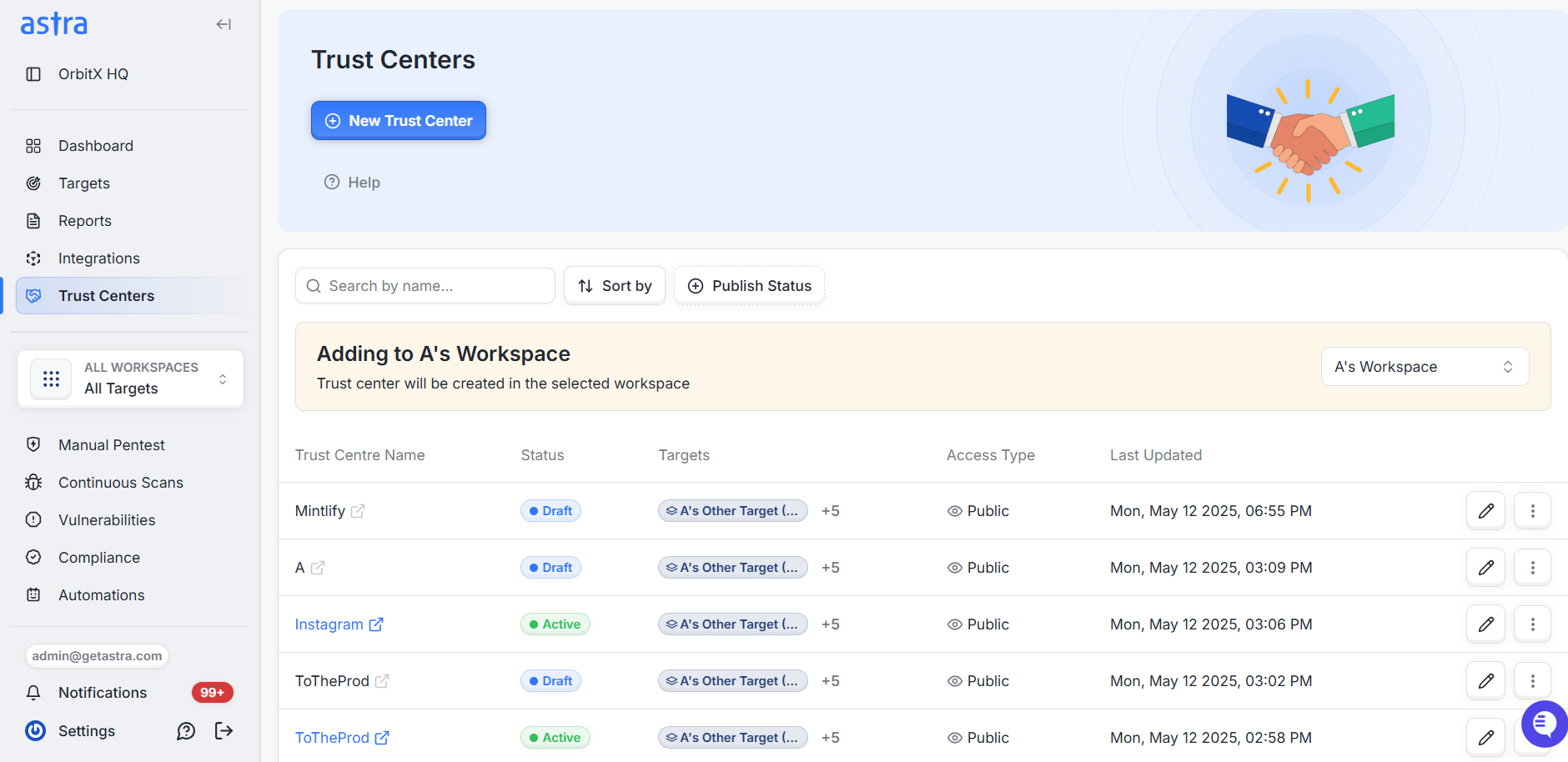
Creating a Trust Center
Follow these steps to set up your Trust Center:
Step 1: Access the Trust Center
From the sidebar, navigate to Trust Center.
Select the workspace where you want the Trust Center to be created.
Click New Trust Center to begin setup.
Step 2: Setup Wizard
1. Target Selection
Workspace: The workspace is pre-selected based on your earlier selection and cannot be changed at this step.
Targets:
You can select All Targets, or
Click Select Targets to open the side panel and choose specific targets.
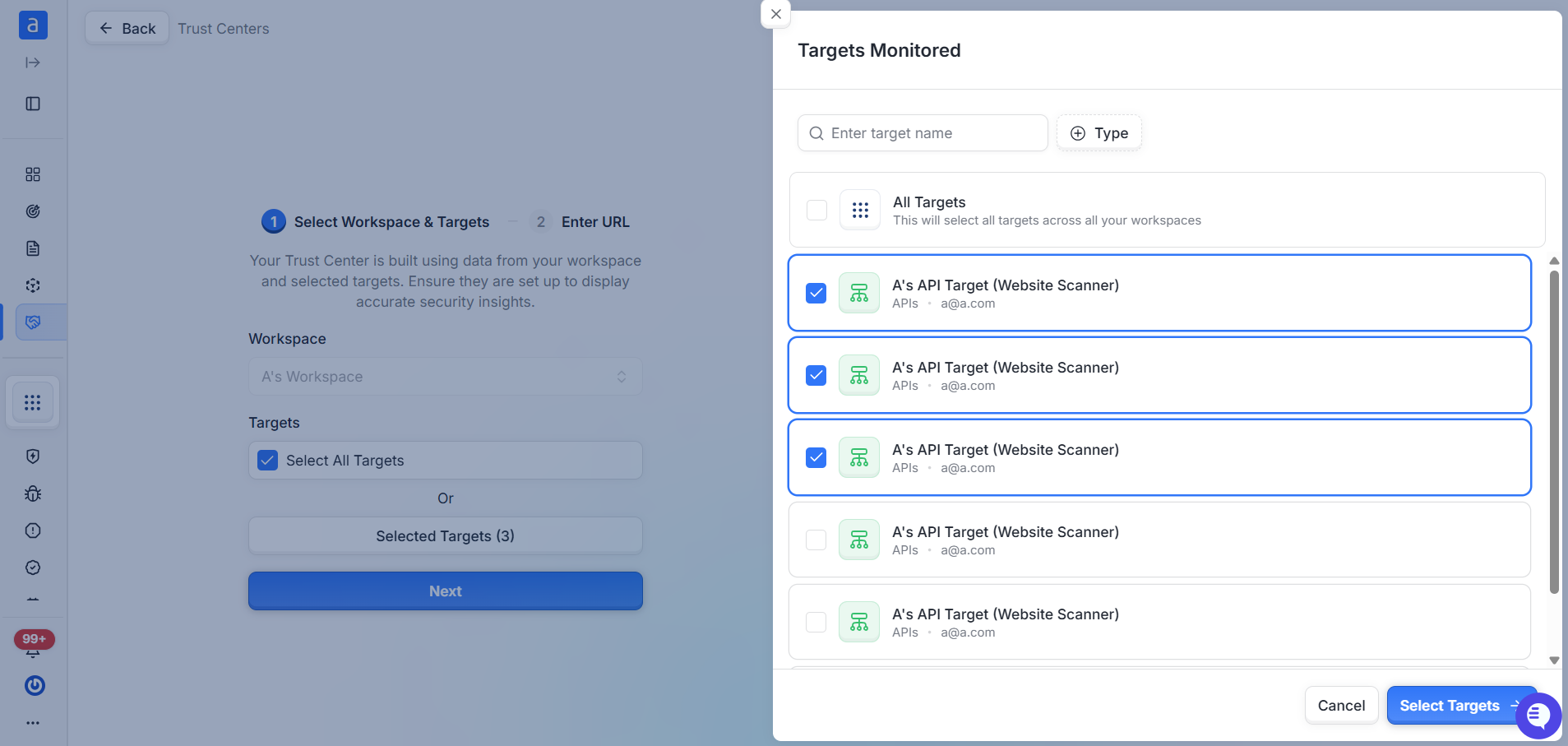
Click Next to proceed.
2. Enter Trust Center URL
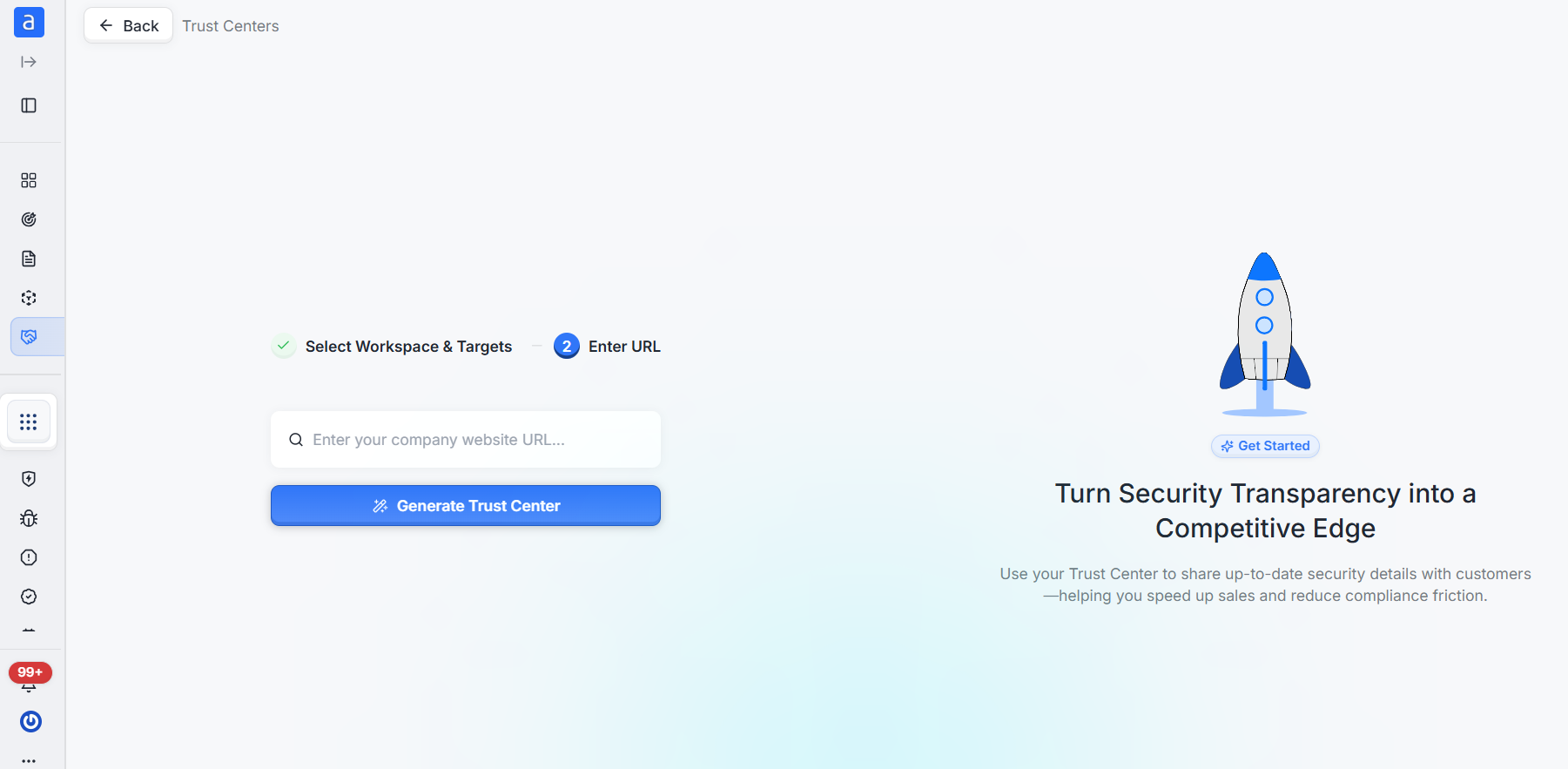
Enter your company website URL.
Click Generate Trust Center.
A side panel will display content generated by AI. Please review the information carefully and make any necessary edits before clicking Confirm to proceed.
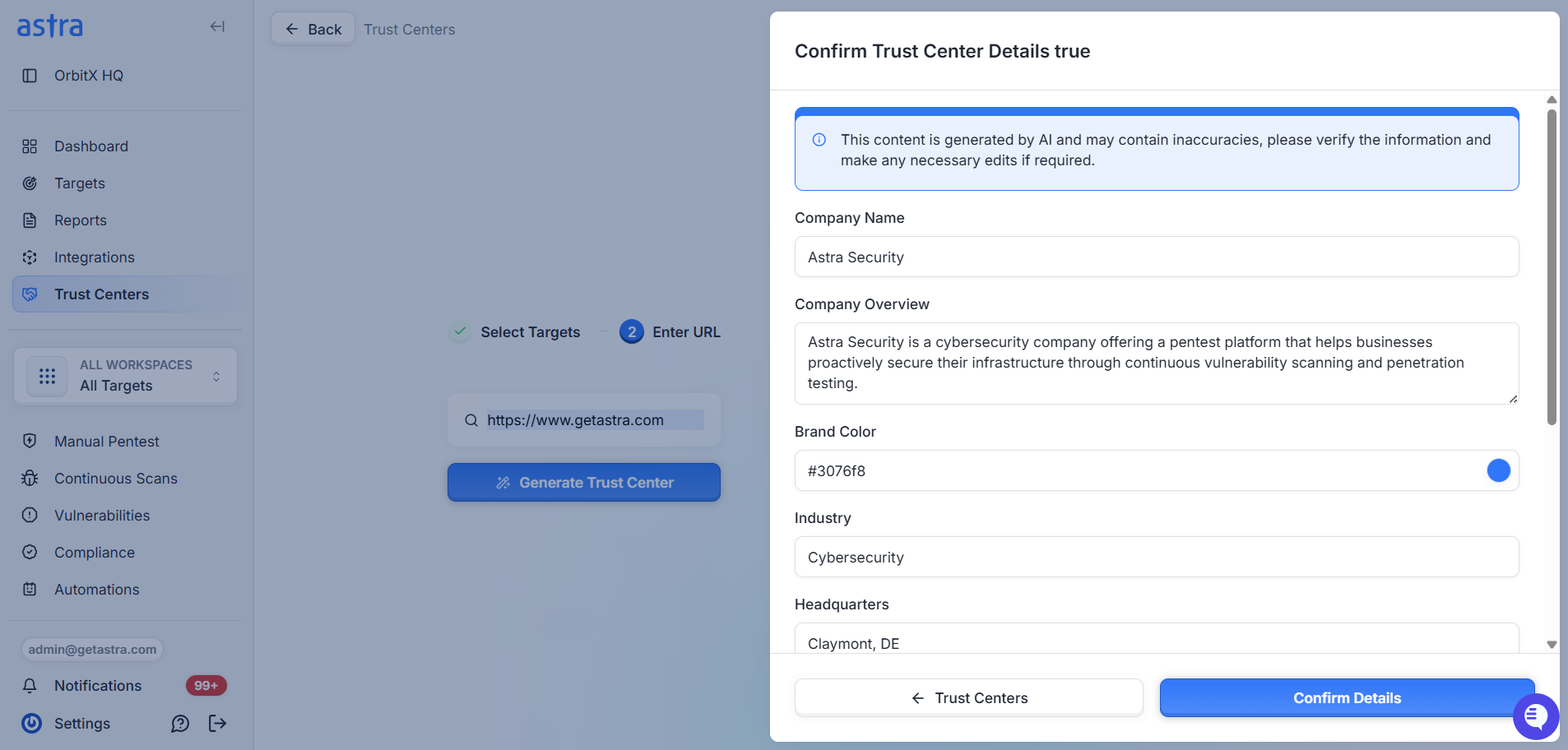
Once confirmed, your Trust Center will be created and you will be redirected to the Settings & Configuration page.
Trust Center Settings and Configuration
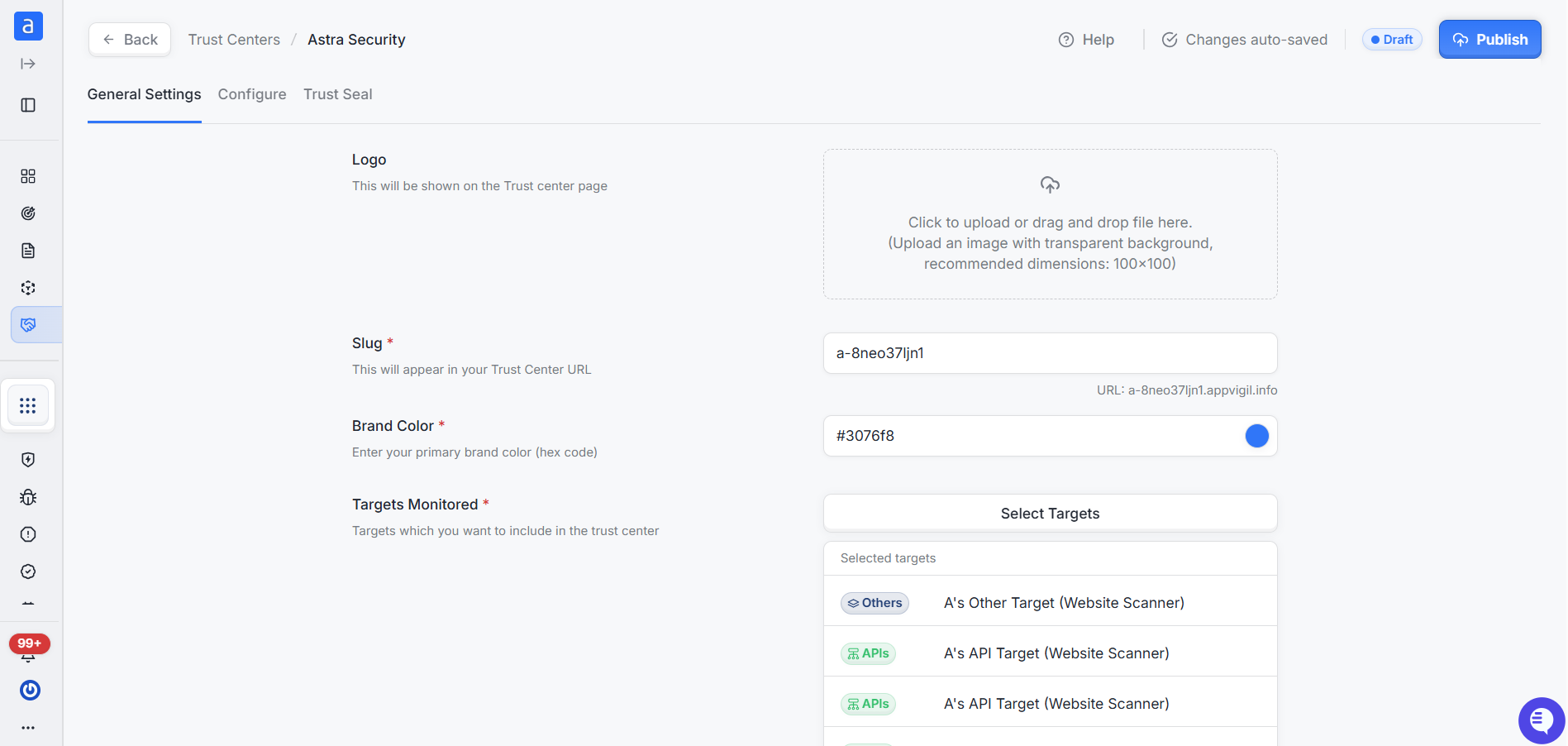
On this page, you can configure and brand your Trust Center:
General Settings
Brand Color
Enter your primary brand color in hex format (e.g.,
#3076f8).This field will be auto-selected during setup.
Targets Monitored
Select the targets to display in the Trust Center.
All targets will be auto-selected by default.
Slug
Defines the unique URL path for your Trust Center.
The slug should be unique and will appear in the public URL of your Trust Center (e.g.,
slug.domain.com).
Logo
Upload your company logo. Recommended format: PNG with transparent background, 100x100 pixels.
Click to upload or drag-and-drop the file.
Content Visibility Configuration
After configuring general settings, you can define what is visible to the public on your Trust Center. You can also edit content that reflects your company’s security posture.
The sections you can manage include:
Header Section
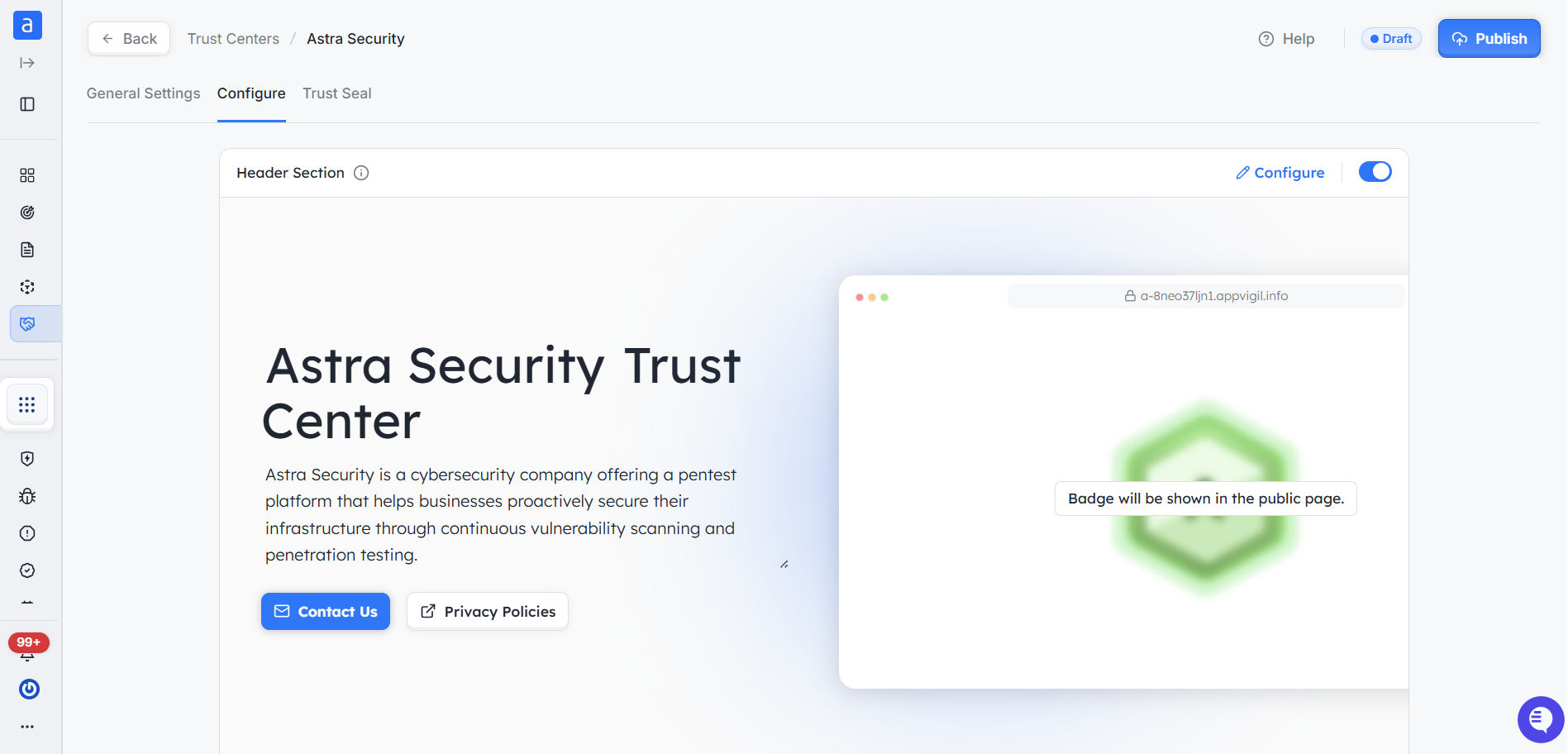
This section allows you to customize basic company details shown on your public Trust Center, including your company name, logo, contact information, privacy policies, industry, founders, and office location. You can easily toggle the visibility of each field, and changes are saved automatically.Security Posture
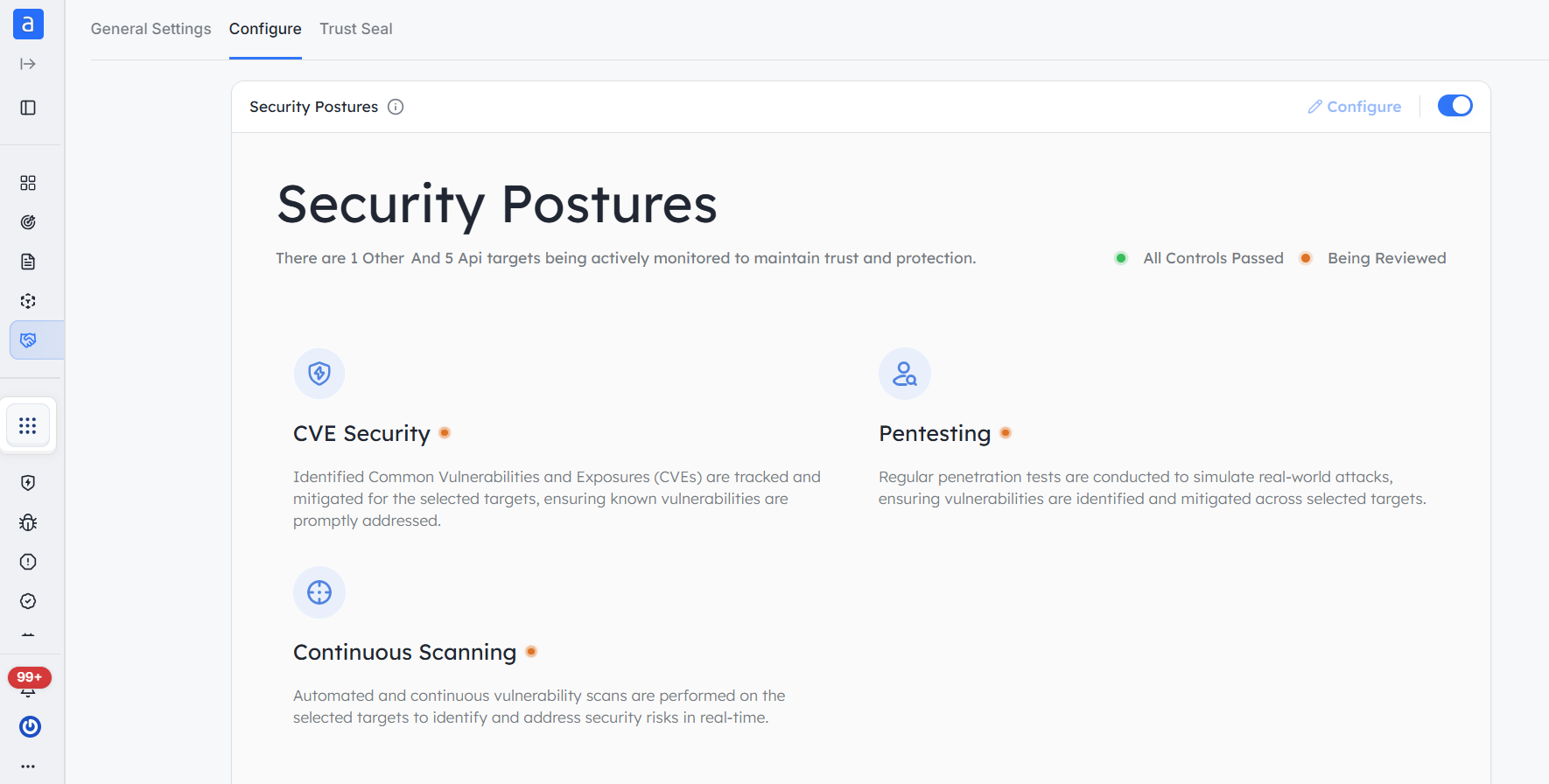
Displays real-time insights into the security status of your monitored targets. This includes details on continuous vulnerability scanning, penetration testing, and CVE coverage — all presented in one unified view.Security Assessment
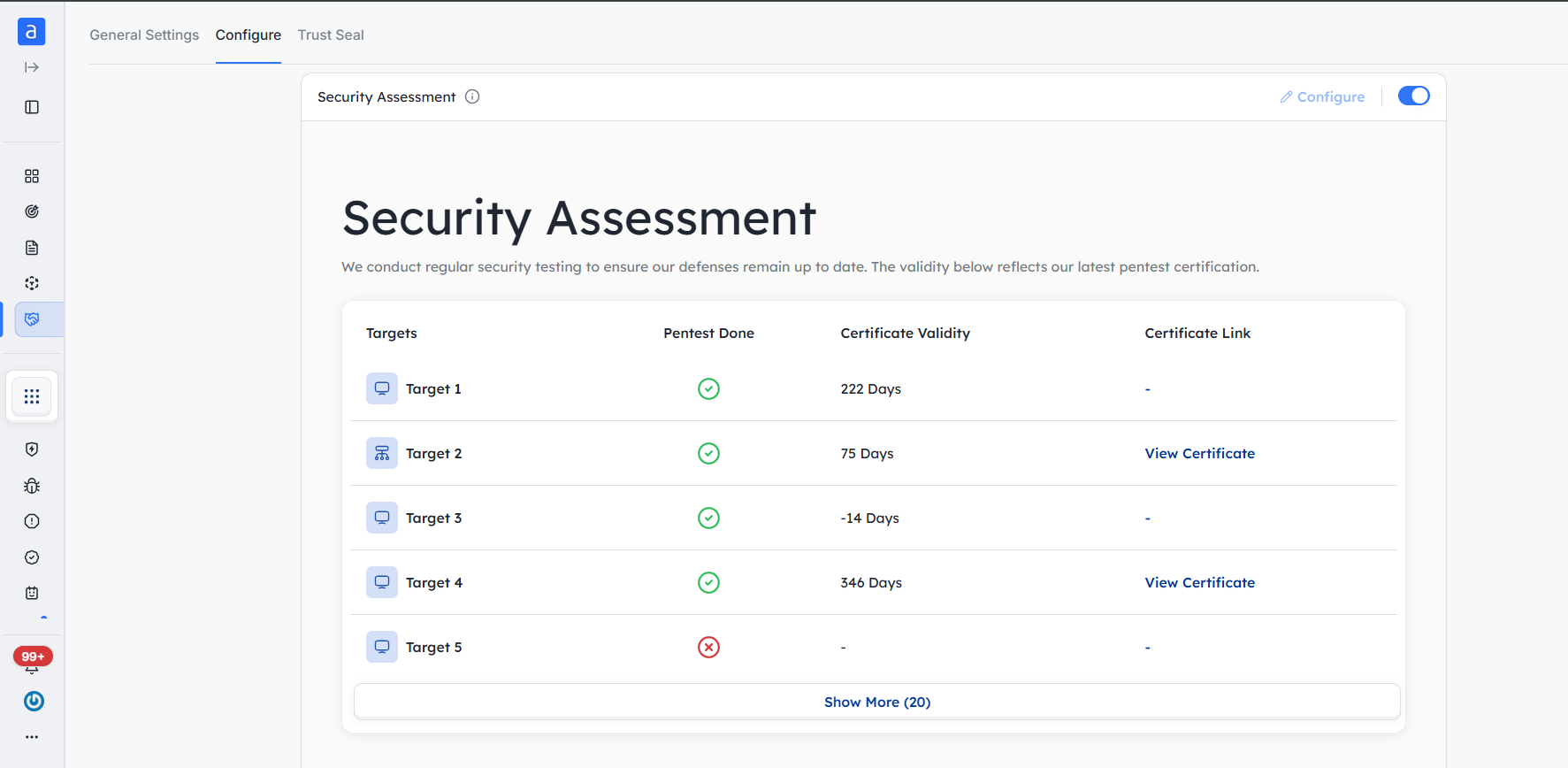
Highlights the latest penetration test results. It includes information about the tested targets, the date of the pentest, certificate validity, and a link to the certificate (if available). This section helps establish trust through third-party security validation.Compliance
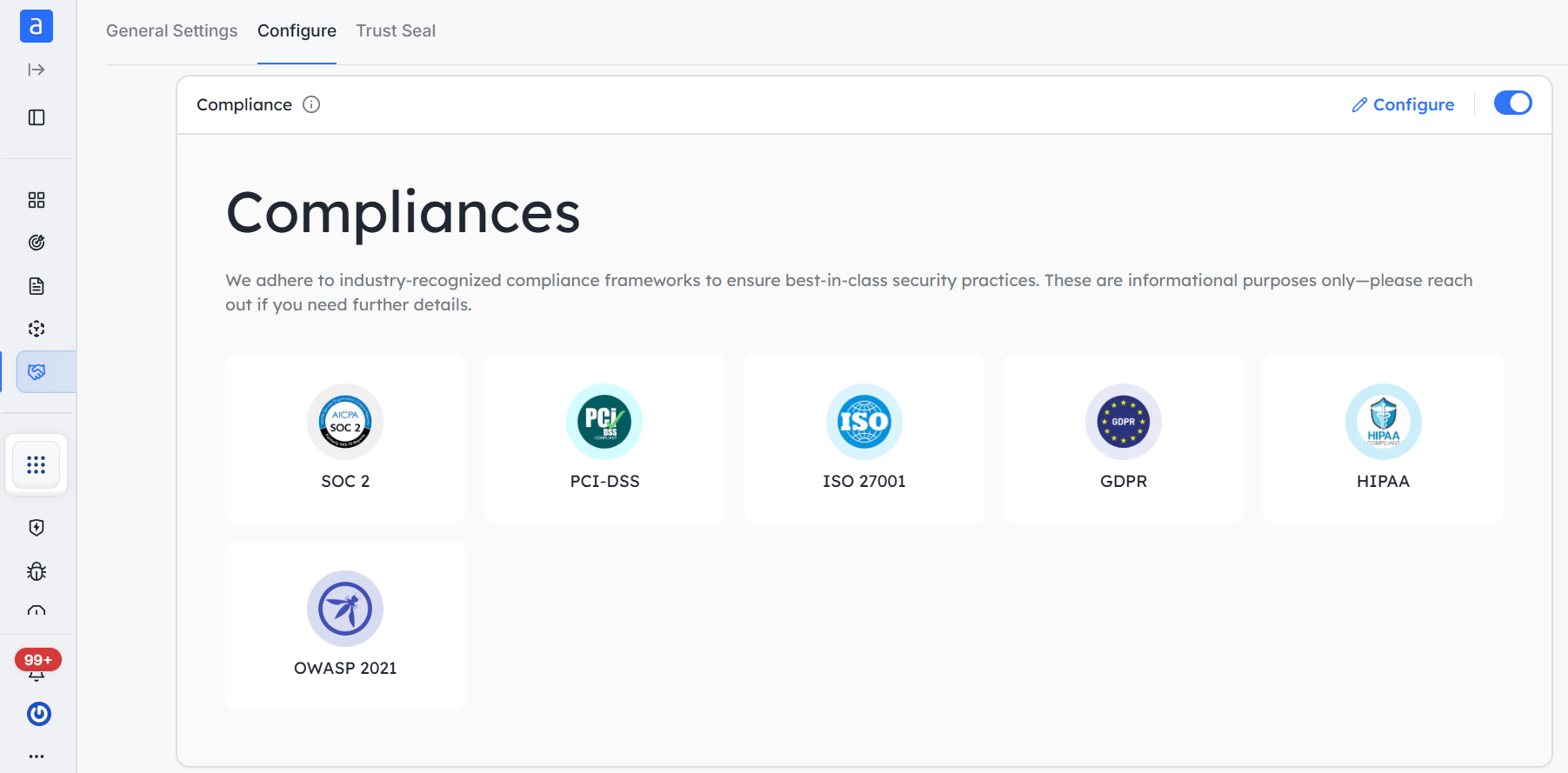
Showcases the compliance standards your organization follows, such as SOC 2, ISO 27001, PCI-DSS, GDPR, HIPAA, and OWASP 2021. These are for informational purposes, and you can configure which certifications to display.APIs Monitored
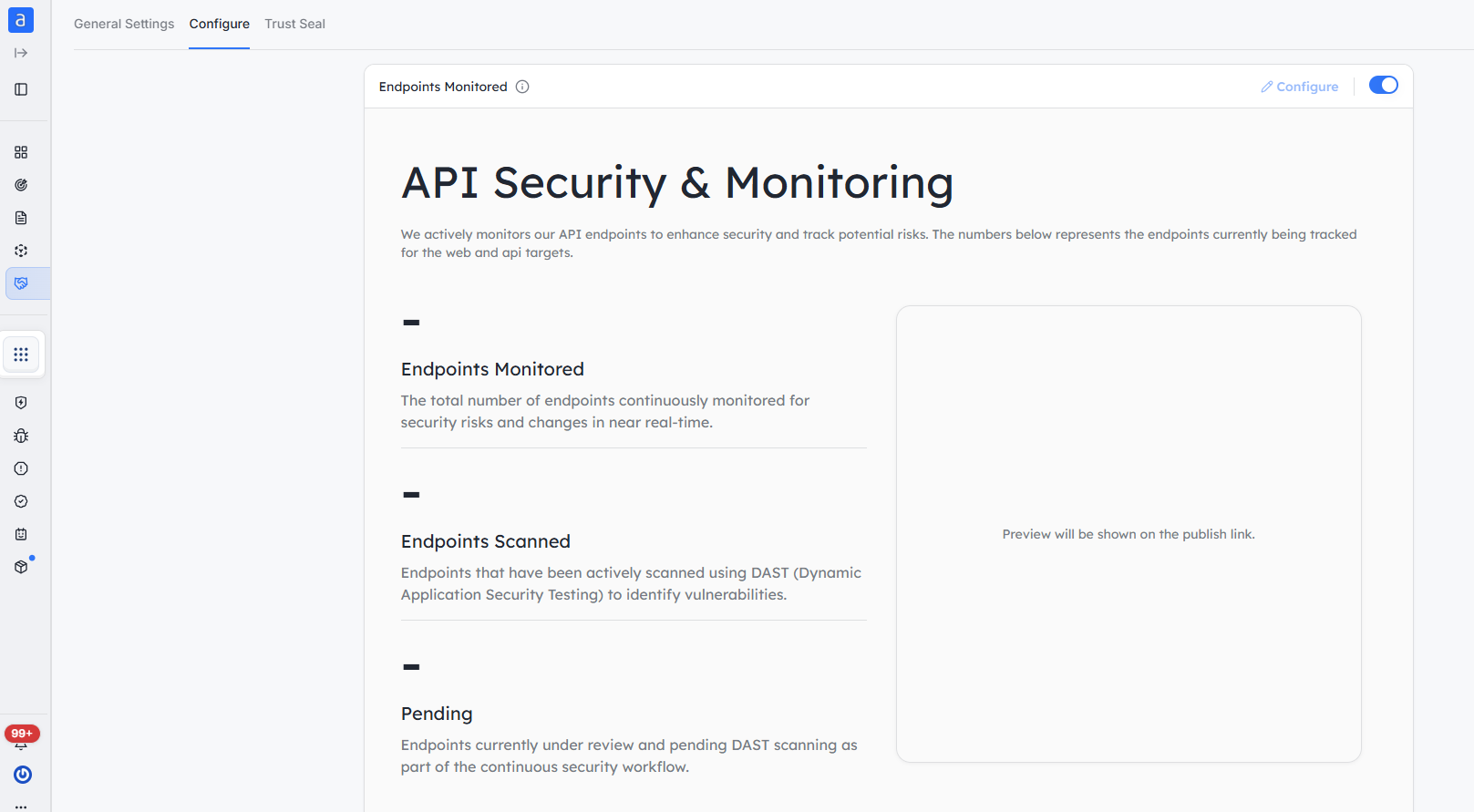
Provides an overview of API security monitoring. It includes the number of endpoints being continuously tracked, endpoints scanned using DAST (Dynamic Application Security Testing), and those pending scans.Vulnerability Reporting
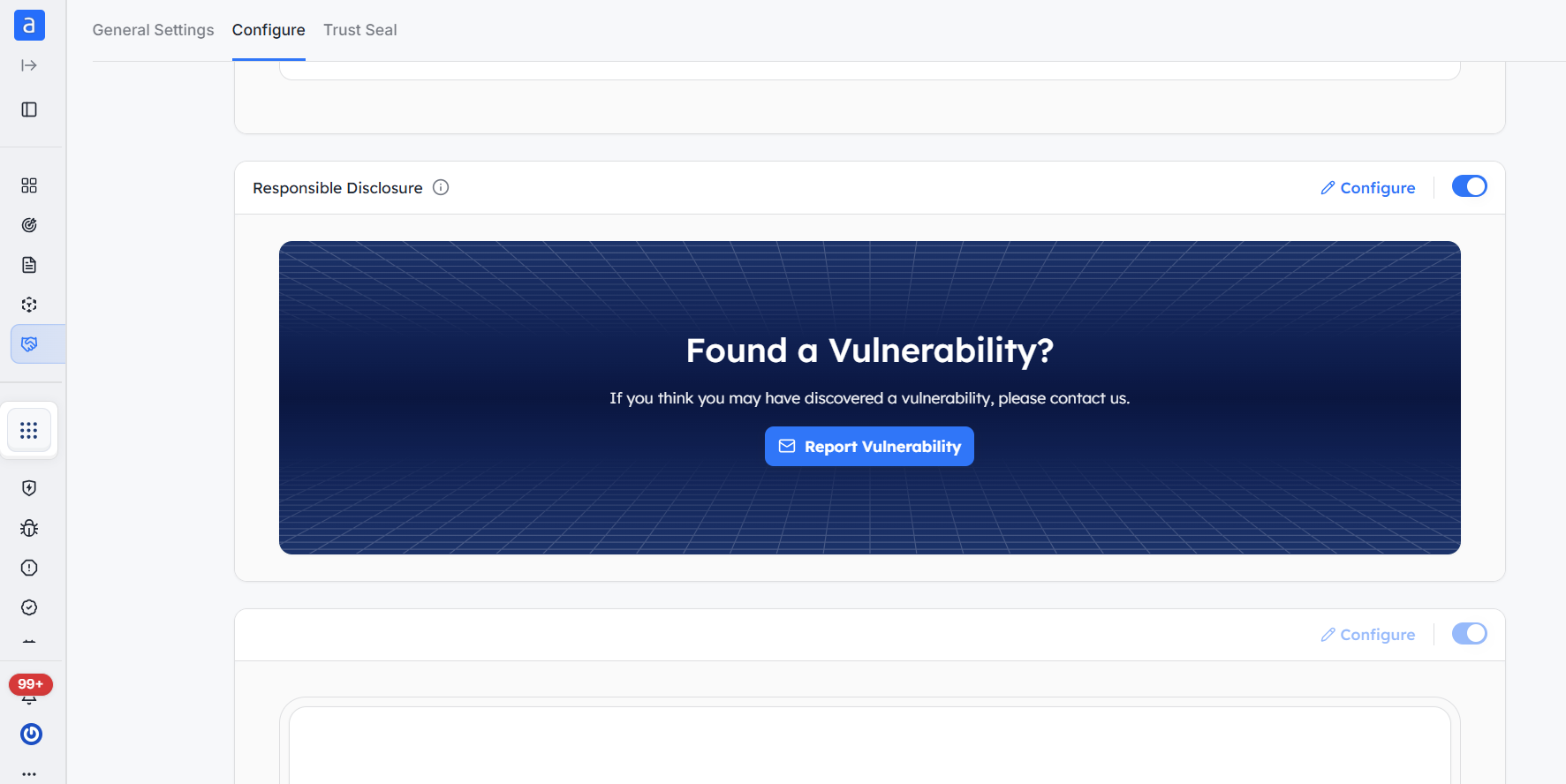
Enable users or clients to report vulnerabilities they discover within your platform or product. This could be a form or direct contact option to facilitate responsible disclosure.FAQs
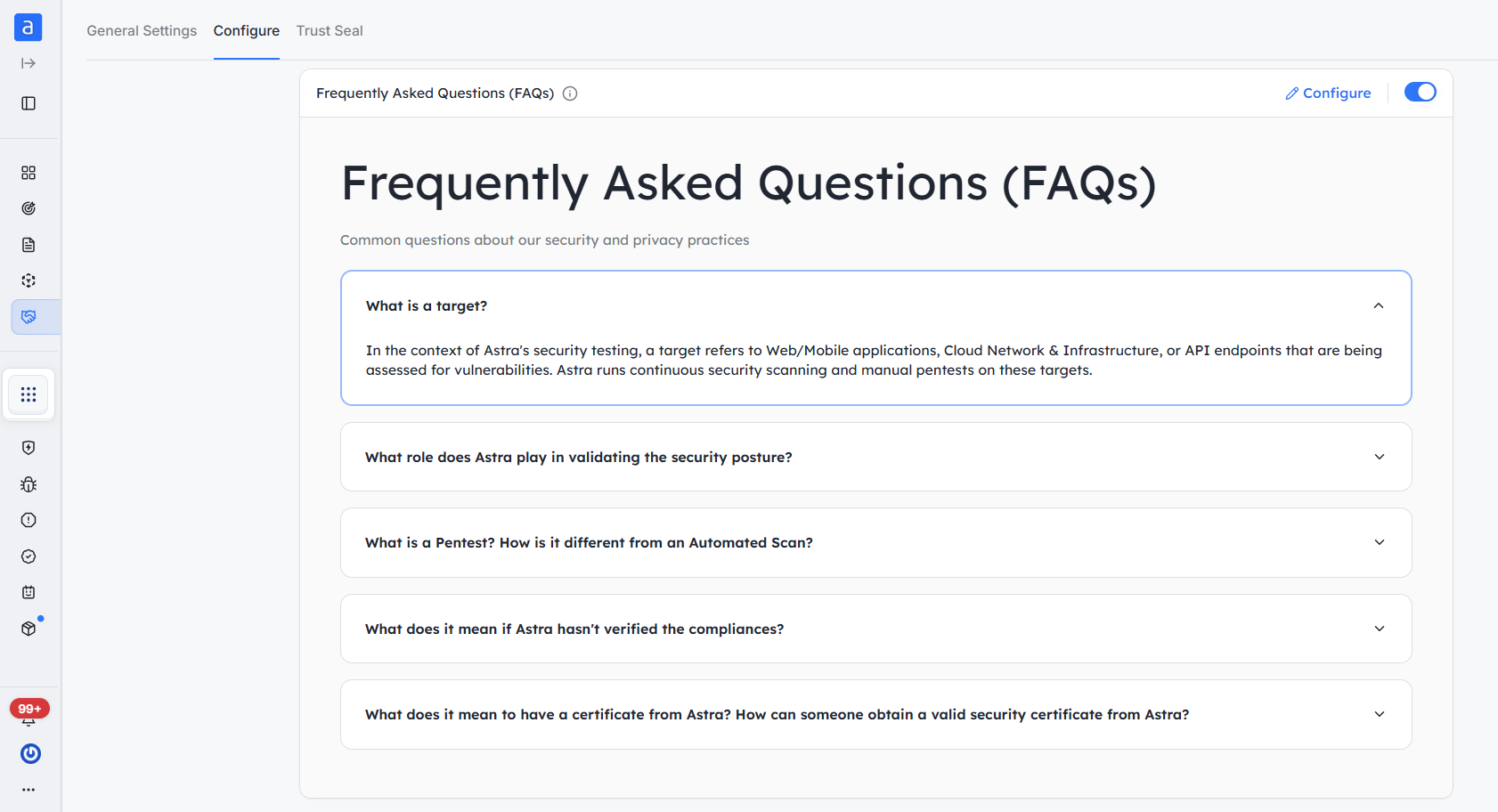
This allows you to control what information is shared and ensure it aligns with your organization’s messaging and security transparency goals.
Trust Seal
A key feature of the Trust Center is the Trust Seal, which you can use to promote your security commitment externally.
Using the Trust Seal
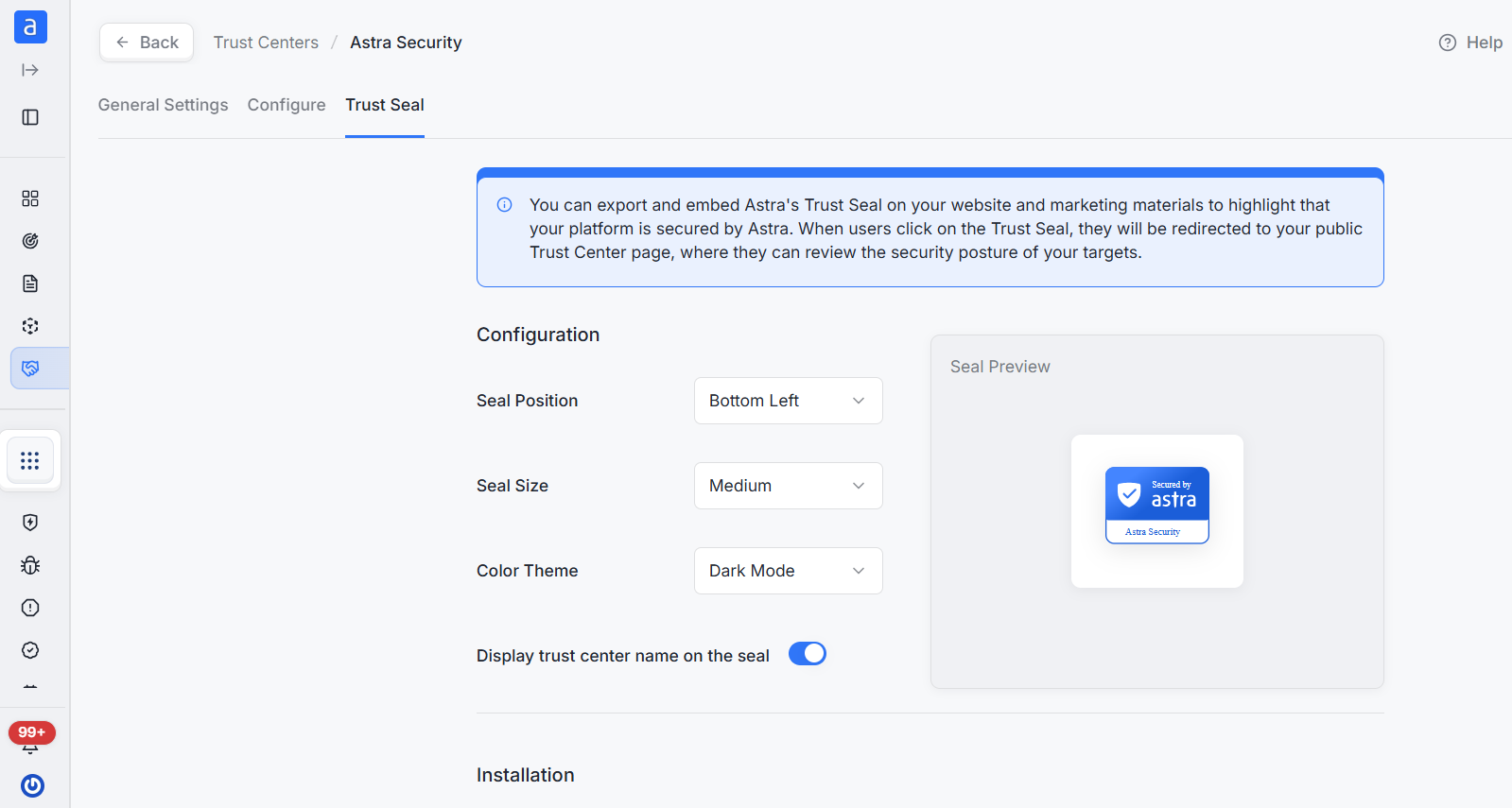
You can export and embed Astra’s Trust Seal on your:
Website
Marketing materials
Landing pages
Product pages
Instructions are available directly on the Settings page under the Trust Seal section.
When users click the Trust Seal, they are redirected to your public Trust Center page, where they can review the real-time security posture and details of your selected targets.
This enhances customer confidence and highlights that your platform is secured by Astra.
Additional Options
Help – Provides contextual assistance to guide you through configuration or usage of the Trust Center.
Actions – Available in the top-right corner:
Preview
See what your Trust Center will look like before going live.Unpublish
Temporarily hides the Trust Center from public view.Active
Indicates that the Trust Center is currently live and publicly accessible.Publish
Makes the Trust Center live and accessible to the public.Draft
A private mode for editing and reviewing your Trust Center before it goes live.