How Can I Change My Email Address?
Last updated: November 24, 2026
Your email address is your Astra identity. It's how you sign in, where notifications go, and what links you to your workspaces and subscriptions. Because of this, Email Address can't be edited on the Profile page. Changing it takes a few steps: add the new address to your workspace, and then ask Astra support to move your account to it.
Before you start, make sure you can sign in with your current email and open the inbox of the new one.
Add the new email to your workspace
Sign in with your current email.
Click Settings in the sidebar. Under Workspaces, pick the workspace and click Members.
Click Invite Members.
Under Email(s), type the new address and press Enter.
Choose a Role. We recommend Workspace Admin so the new address keeps full access.
Click Invite Members.
Repeat this for each workspace you use.
Accept the invitation
Open the new inbox and follow the invitation email from Astra. If the new address doesn't have an Astra account yet, you'll be asked to set a password. Support can only move your account once the new address is verified.
If the invitation doesn't arrive, check the spam or junk folder. For a work email, ask your IT team to allowlist the getastra.com domain, or ask support to send the invitation again.
Transfer workspace ownership (owners only)
If you own a workspace, you can hand it to the new address yourself:
On the workspace's Members page, click the new address to open its details.
Click Transfer ownership.
Confirm your sign-in when asked. With a password, enter it and click Confirm transfer. With Google or Microsoft, use that button.
The new address becomes the owner, and your old address stays on as an admin.
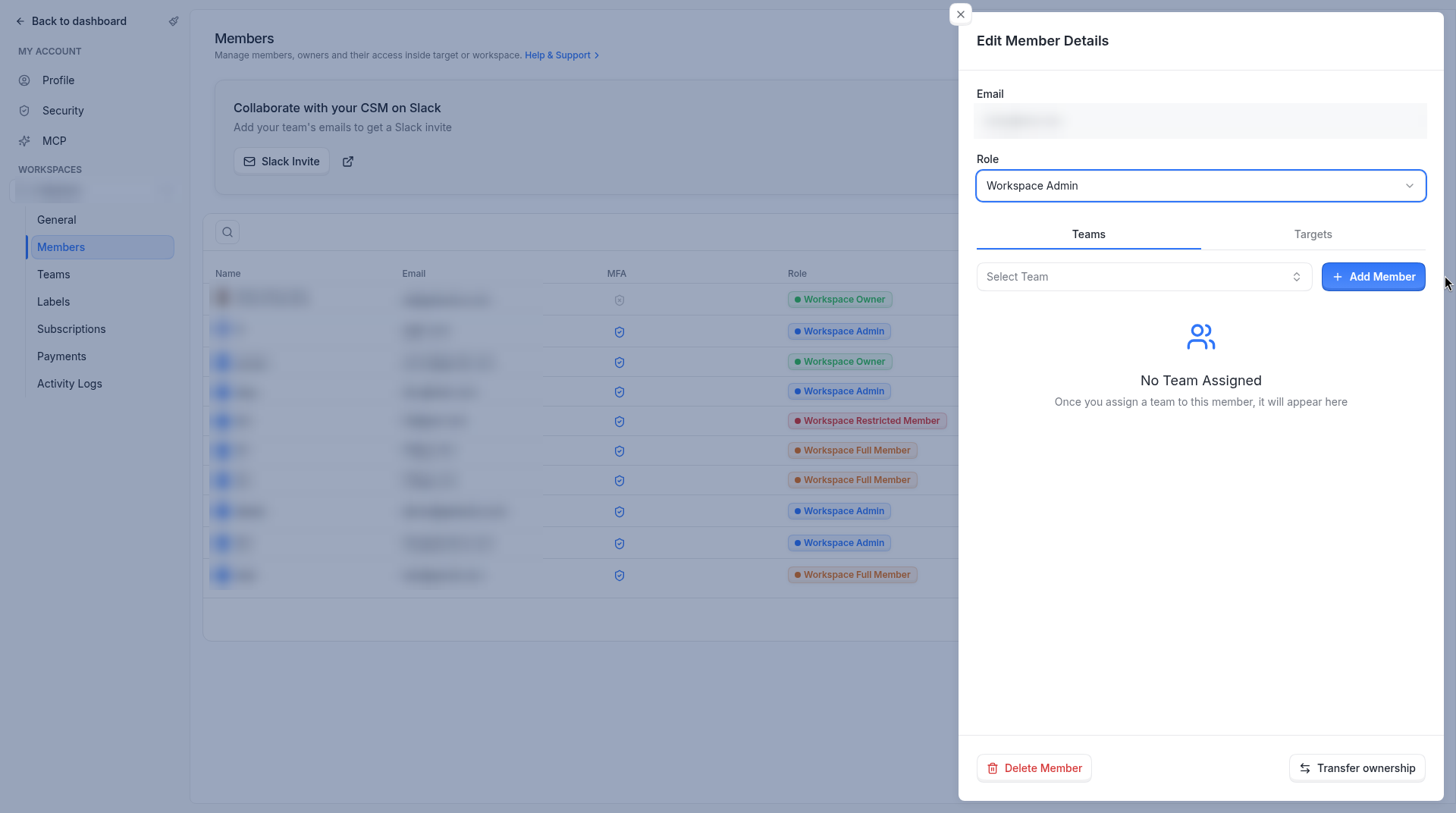
Open a member's details to transfer workspace ownership to them.
Ask support to finish the change
Contact Astra support from your current email. Open the account menu at the bottom of the sidebar and click Chat with Support, or email help@getastra.com. Include:
The new email address.
Why you're changing it.
If you bought a subscription, whether your subscriptions, targets and other assets should move to the new address.
Support confirms when the change is complete. Then sign in with the new address and check that your targets, subscriptions and workspace data are there.
Remove the old email
When everything is visible under the new address, you can remove the old one:
Sign in with the new address.
Open the workspace's Members page and click the old address.
Click Delete Member and confirm.
Deleting a member removes their access to the workspace's targets and settings. Do this only after the transfer is confirmed, because it can't be undone.
Need help?
If you have questions about moving your account, contact Astra support at help@getastra.com.