Cloud Target Setup
Last updated: August 7, 2026
Introduction
This guide explains how to set up a cloud target in Astra so the scanner can assess your cloud environment and run comprehensive security tests.
To perform a comprehensive Cloud Security Assessment, please provide access based on your cloud provider. All actions taken are read-only and intended for assessment purposes only.
Prerequisites
1. AWS Cloud
Create a new IAM user in Production.
Attach the Security Auditor job function.
Share:
Secret Access Key
Region(s) to be scanned
(Optional): List of AWS services in use.
2. GCP Cloud
Provide a Viewer-only access user account.
Or add
jinson.varghese@getastra.comto your GCP project.Ensure access to all used services.
3. Azure Cloud
Create a user account with Reader access.
Or grant
saatvik.dhiman@getastra.comthe Reader role.Ensure access to configuration and security settings.
4. Heroku Cloud
Share a user account with Viewer role.
5. Hetzner Cloud
Add
redteam@getastra.comas a read-only member.
6. DigitalOcean Cloud
Add
pentests@getastra.comas a read-only member.
Scope
Assessment is conducted on production accounts only.
Safety Assurance
No changes are made to configurations or data.
Activities are read-only and audit-focused.
Optional Documentation
Architectural diagrams
Security policies
Cloud configuration docs
Instructions
Step 1: Access Setup
Go to Targets on the Astra dashboard
Click Setup Target next to the target you wish to configure
Open the setup wizard

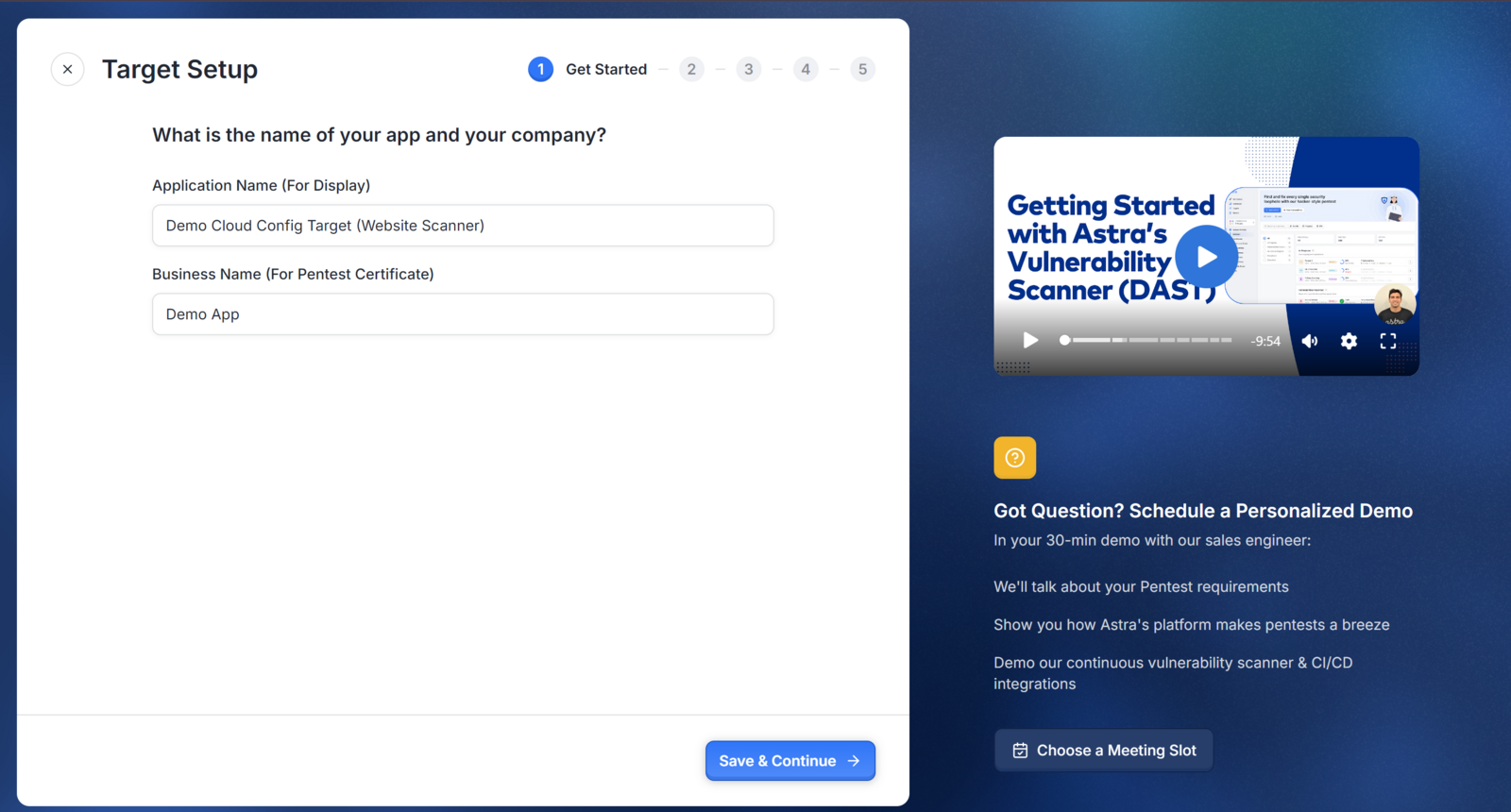
Step 2: Get Started (Basic Details)
Provide basic information about your cloud environment:
Application Name / Target Name A descriptive label to identify the target in the dashboard
Business Name Your company's name, used in scan results and any pentest certificates issued
Step 3: Cloud Provider
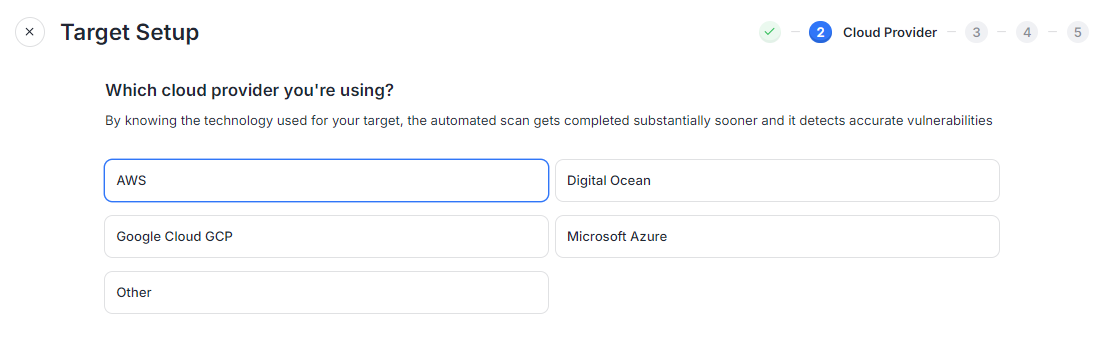
Specify the cloud provider in use to help the scanner complete more efficiently and detect vulnerabilities accurately based on provider-specific configurations:
AWS
Digital Ocean
Google Cloud (GCP)
Microsoft Azure
Other — specify if using a different provider

3. User Credentials
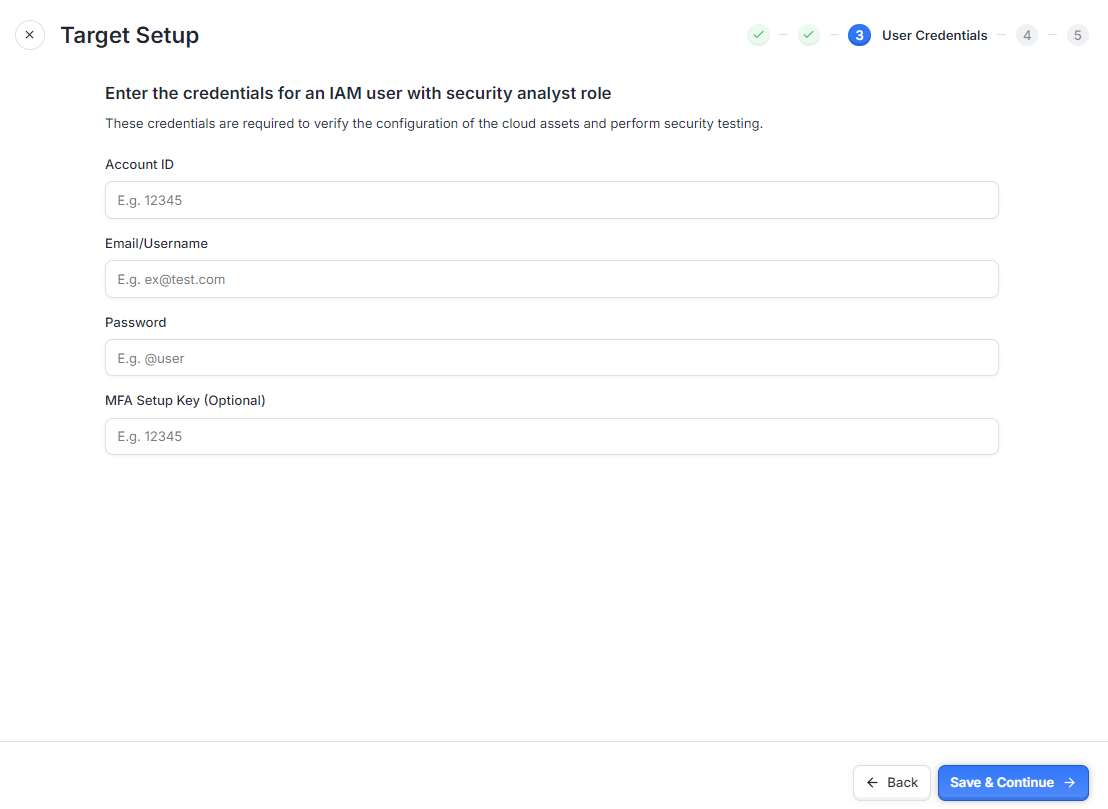
Enter the credentials for an IAM user with a security analyst role to facilitate the verification of your cloud assets and perform security testing:
Account ID
Email/Username
Password
MFA Setup Key (Optional): If your account uses Multi-Factor Authentication (MFA), provide the setup key to enable access.
4. Programmatic Access
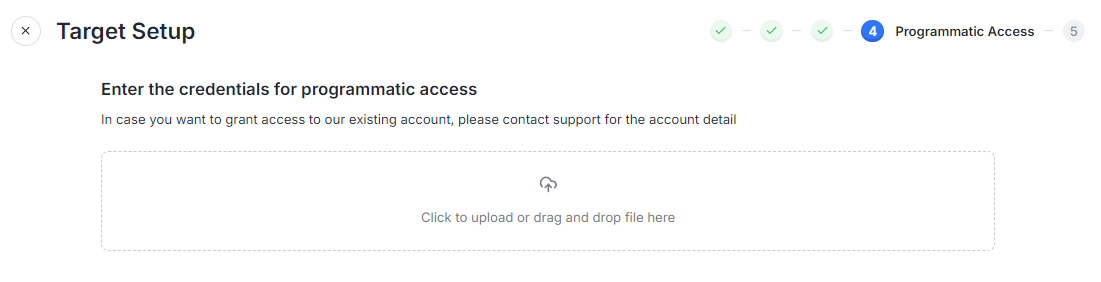
Provide credentials for programmatic access to grant the scanner automated access to your cloud account. It ensures that the scanner can perform a comprehensive assessment without manual intervention:
Upload Programmatic Access File: Click to upload or drag and drop the file containing the necessary programmatic access credentials. If you need to grant access to an existing account, please contact support for account details.
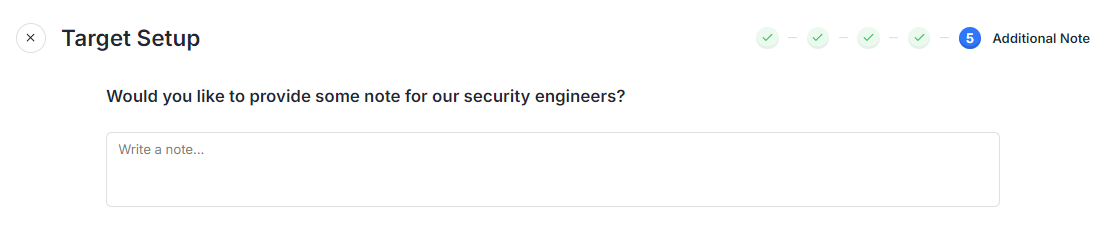
5. Additional Notes
Use this section to provide any extra information that may be relevant for the scanning process:
Special Instructions: Include any specific configurations or areas of concern.
Rate Limiting Details: Mention any rate limits that might affect the scanning process.
Focus Areas: Highlight particular assets or configurations that should be prioritized during the scan.

6. Complete Setup
After reviewing all the information you’ve provided, click Complete Setup to finalize the configuration for your cloud target. This will initiate the security scan of your cloud environment.
| If you have any questions or need further assistance, please reach out to our support team.