How to prevent scans from triggering rate limits and account lockouts
Last updated: November 3, 2026
Automated scans send many requests. Rate limiting, account lockout or brute-force protection can then block the scanner or lock the test account used for authenticated scans. This article covers three ways to prevent that.
Exempt the scanner from login limits
Add Astra's scanner IP addresses, or a secret header sent with every scan request, to the exceptions in the rate-limit and lockout rules. Read more in How to make sure Astra's scanner can reach your application.
Slow the scan down
Scan Speed sets the pause between requests.
- Open the target's settings and go to General → Scan Configuration.
- Choose a Scan Speed. To enter a different value, click Set custom value instead.
- Click Save Changes.
| Option | Pause between requests |
|---|---|
| Slow | 200 ms |
| Medium | 50 ms |
| Fast | 20 ms |
| Blazing Fast | No pause |
A slower speed makes scans take longer.
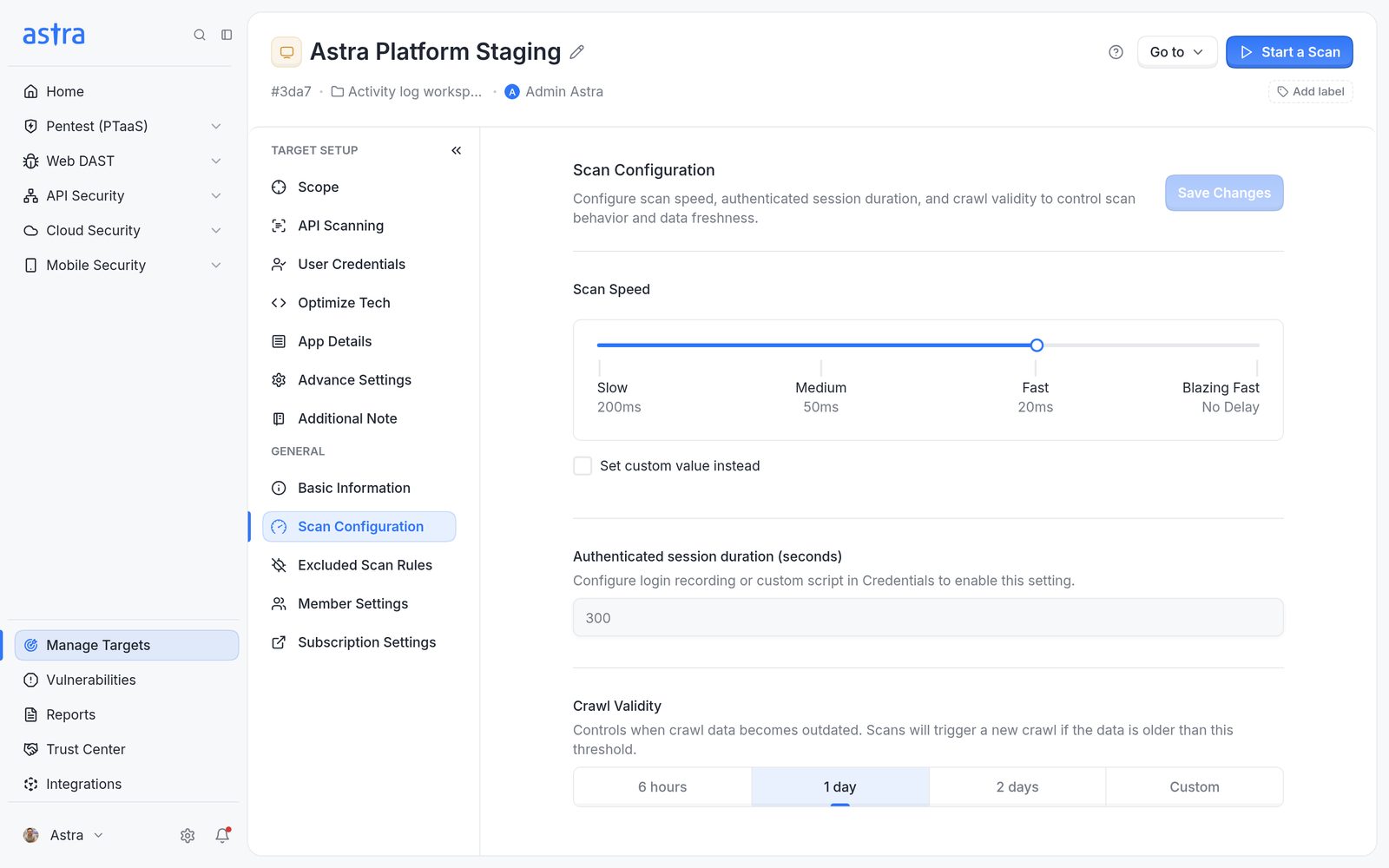
Target settings, Scan Configuration, with Scan Speed from Slow to Blazing Fast.
Skip brute-force checks
Some checks deliberately send many login or password-reset attempts, such as "Bruteforceable Login Page" and "Missing Rate Limit on Forgot Password". To stop a check from running on a target:
- Open the finding and click Mark False Positive.
- Keep Exclude from future scans switched on and confirm.
The rule is then listed under General → Excluded Scan Rules in the target's settings. Removing it from that list turns the check back on. Read more in How to mark a false positive or accept a risk.

Target settings, Excluded Scan Rules, listing the checks skipped on this target.
Note
Speed changes and exclusions apply to scans started after the change. Findings already reported stay as they are.
FAQ
Our scans fail because the test account gets locked or rate limited. What should we do?
Exempt the scanner IPs or a secret header from the login rate-limit and lockout rules, and lower Scan Speed in Scan Configuration.