Fix the "Not found" error on the Astra MCP sign-in page
Last updated: November 2, 2026
This article explains how to fix the Astra MCP sign-in page when it shows only {"error":"Not found"} after clicking Allow in VS Code.
Symptom
After clicking Allow in VS Code, the browser opens a page on
mcp-auth.getastra.com/api/auth/errorand shows only{"error":"Not found"}.

Browser showing {"error":"Not found"} on the mcp-auth.getastra.com error page
In VS Code, the server log (MCP: List Servers > astra > Show Output) shows
Error getting token from server metadata: Error: Failed to create authentication tokenfollowed byError 401 status sending message to https://mcp.getastra.com/mcp.
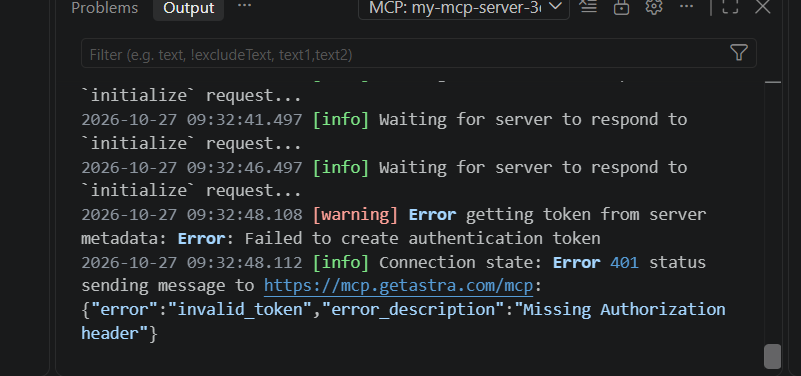
VS Code Output panel showing the 401 error
Why it happens
VS Code keeps the sign-in details from an earlier Astra MCP connection. When those saved details are no longer valid, the sign-in request is rejected and the browser lands on the error page. The Astra account and password are not the problem.
How to fix it
Open the Command Palette with Cmd+Shift+P on macOS, or Ctrl+Shift+P on Windows and Linux.
Type and select Authentication: Remove Dynamic Authentication Providers.
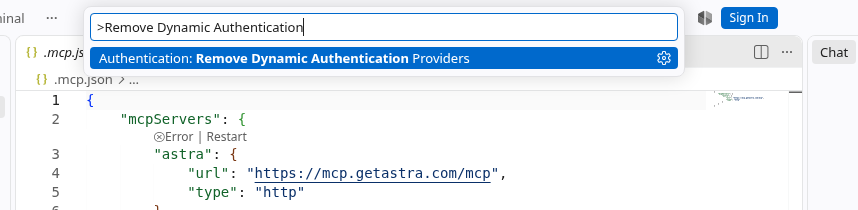
Command Palette showing Authentication: Remove Dynamic Authentication Providers
In Select a dynamic authentication provider to remove, select Astra MCP and click OK.
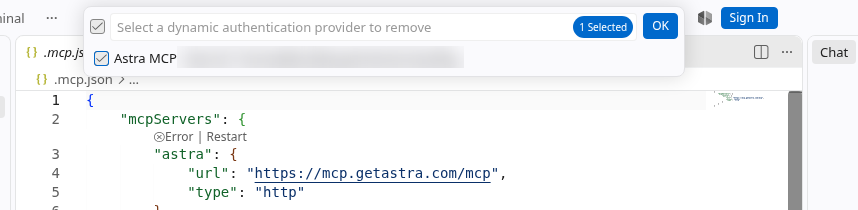
Astra MCP selected in the dynamic authentication provider list, with 1 Selected and OK
Confirm with Remove when VS Code asks Are you sure you want to remove the dynamic authentication provider "Astra MCP"?
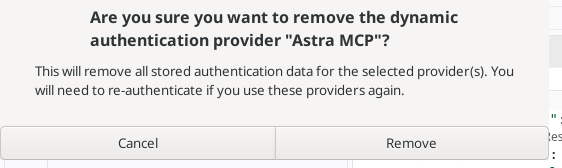
Confirmation dialog with Cancel and Remove buttons
Open MCP: List Servers, select astra and choose Start Server, or click Restart above the server entry in the configuration file.
Click Allow when VS Code asks to authenticate, and complete the sign-in in the browser as described in Sign in and allow access in Connect Astra MCP to your AI tool.
The sign-in page now loads normally and the server shows Running.
If the server still does not connect, see Fix Astra MCP connection errors.
Related articles
For anything not covered here, contact help@getastra.com.