Fix Astra MCP connection errors
Last updated: November 2, 2026
This article explains how to fix Astra MCP when the server shows an error or the Astra tools do not appear in the AI tool.
Symptom
The server shows Error above its entry in the configuration file, or the Astra tools do not appear in the Chat view.
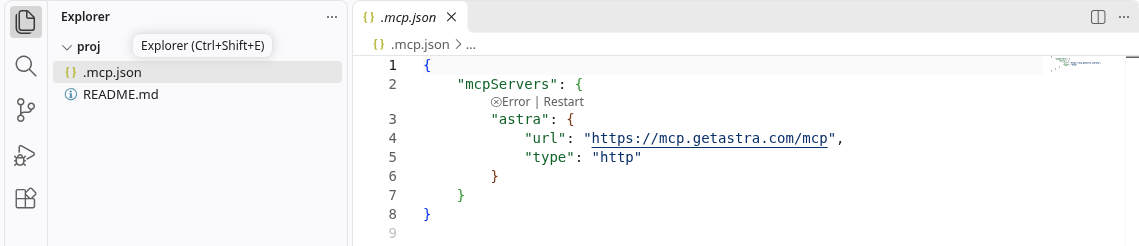
astra server entry showing Error | Restart in the configuration file
In MCP: List Servers, the astra entry shows an error such as
Error 401 status sending message to https://mcp.getastra.com/mcp.
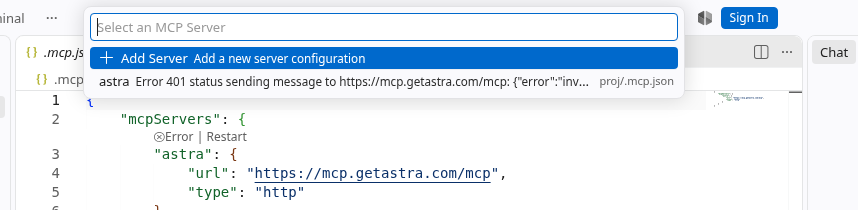
MCP: List Servers showing the astra server with a 401 error
Why it happens
The saved Astra server entry, or the sign-in saved with it, no longer works. This also happens when an old Astra entry is kept next to a new one under a different name.
How to fix it
Configure the server again, reconnect it, and delete the old configuration. Keep only one Astra entry.
VS Code
Run MCP: List Servers, select astra, and choose Show Configuration to open the file that holds the entry.
Delete only the
astraentry from that file, not the whole file, and save. If the server was installed from a gallery and shows Uninstall, use that instead.Run Authentication: Remove Dynamic Authentication Providers, select Astra MCP, click OK and confirm Remove, as in Fix the "Not found" error on the Astra MCP sign-in page.
Add the server again with MCP: Add Server (see Connect Astra MCP to your AI tool) and sign in.
Cursor
Open Customize in the Cursor sidebar (Cursor Settings > Tools & MCP in older versions), find the Astra server and remove it. If it was added through a file, delete the
astraentry from~/.cursor/mcp.jsonor from.cursor/mcp.jsonin the project.Add the server again (see Connect Astra MCP to your AI tool), then sign in.
Claude Code
Remove the server:
claude mcp remove astraAdd it again:
claude mcp add --transport http astra https://mcp.getastra.com/mcpRun
/mcpinside Claude Code, select astra and sign in.
Claude Desktop
Go to Customize > Connectors.
Find the Astra connector, click Remove (or the three dots next to it) and follow the prompts.
Click + Add, then Add custom connector. Enter a name, paste
https://mcp.getastra.com/mcp, and finish adding it. Then click Connect to sign in.
For more on managing servers in each AI tool, see Manage MCP servers in VS Code, Cursor MCP, Claude Code MCP and Claude custom connectors.
If the connection times out
Check that the network allows
mcp.getastra.comandmcp-auth.getastra.com. A VPN, proxy or company firewall can block the connection. Try another network to confirm.If the error mentions a temporary server problem, such as
HTTP 503, wait and try again later. If it keeps failing, contact help@getastra.com with a screenshot of the error.
Related articles
For anything not covered here, contact help@getastra.com.