How to Get an Extension for Your Re-Scan Deadline
Last updated: November 24, 2026
After a pentest's vulnerabilities are reported, you have a set window to fix them and request a manual rescan. If you need more time, contact your Customer Success Manager (CSM) to ask for an extension, ideally before the window ends. This article explains how the window works, how to check your date and how to ask for more time.
How the rescan window works
The window starts when the pentest's vulnerabilities are reported. How long it lasts depends on your plan.
It applies to manual rescans, where Astra's security engineers verify your fixes. Automated rescans, where they're offered, can be requested at any time. Read more in 📄 Best Practices for Using Your Rescan Quota.
The window is set per target, so an extension usually applies to the pentests on that target.
When the window ends, you can no longer request a manual rescan from the dashboard.
Check when your window ends
On the Pentest Details page, the Rescan button shows how many days are left, for example Rescan (61 days). Hover over it to see the last date, for example "Manual rescan can be requested until 18 Jan 2027."
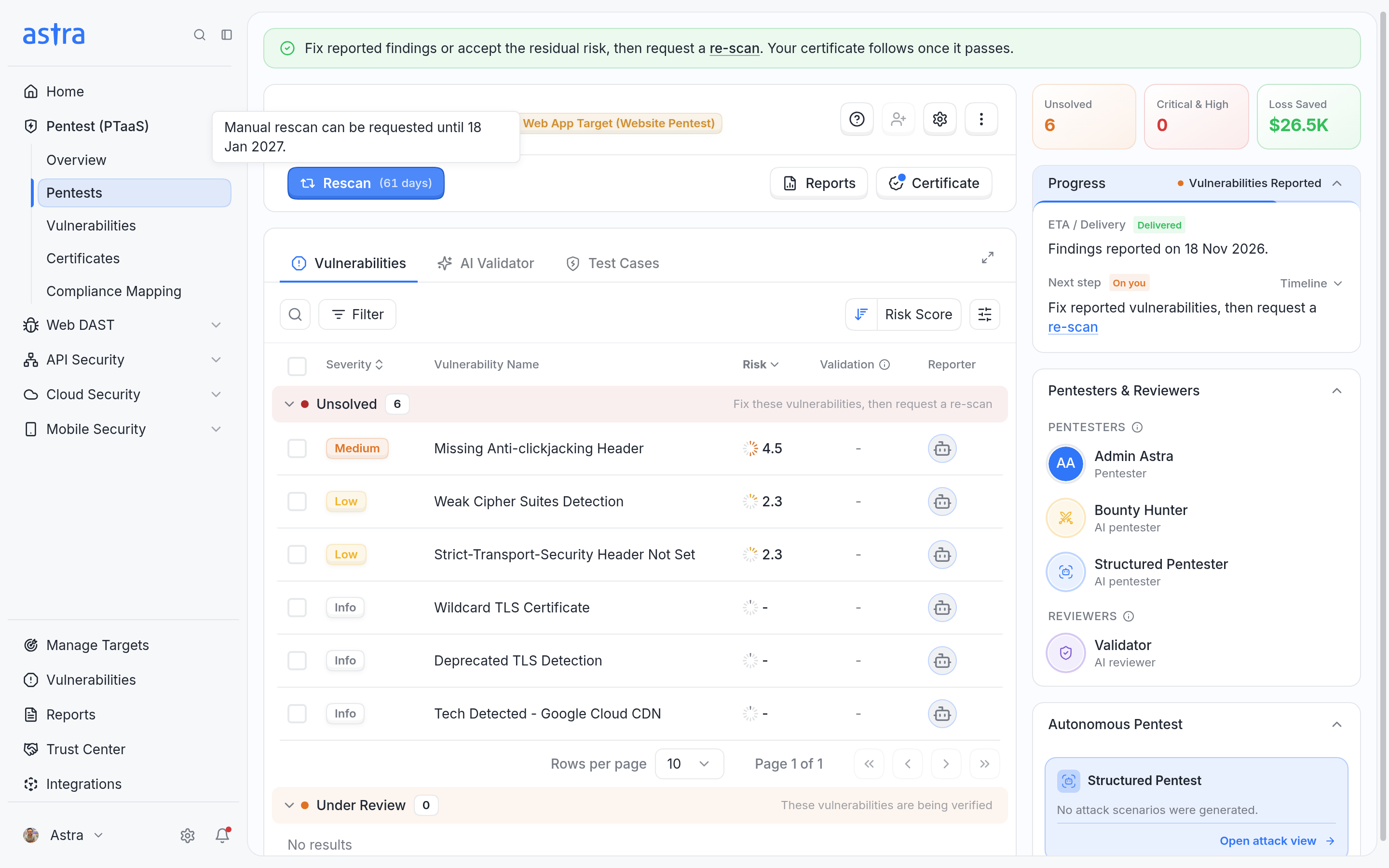
The Rescan button on a pentest shows how many days are left to request a manual rescan.
The Rescan Eligibility panel in the manual rescan window shows the same date as Rescans valid until.
Ask for an extension
Contact your CSM, or raise a support ticket from your Astra dashboard, before the date on the Rescan button.
Include:
The target name and the pentest.
The new date you need.
A short reason, for example the number of fixes still in progress.
Whether the same extension should apply to your other targets.
Astra reviews the request. If it's approved, the new date appears on the Rescan button and in the Rescan Eligibility panel.
You can then request a manual rescan as usual until the new date. Read more in 📄 How to request a rescan.
If the window has already ended
After the date passes, the Rescan button shows Expired if automated rescans aren't offered. If they are, the Rescan menu stays available for automated rescans. The manual rescan window says "The manual rescan window for this pentest has expired. Please contact your CSM for support." Contact your CSM as soon as you can. Requests after the window has ended are reviewed case by case.
Best practices
Ask for an extension early. Don't wait until the last day of the window.
Request a manual rescan only after your fixes are in place, so you don't use a rescan before it can verify anything.
Before you request a manual rescan, click Mark Ready for Review on each fixed vulnerability so it moves to Under Review.
The Rescan Eligibility panel shows a "Good to have: Include 50%+ of critical and high" recommendation. It doesn't block the request.
FAQ
Can you extend the rescan window for all our targets at once?
Yes, you can ask for the same new date on several targets in one request. List the targets and the date you need.
Our rescan window expired before we asked for more time. What now?
Contact your CSM. They review requests after the window has ended case by case and will explain the options for your pentest.
Where do I see my rescan deadline?
On the Rescan button on the Pentest Details page. Hover over it to see the date.
If you have questions about your rescan window, contact support from your Astra dashboard or reach out to your CSM.