How to request a rescan
Last updated: November 24, 2026
After you fix the vulnerabilities from a pentest or an automated scan, request a rescan so that Astra can check the fixes. Fixed vulnerabilities move to Solved. Vulnerabilities that aren't fixed go back to Unsolved with a comment.
Before you request a rescan
Fix the vulnerabilities.
Move each fixed vulnerability to Under Review. Vulnerabilities in Under Review are included in the rescan automatically.
For a mobile app, replace the APK or IPA file on the target with the latest build. A rescan tests the build that is already on the target. The steps are in the FAQ below.
Rescan types for a pentest
Click Rescan on the pentest page to choose a rescan type:
Manual Rescan: Astra's pentesters check the fixes in Under Review, review vulnerabilities you marked as false positive or accepted risk, and reply to your comments. The menu shows the last date to request it.
Automated Rescan: Astra's scanner re-checks the vulnerabilities it reported. You can request it at any time. It covers only vulnerabilities found by Astra's automated scanners.
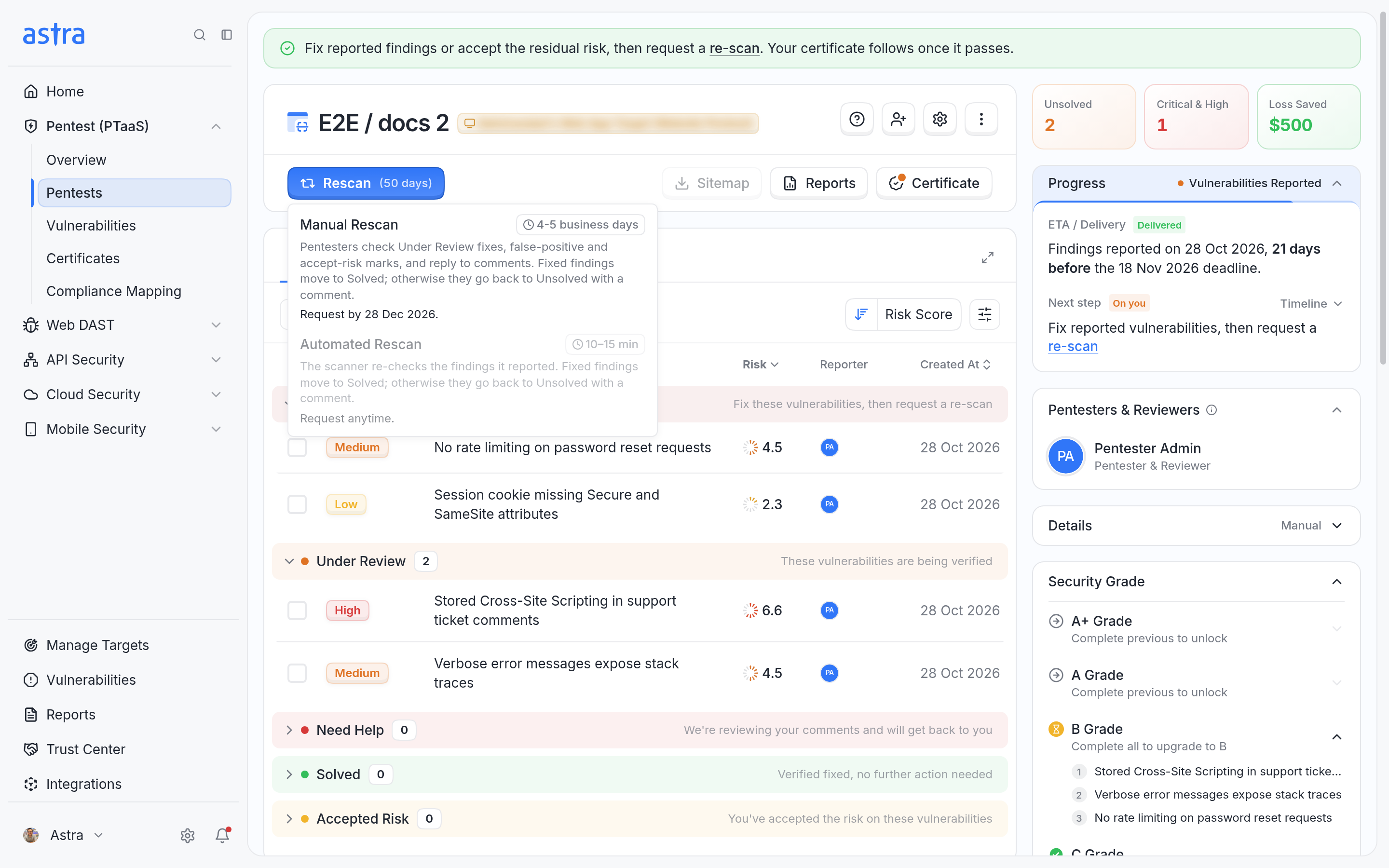
The Rescan menu on a pentest offers Manual Rescan and Automated Rescan.
Note
Automated Rescan isn't available for Hybrid or Autonomous pentests, Android and iOS targets, or Digital Ocean cloud targets. Use Manual Rescan for these.
Request a manual rescan
Open the pentest, click Rescan, and then choose Manual Rescan.
Check the vulnerabilities at the top. These are the vulnerabilities in Under Review that are included by default.
Optional: under Add more vulnerabilities to this rescan, select Unsolved vulnerabilities to include. They move to Under Review when you request the rescan.
Check the Rescan Eligibility panel. It shows how many rescans are available, the date rescans are valid until, and whether the rescan is eligible.
Click Request Rescan. If you added vulnerabilities, the button reads Include followed by the number of vulnerabilities, for example Include 1 and request rescan.
For a mobile app, Astra asks whether you have uploaded the latest build file, for example "Have you uploaded the latest Android build file?". Click the Yes button, for example Yes, Request Rescan, to continue. Or click No, and then upload the file from the link in the message first.
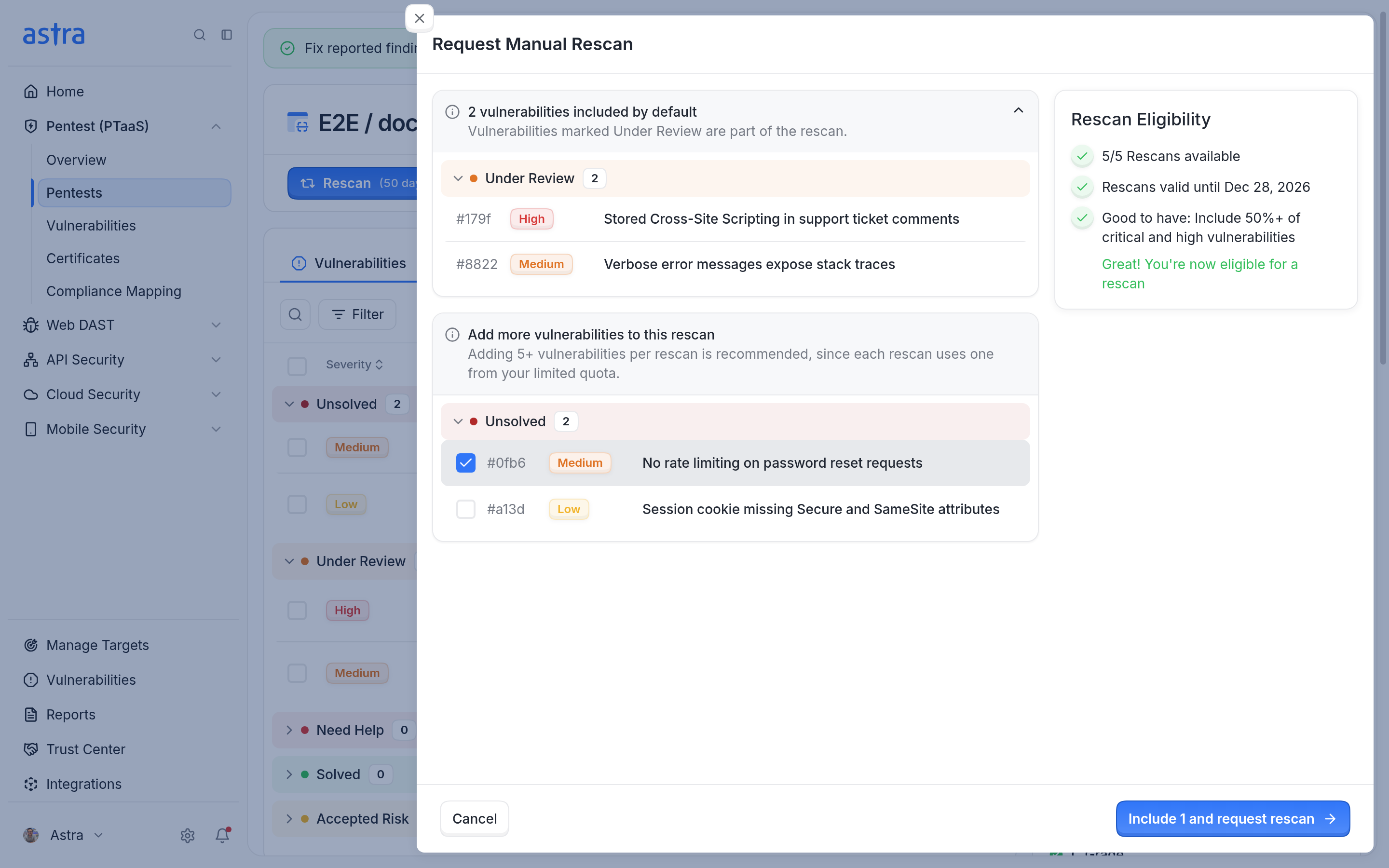
Request Manual Rescan lists the vulnerabilities in the rescan and checks eligibility on the right.
When the rescan is requested, Astra shows "Rescan requested successfully".
Tip
Each manual rescan uses one rescan from the pentest's limit. Include as many fixed vulnerabilities as you can in each rescan, especially Critical and High ones. The eligibility panel recommends including at least 50% of Critical and High vulnerabilities.
Request an automated rescan for automated scans
You can request automated rescans for several automated scans at once.
Open the scans list, for example Web DAST > DAST Scans.
Select the scans to rescan.
Click Rescan in the toolbar at the bottom of the page. The button shows how many of the selected scans can be rescanned.
In Request Automated Rescan, confirm the request.
When the request goes through, Astra shows "Rescan requested". Follow the progress on the scans list.
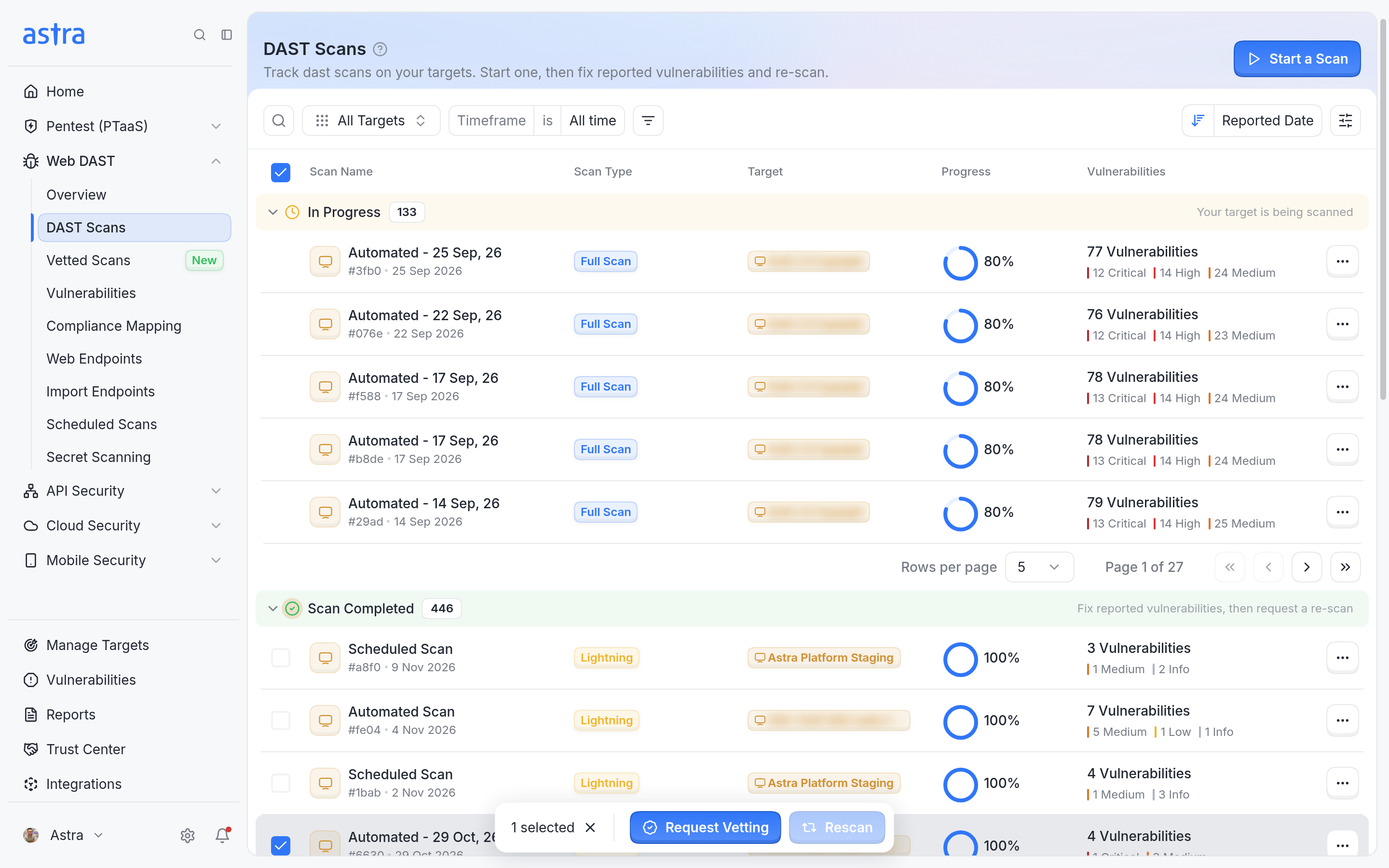
Select scans to show the toolbar with Request Vetting and Rescan at the bottom of the page.
To rescan a single automated scan, open it and click Rescan.
What happens after you request a rescan
The rescan appears in the pentest's or scan's progress.
When the rescan finishes, fixed vulnerabilities move to Solved. Vulnerabilities that aren't fixed go back to Unsolved with a comment.
While a rescan is running, you can't request another one for the same vulnerabilities. Astra shows "A rescan is already in progress." The Progress card shows when the results are due. See A rescan is already in progress below.
If your rescan didn't pass
A manual rescan doesn't pass when some vulnerabilities in it still aren't fixed. Those vulnerabilities go back to Unsolved, and the pentest's Certificate panel shows Last re-scan didn't pass. A cancelled rescan shows the same line.
A certificate is issued automatically only after the latest manual rescan passes. Fixing or resolving those vulnerabilities later doesn't change the result of the rescan that didn't pass, so request another rescan that includes them:
Fix every vulnerability that went back to Unsolved. The comment on each one explains what the rescan found.
Open the pentest, click Rescan, and then choose Manual Rescan.
Under Add more vulnerabilities to this rescan, select all of the vulnerabilities that went back to Unsolved. Any you have already moved to Under Review are included automatically, and any you accepted as risk are listed in the Accepted Risk section.
Click Request Rescan.
When this rescan passes and every other check is met, Astra issues the certificate automatically. Read more in How Astra issues a pentest certificate.
Tip
This rescan uses one of the pentest's rescans, so include every vulnerability that went back to Unsolved in the same request. If no rescans are left or the rescan window has closed, the Rescan Eligibility panel says so. Contact your customer success manager for help.
When a rescan isn't available
Message | What it means |
|---|---|
Nothing is available for a rescan. Mark vulnerabilities as fixed (Under Review) or add unsolved ones to continue. | No vulnerabilities are in Under Review, and none are selected. |
You can't start a rescan right now! A manual rescan is already in progress. | A manual rescan is already running on this pentest. Wait for it to finish. See the causes below. |
There are no ‘Under Review’ vulnerabilities available for rescan. | No vulnerabilities are in Under Review. Move fixed vulnerabilities to Under Review or select some to add. |
No rescans remaining for this pentest. Please contact your CSM for support. | The pentest's rescan limit is used up. |
The manual rescan window for this pentest has expired. Please contact your CSM for support. | The last date to request a manual rescan has passed. |
This pentest does not include rescans. Please contact your CSM for support. | The pentest has no rescans. |
Manual rescans are not enabled for this target. Please contact your CSM for support. | Manual rescans can't be requested for this target. Contact your customer success manager. |
Rescan isn't available for static analysis scans | Static analysis scans can't be rescanned. Start a new static analysis scan instead. |
None of the selected scans have vulnerabilities available for rescan | None of the selected automated scans have fixed vulnerabilities in Under Review. |
This vulnerability was reported by a pentester and isn't eligible for automated rescans | Use Manual Rescan for this vulnerability. |
Why you can't select vulnerabilities or request a rescan
If the rescan window has nothing to select, or Rescan or Request Rescan is greyed out, one of the causes below is usually the reason. Hover over a greyed-out button to see what Astra says.
Your fixed vulnerabilities are already included in the rescan
Vulnerabilities in Under Review are included in a manual rescan by default. They're listed at the top of Request Manual Rescan, so you don't need to select them.
The Add more vulnerabilities to this rescan section lists only the vulnerabilities you can still add, such as Unsolved and Accepted Risk. If these show 0, there's nothing more to select. Click Request Rescan to rescan the vulnerabilities that are already included.
If nothing is in Under Review either, Request Rescan stays greyed out and Astra shows "There are no ‘Under Review’ vulnerabilities available for rescan." Move the vulnerabilities you fixed to Under Review, or select them under Add more vulnerabilities to this rescan.
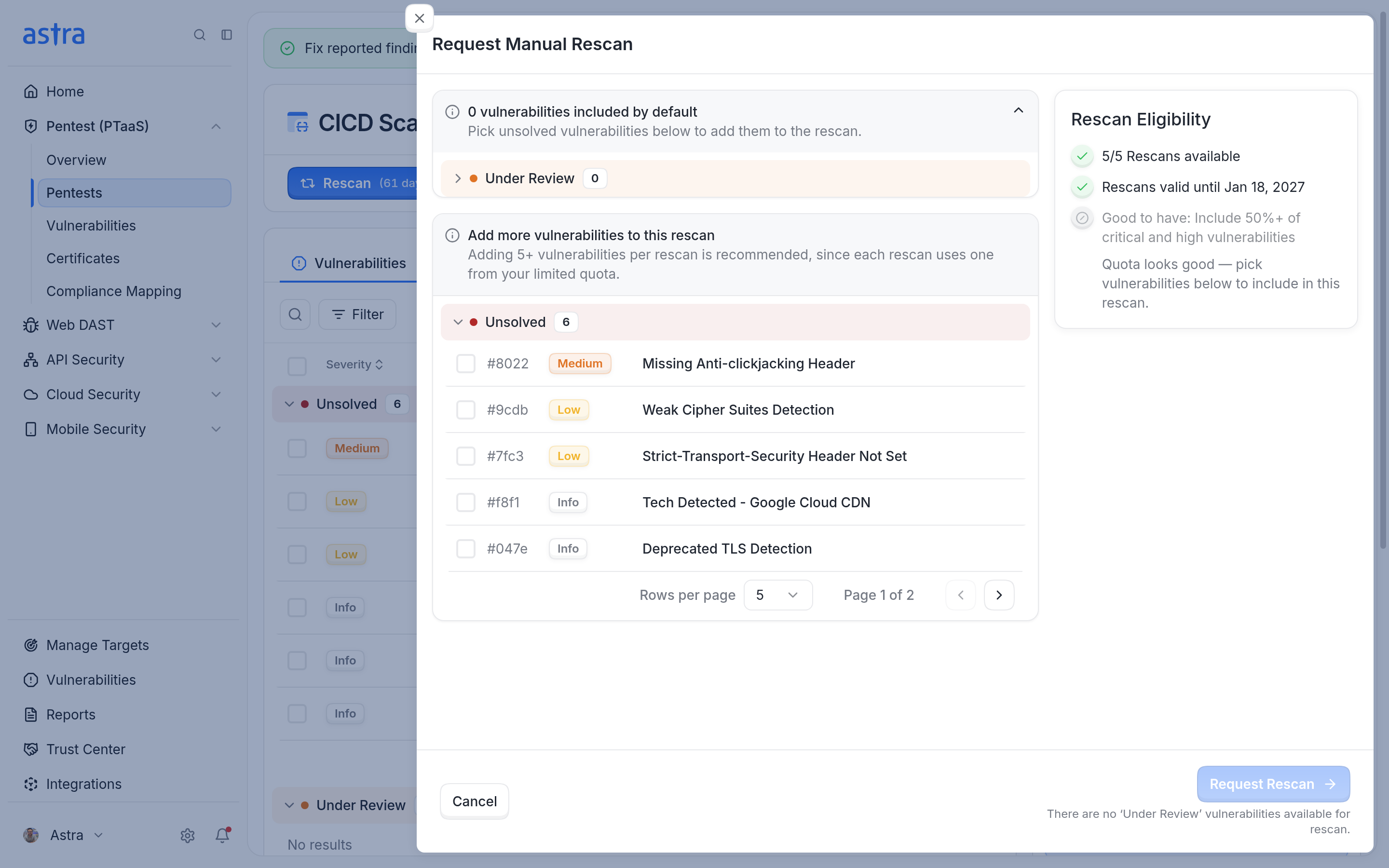
With nothing in Under Review, the rescan includes 0 vulnerabilities by default, and Request Rescan stays greyed out until vulnerabilities are selected below.
A rescan is already in progress
Only one manual rescan can run on a pentest at a time. While it runs, the pentest's Progress card shows Re-Scanning and a Manual Rescan card with its Started on date. You also see one of these:
Rescan is greyed out. Hover over it to see "A manual rescan is already in progress."
Request Manual Rescan opens and shows "You can't start a rescan right now!"
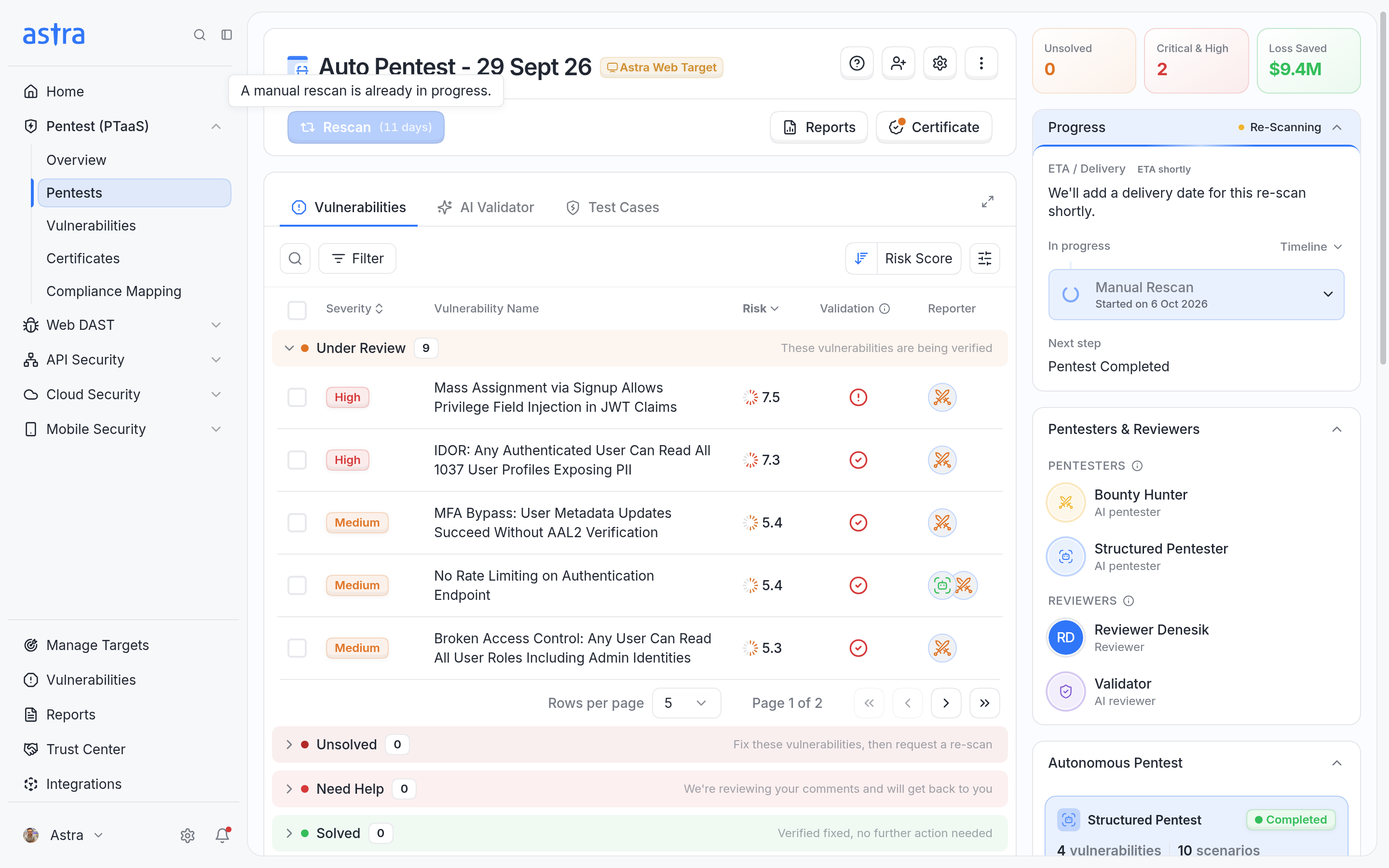
While a manual rescan runs, the Progress card shows Re-Scanning, and hovering over the greyed-out Rescan button shows "A manual rescan is already in progress."
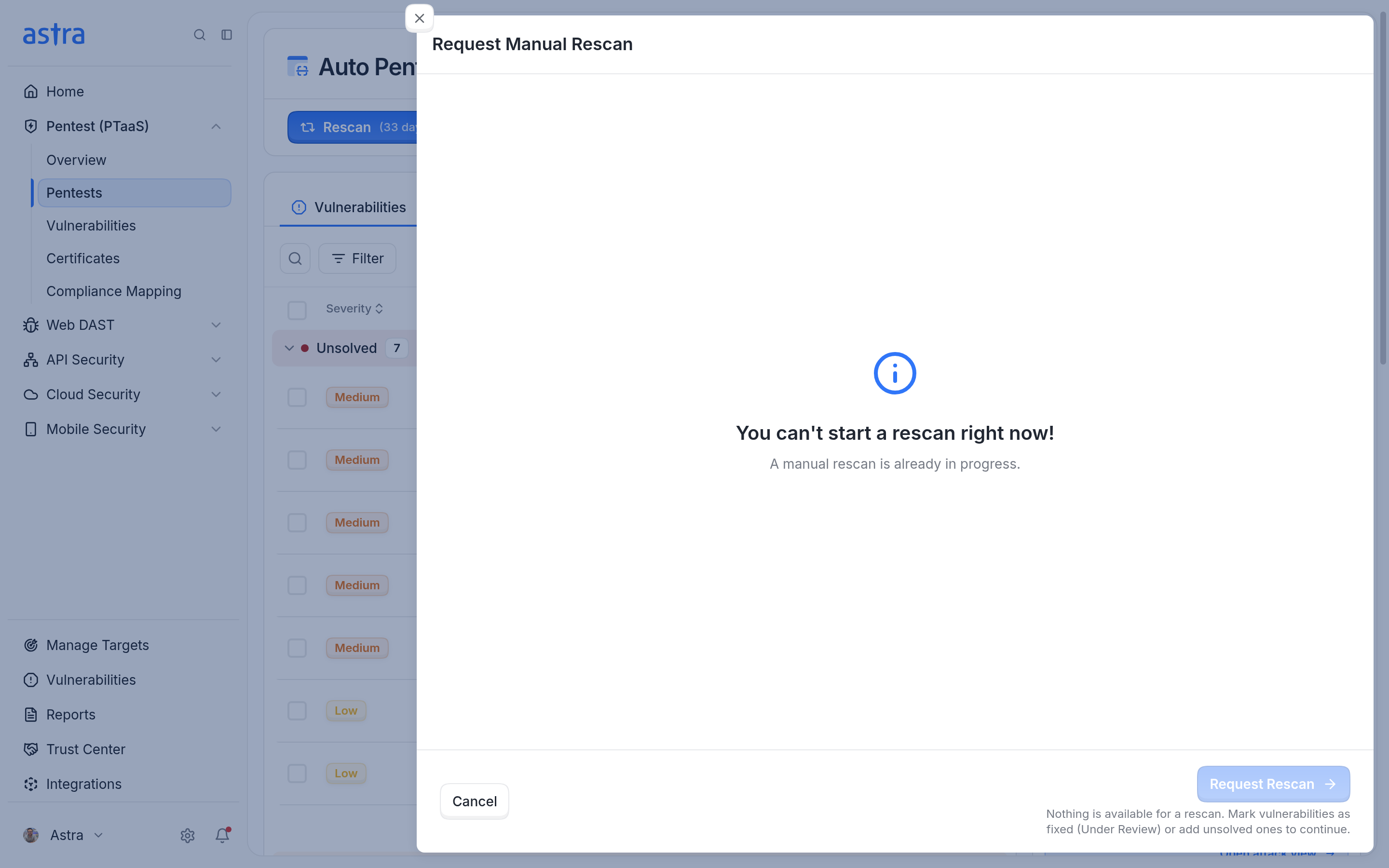
Request Manual Rescan shows "You can't start a rescan right now!" while a manual rescan is in progress.
To see when the rescan should finish, check ETA / Delivery on the Progress card:
On track: the date the results are due, for example "We'll deliver re-scan results by" followed by the date.
ETA shortly: the date isn't set yet. Astra shows "We'll add a delivery date for this re-scan shortly."
Delayed or Blocked: the card explains the reason and what's needed from you.
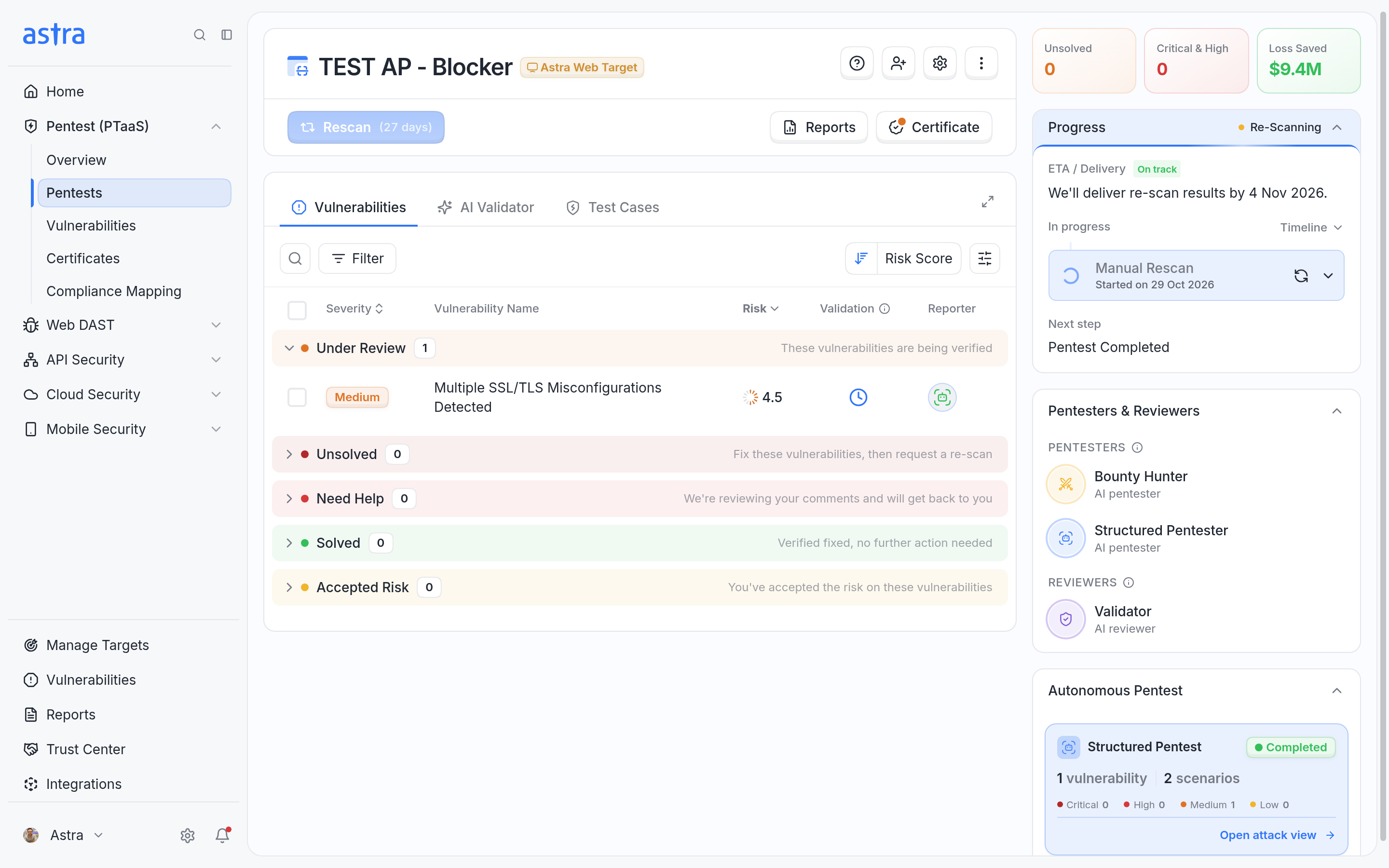
ETA / Delivery on the Progress card shows when the re-scan results are due.
Wait for the rescan to finish. Vulnerabilities that aren't fixed go back to Unsolved, and you can then include them in a new rescan. Automated rescans work the same way: while one is running, Astra shows "An automated rescan is already running" and asks you to wait for it to finish. Read more about the delivery statuses in How to Track the Progress of a Pentest.
The window to request a manual rescan has ended
A manual rescan can be requested only until a set date. The Rescan button shows how many days are left, for example Rescan (61 days). Hover over it to see the last date, for example "Manual rescan can be requested until 18 Jan 2027." The Rescan Eligibility panel shows the same date as Rescans valid until.
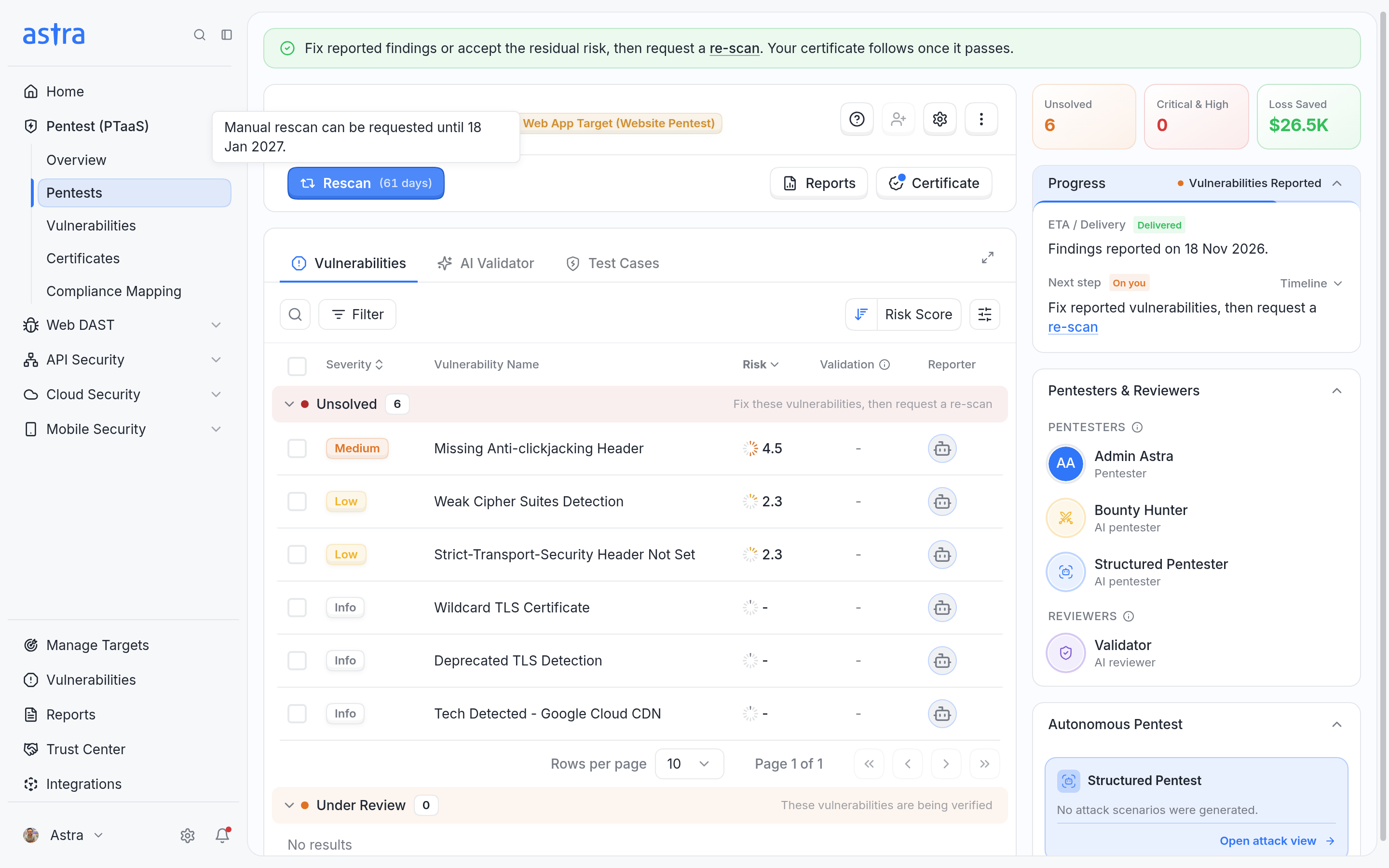
The Rescan button shows the days left to request a manual rescan. Hover over it to see the last date.
After that date, the Rescan button shows Expired, hovering over it shows "The window to request a manual rescan ended" with the date, and the rescan window says "The manual rescan window for this pentest has expired. Please contact your CSM for support." To continue:
Contact your customer success manager. They can help with the options for your pentest.
Where Automated Rescan is offered, it can still be requested at any time. It covers only vulnerabilities found by Astra's automated scanners.
If the pentest has no manual rescans left, the button shows None left instead. Your customer success manager can help you add more rescans.
FAQ
Our rescan window has expired. Can we still get the certificate?
The certificate is issued automatically only after the latest manual rescan passes, so the fixed vulnerabilities still need a manual rescan. Vulnerabilities you moved to Accepted Risk are reviewed in that rescan too. If the window to request one has ended, contact your customer success manager for the next steps. Read more in How Astra issues a pentest certificate.
All our vulnerabilities are fixed, but the certificate still says "Last re-scan didn't pass". What do we do?
The certificate needs the latest manual rescan to pass. Vulnerabilities that went back to Unsolved after that rescan were never rechecked, even if they are fixed now. Request another manual rescan and include all of them. When it passes, the certificate is issued automatically. The steps are in If your rescan didn't pass above.
Where do we upload the new APK or IPA for a rescan? Do we delete the old file first?
Upload the new build on the target, not in the rescan window. The rescan window only asks whether the latest build is uploaded and links to the upload page.
Open the target's Settings, and then under Target Setup, open APK File (Android) or IPA File (iOS). The here link in the rescan's upload question opens the same page.
A target holds one build file at a time. Click X next to the current file to remove it, and then upload the new build.
In Confirmation Required, check that root and jailbreak detection and SSL pinning are disabled in the build, and then click Yes, I Confirm.
Go back to the pentest and request a manual rescan. When Astra asks "Have you uploaded the latest Android build file?" (or iOS), click the Yes button, for example Yes, Request Rescan.
The rescan tests the build on the target. If the file isn't replaced, the rescan checks the same build as the last pentest.