Overview of Vulnerabilities Page
Last updated: August 7, 2026
The Vulnerabilities Page is designed to help you manage and monitor security vulnerabilities within your applications. It centralizes management by allowing you to view and manage all security vulnerabilities in one place.
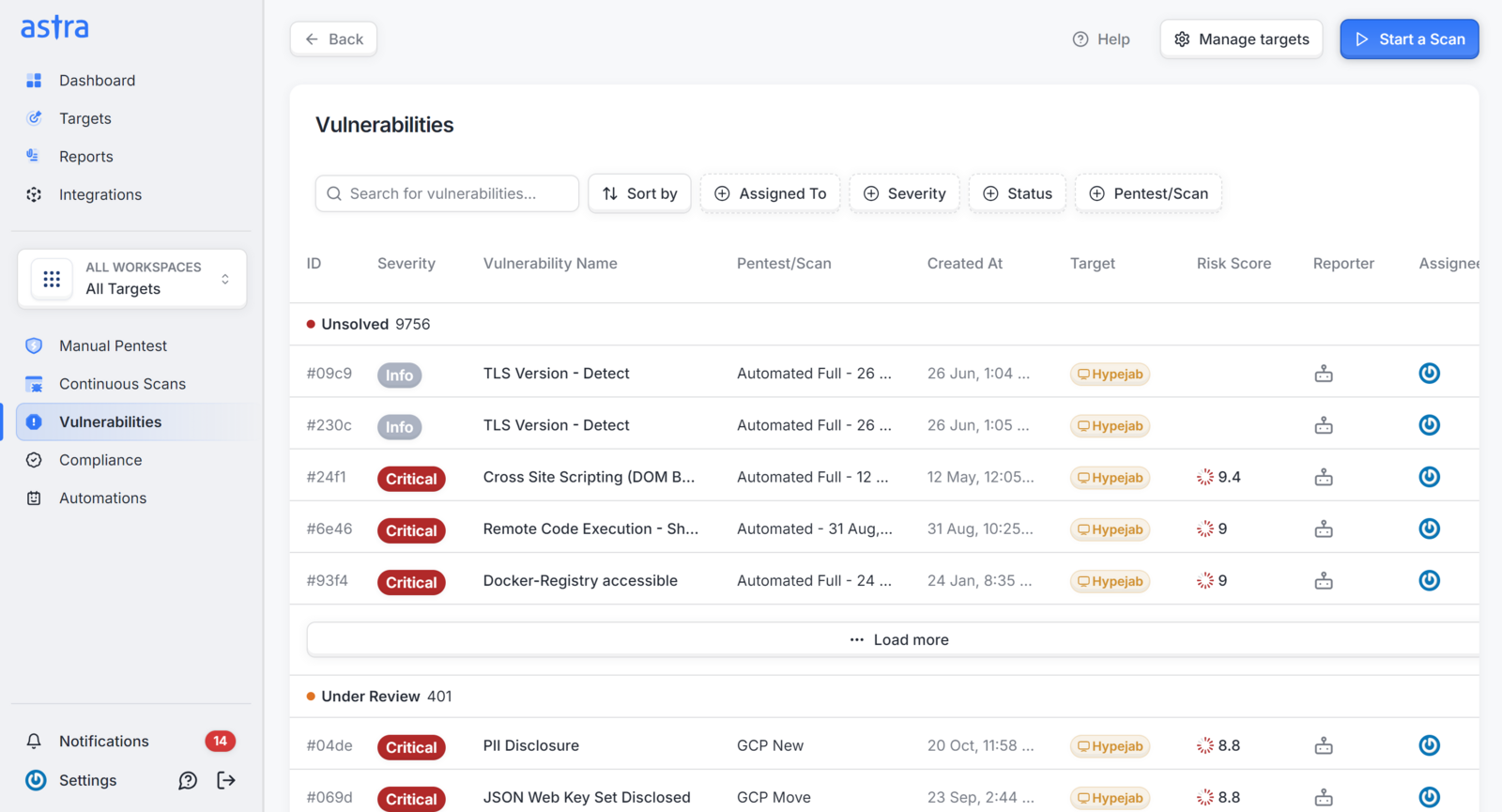
This page offers a bird's eye view of all vulnerabilities detected across your targets, allowing you to quickly assess and respond to potential security risks. It also helps in identifying and prioritizing vulnerabilities based on their severity and impact, tracking the status of each vulnerability from identification to resolution, assigning them to team members, and maintaining a record of actions taken, ensuring accountability and traceability.
Searching and Filtering option
The vulnerabilities table provides a detailed view of each identified vulnerability and includes several key sections to help you manage and track vulnerabilities effectively. The table includes the following sections:

Search: Use the search bar to quickly find specific vulnerabilities by entering relevant keywords.
Sort By: This button allows you to sort vulnerabilities based on different criteria:(Risk score & Reported Date).
Status Filters: Quickly filter vulnerabilities based on their status (e.g. Unsolved, Under Review, Need Help, Solved, Won't Fix, False Positive).
Assigned To: Filter vulnerabilities based on the team member they are assigned to.
Severity: Filter vulnerabilities by their severity levels (e.g., Low, Medium, High, Critical, Info).
Pentest/Scan: Filter vulnerabilities based on the type of scan(e.g. Manual pentest, Scheduled Scans, Automated Scans)
What are the different statuses available for vulnerabilities?
Vulnerabilities can exist in various stages during their lifecycle, each indicating the current state of the issue and the actions taken or needed. Understanding these statuses helps in effectively managing and prioritizing vulnerabilities.
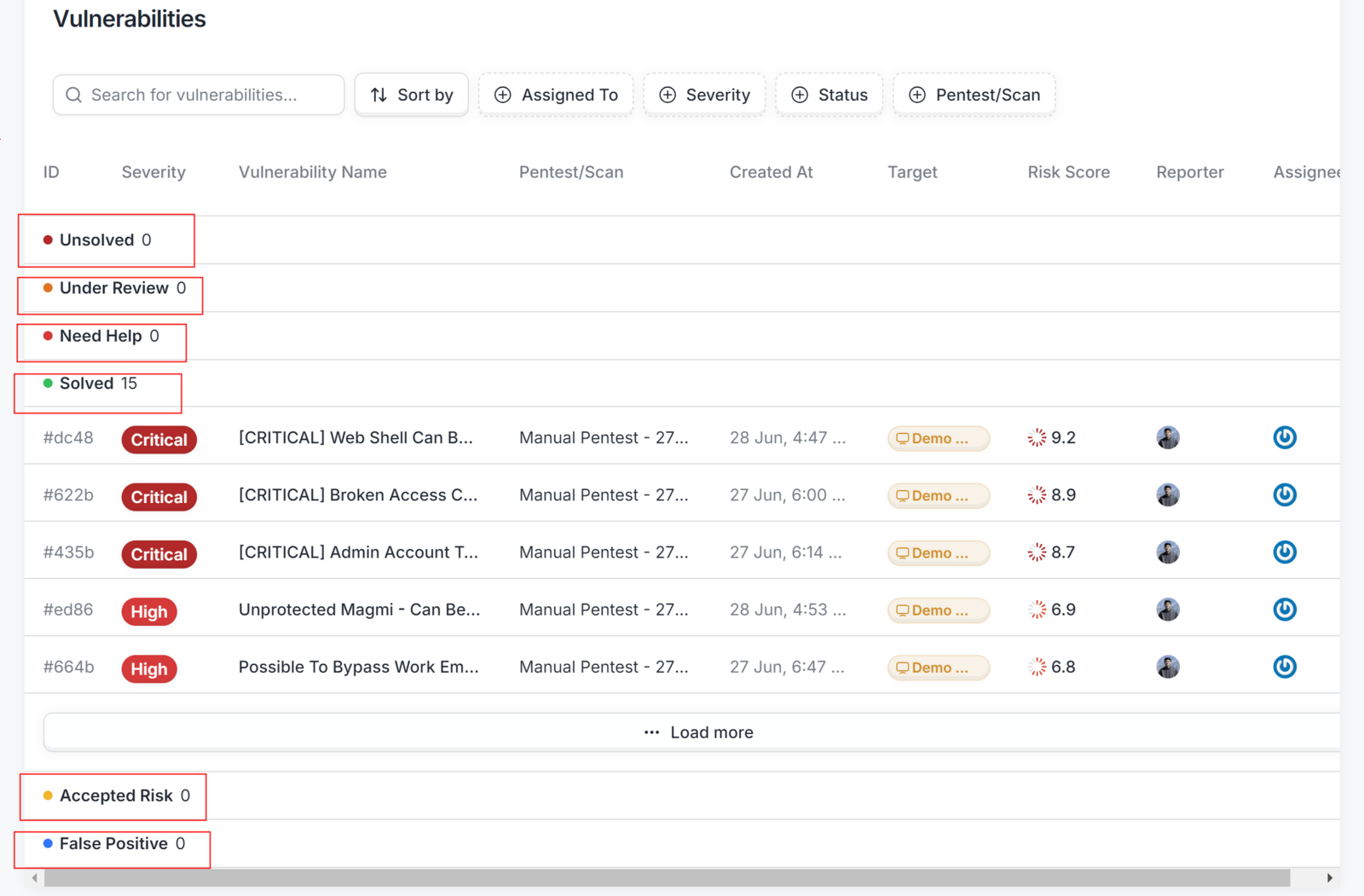
Unsolved: Vulnerabilities that have been identified but not yet addressed.
Under Review: Vulnerabilities that are currently being analyzed to determine the appropriate course of action.
Need Help: Vulnerabilities that require additional information or assistance from other team members.
Solved: Vulnerabilities that have been addressed and mitigated.
Won't Fix: Vulnerabilities that have been identified but will not be fixed, often due to low risk or acceptable mitigation measures.
False Positive: Vulnerabilities that were identified as potential issues but, upon further review, were found to be non-issues.
Breakdown of Vulnerabilities Table Row

Each row in the vulnerabilities table provides critical information about a detected vulnerability. Let's break down each attribute (from left to right):
Vulnerability ID: The first column displays the unique ID assigned to each vulnerability, allowing for easy reference and tracking.
Severity: This column indicates the severity level of the vulnerability, marked with color-coded labels such as High, Medium, or Critical.
Vulnerability Name: The name or brief description of the vulnerability is presented in this column, providing an overview of the issue identified.
Scan Date and Time: This column records the exact date and time when the scan that identified the vulnerability was started.
Target Name: This column identifies the target associated with the vulnerability, typically specifying the system, application, or component scanned.
Risk Score: The numerical risk score is shown in this column, indicating the potential impact or severity of the vulnerability.
Reporter: Who reported this vulnerability it can be astra analyst or astranaut bot.
Assigned To: The team member to whom this vulnerability is assigned to.
Accessing the vulnerability details
Clicking on any vulnerability listed on the Vulnerabilities page will open its detailed view on the Vulnerability Details page. This page offers a comprehensive overview of each identified vulnerability, including information on the nature of the vulnerability, severity, risk score, suggested remediation, and options for discussion and resolution.
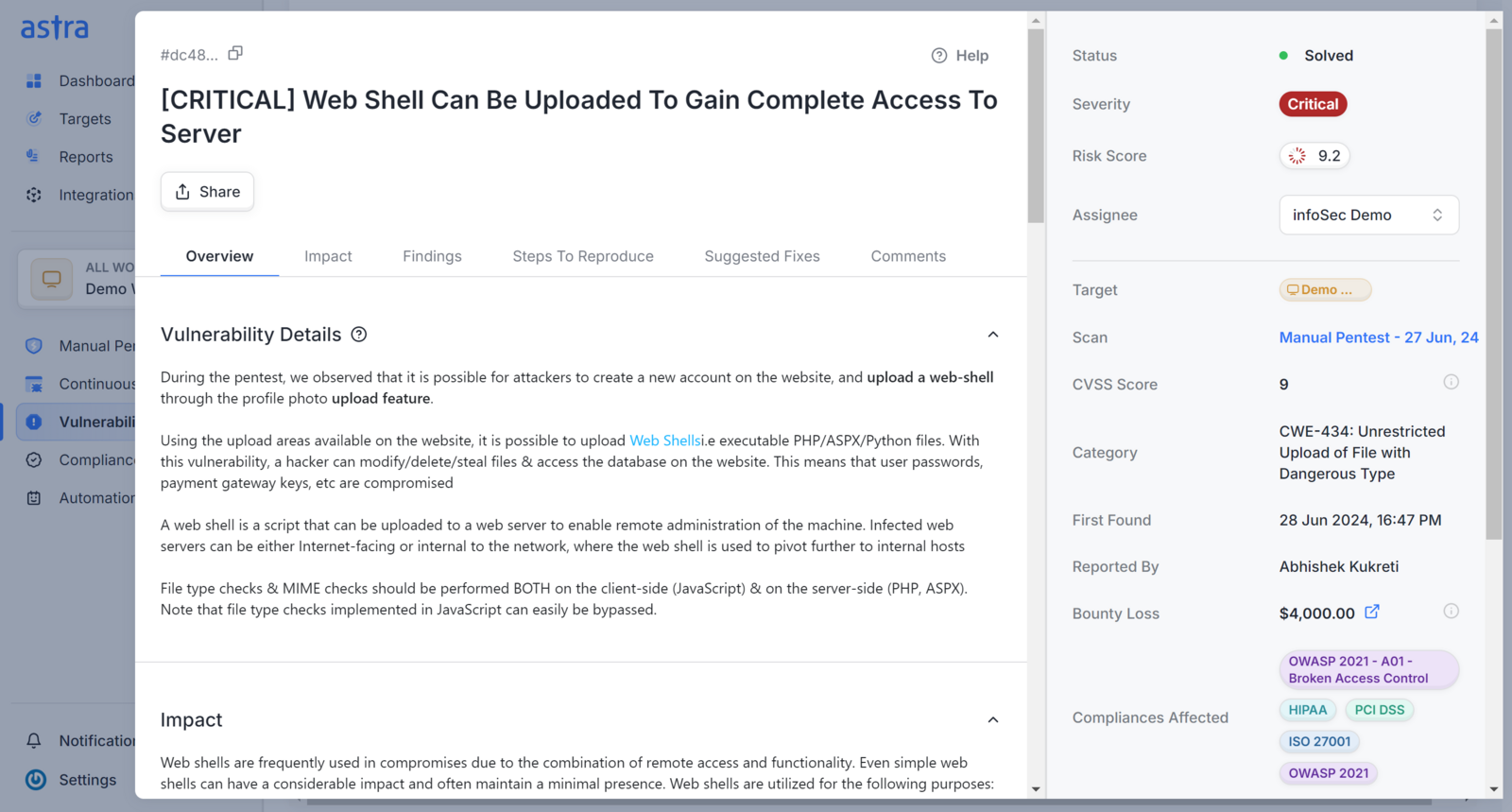
Breakdown of Vulnerability Details (Left Side)
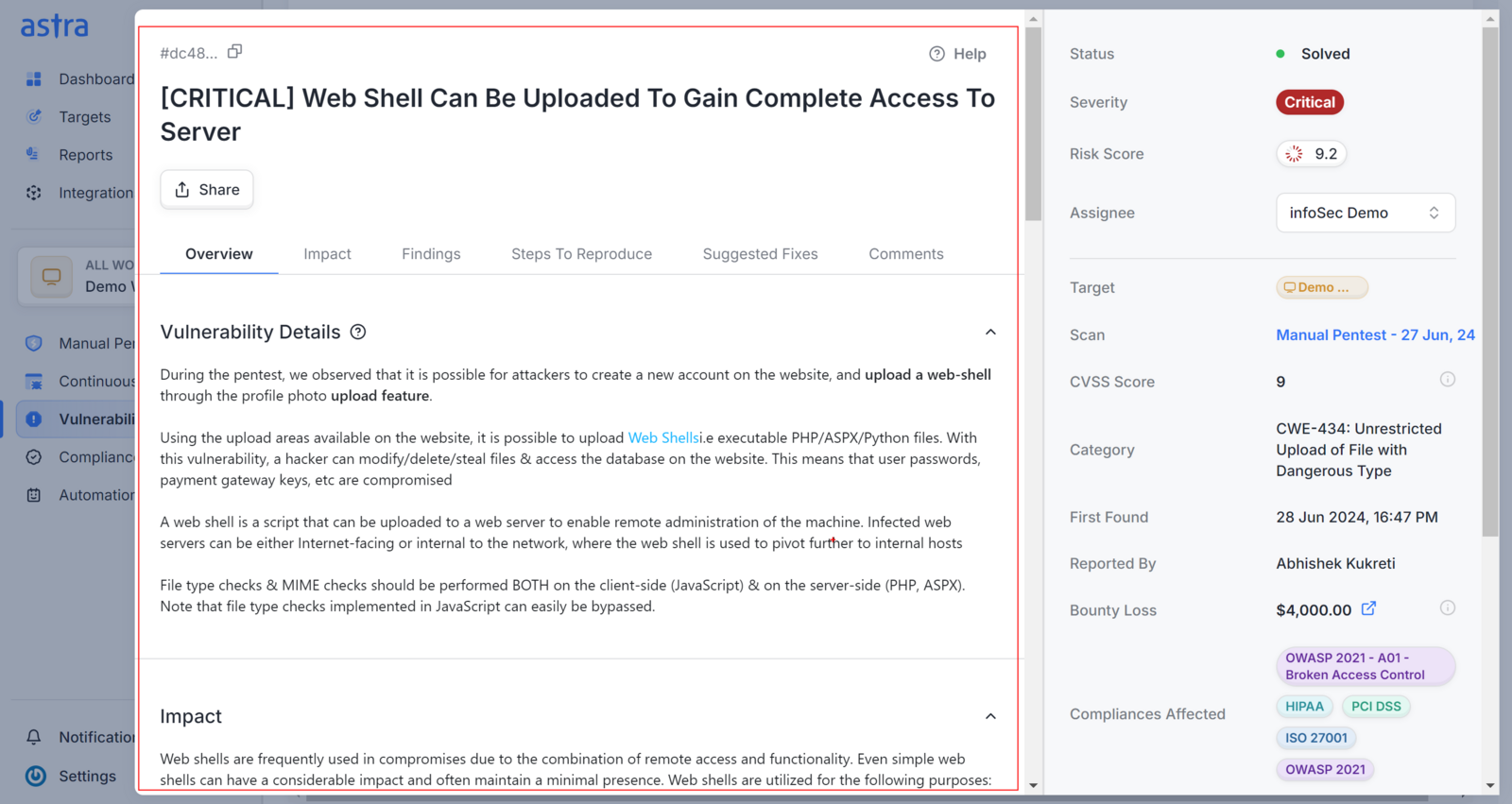
Vulnerability Details: This section provides a thorough description of the vulnerability, including what it is, how it was identified, and its potential impact on your application. It also includes the severity level, indicating the criticality of the vulnerability, and a risk score that quantifies the threat. The assignee field shows the person responsible for addressing the issue.
Findings: Here, you will find a detailed account of the findings related to the vulnerability. This includes information on how the vulnerability was discovered, the testing methods used, and the potential consequences if the vulnerability is exploited. This section helps you understand the context and implications of the vulnerability.
Suggested Fixes: This section offers recommended actions to address and mitigate the vulnerability. It provides practical steps or solutions, such as disabling certain services or applying specific security configurations, to help you resolve the issue. The suggestions are tailored to effectively manage the identified risk.
Additional References: This section provides links or references to external resources related to the vulnerability. It may include documentation, security advisories, or related research to offer more context and information for addressing the issue.
Impact: This section outlines the potential impact of the vulnerability on your application or system.
Steps to Reproduce: This section provides a detailed guide on how to reproduce the vulnerability. It includes the steps taken during the assessment to demonstrate how the vulnerability can be triggered, which can be useful for verifying the issue and understanding its nature.
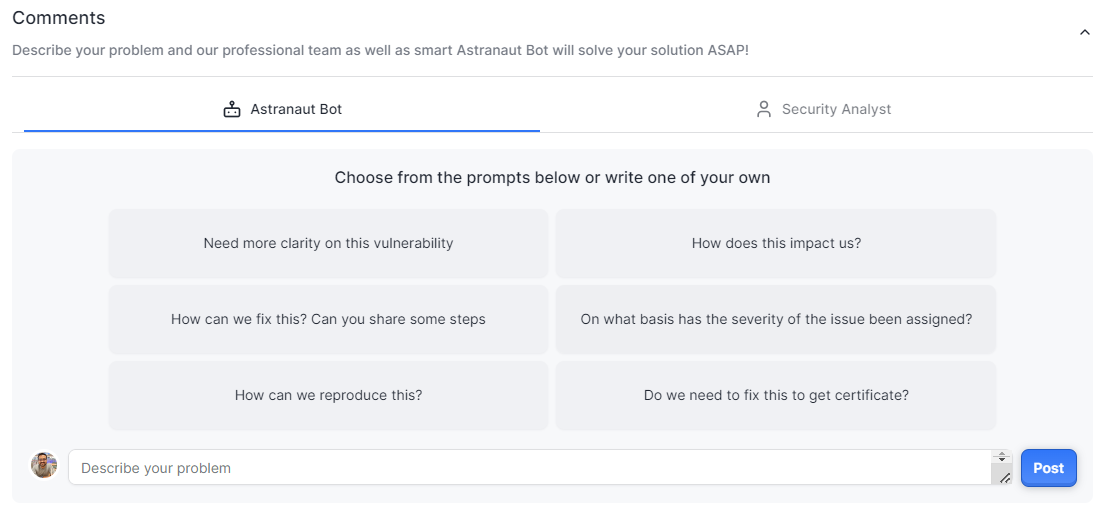
Comments: The comments section allows for communication regarding the vulnerability. Here, you can discuss the issue with security analysts or ask Astra Bot for further clarification. It includes prompts for common questions and provides a space to type your own inquiries or feedback. This section facilitates collaboration and information sharing about the vulnerability.
Scan Type | Comments Section Available | Who You Can Interact With | Availability Window |
Manual Pentest | ✅ Yes | AI Chatbot | Throughout the pentest + upto manual rescan period (usually 30 days) |
Automated Scan (DAST) | ✅ Yes | AI Chatbot only | While scan results are available in dashboard |
Breakdown of Vulnerability Details (Right Side)
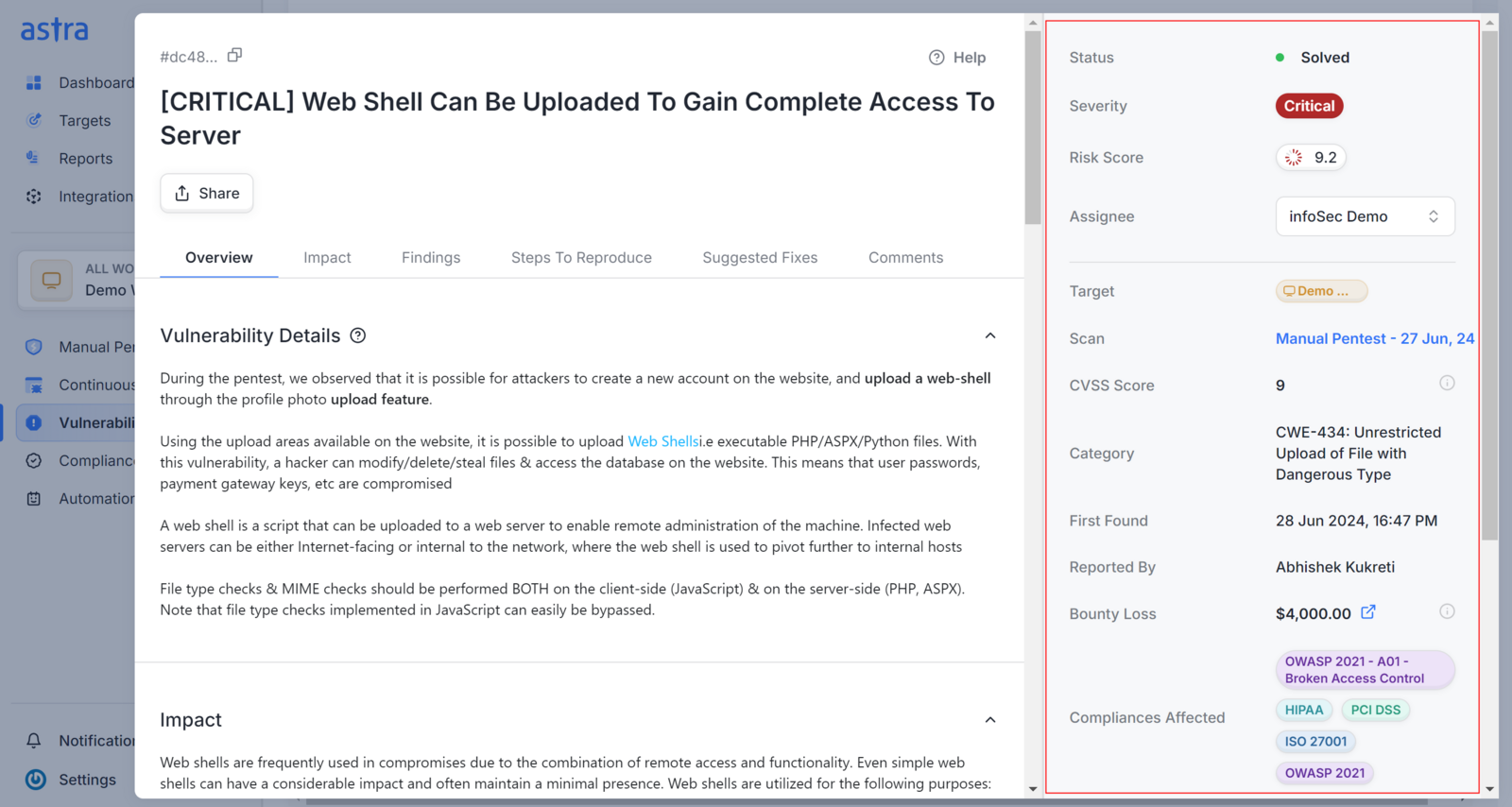
The right side of the detailed vulnerability sheet offers additional meta information:
Status: Shows whether the vulnerability is still open or has been resolved.
Severity: Indicates the criticality level, such as Critical, High, Medium, or Low.
Risk Score: A numerical value representing the risk associated with the vulnerability.
Assignee: The person designated to manage the vulnerability.
Target: Specifies which part of the application is affected.
Scan: Displays the date and method used for detecting the vulnerability.
CVSS Score: Provides a Common Vulnerability Scoring System score that reflects the severity.
Category: The classification of the vulnerability, such as CWE or OWASP.
First Found: The date when the vulnerability was first discovered.
Reported by: Name of the analyst or bot who reported this vulnerability.
Bounty Loss: Average amount that was paid when this vulnerability was found in bug bounty.
** Compliances Affected**: Number of compliances affected by this vulnerability.
Managing Vulnerabilities: Resolution Options
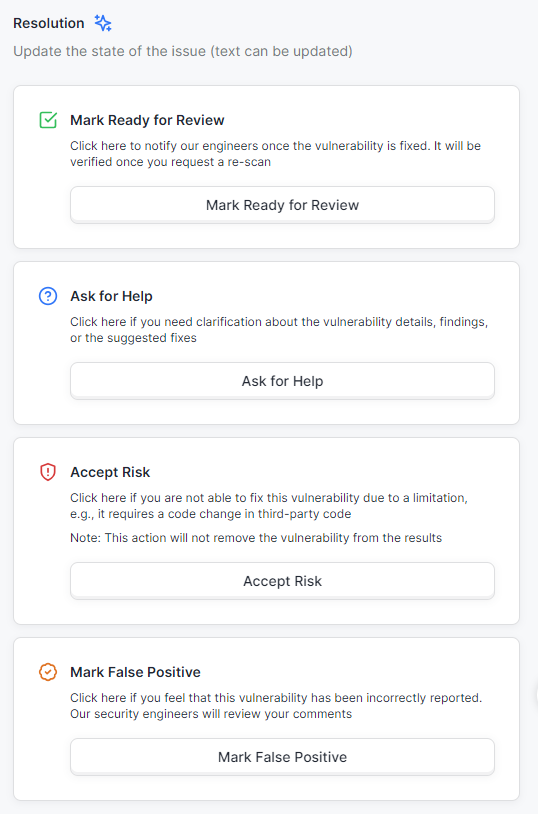
The resolution section provides several options to manage the vulnerability:
Mark Ready for Review: Use this option when the vulnerability has been addressed and is ready for review.
Ask for Help: If you need more details or clarification about the vulnerability, its findings, or suggested fixes, use this option to reach out for additional support.
Accept Risk: Choose this option if the vulnerability cannot be resolved due to limitations, such as requiring changes to third-party code. Note that this will not remove the vulnerability from the results.
Mark False Positive: If you believe the vulnerability has been incorrectly reported, use this option.
Frequently Asked Questions (FAQs)
1: How to update the assignee for the vulnerabilities?
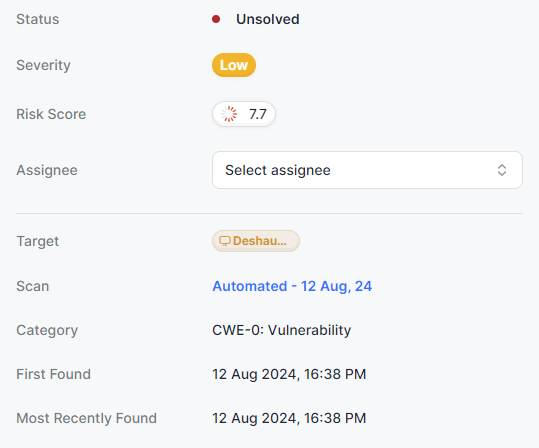
* Click on the **Select assignee** field on the right side of the vulnerability details page and choose the appropriate team member from the dropdown list.
2: How do I share the vulnerability details with my team?
* Use the **Share** button at the top of the Vulnerability Details page to share information via a link or integrate with JIRA.

|| Note: Availability of certain features may vary depending on your subscription plan (monthly or yearly) and the type of scan conducted.