How to Mark and Manage False Positives in Your Scan Results
Last updated: August 7, 2026
Introduction
Automated vulnerability scanners are designed to flag anything that matches a known vulnerability pattern. Occasionally, this results in a false positive — a reported issue that, upon closer inspection, does not actually exist in your application.
Knowing how to correctly mark false positives, document the reason, and optionally prevent them from appearing in future scans helps keep your vulnerability list focused on real, actionable issues.
This article explains how to mark a vulnerability as a false positive, manage scan exclusions, and review or remove exclusions later if required.
Marking a vulnerability as a False Positive updates its status to indicate that the finding has been reviewed and determined not to be a valid security issue. You can also choose to exclude the finding from future scans for either all endpoints or a specific URI.
Who Should Read This
This article is intended for developers, security engineers, and anyone responsible for reviewing and managing vulnerabilities in the Astra dashboard. It is particularly useful for teams running regular automated scans who want to keep scan results clean and relevant.
Prerequisites
Before marking a vulnerability as a false positive, ensure that:
You have manually verified that the reported vulnerability does not actually exist. Do not mark a finding as a false positive based solely on assumption.
You have Workspace Full Member access or higher. Restricted members cannot update vulnerability statuses.
You understand that marking a vulnerability as a false positive updates its status. It does not remove the vulnerability from historical scan results.
Instructions: How to Mark a False Positive
You can mark a vulnerability as a false positive from the dashboard in either of the following two ways:
Option 1: From a Specific Scan/Pentest
Navigate to the Web DAST or Pentest section.
Open the specific scan or pentest where the vulnerability was identified.
Click on the vulnerability you want to mark as a false positive to open its details.
Option 2: From the Vulnerabilities Page
Navigate to the Web DAST or Pentest section.
Open the Vulnerabilities page.
Click on the vulnerability you want to mark as a false positive to open its details.
The Vulnerabilities page will display vulnerabilities associated with the selected target across different scans or pentests.
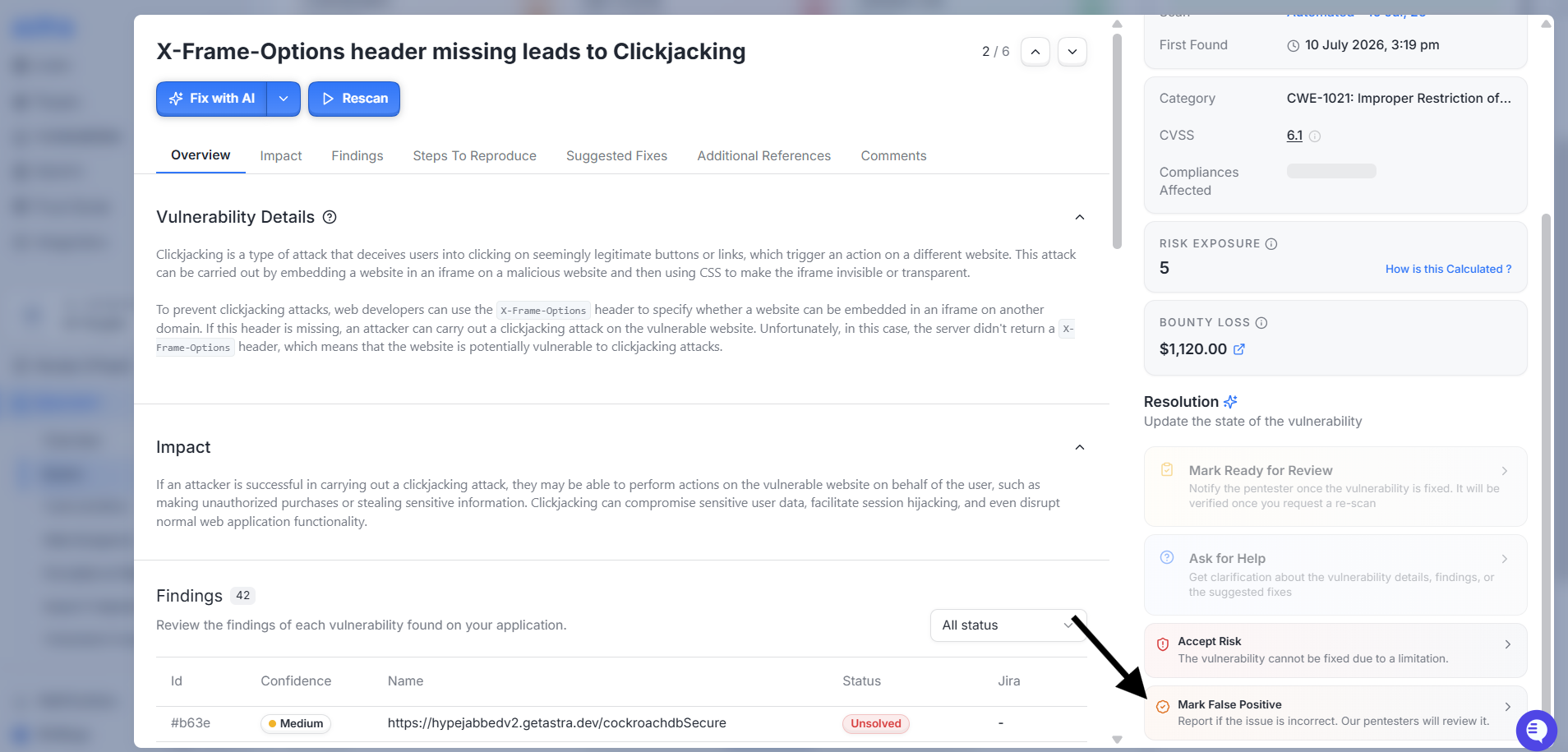
Open the vulnerability details panel. On the right side, click Mark False Positive.
Enter the required Reason explaining why you believe the finding is a false positive.
You will also see the following options:
Also add this as a comment on the vulnerability (enabled by default)
When enabled, the reason is also added as a vulnerability comment. If Jira Sync is configured, the comment will also sync to the linked Jira issue.Exclude from future scans (optional)
All endpoints (Default) – Excludes this vulnerability across all future scans for the current target.
One URI – Excludes this vulnerability only for a specific endpoint. After selecting this option, specify the URI in the URI field.
The vulnerability will be excluded only for the specified URI. Other endpoints will continue to be scanned and can still be flagged if the same vulnerability is detected.
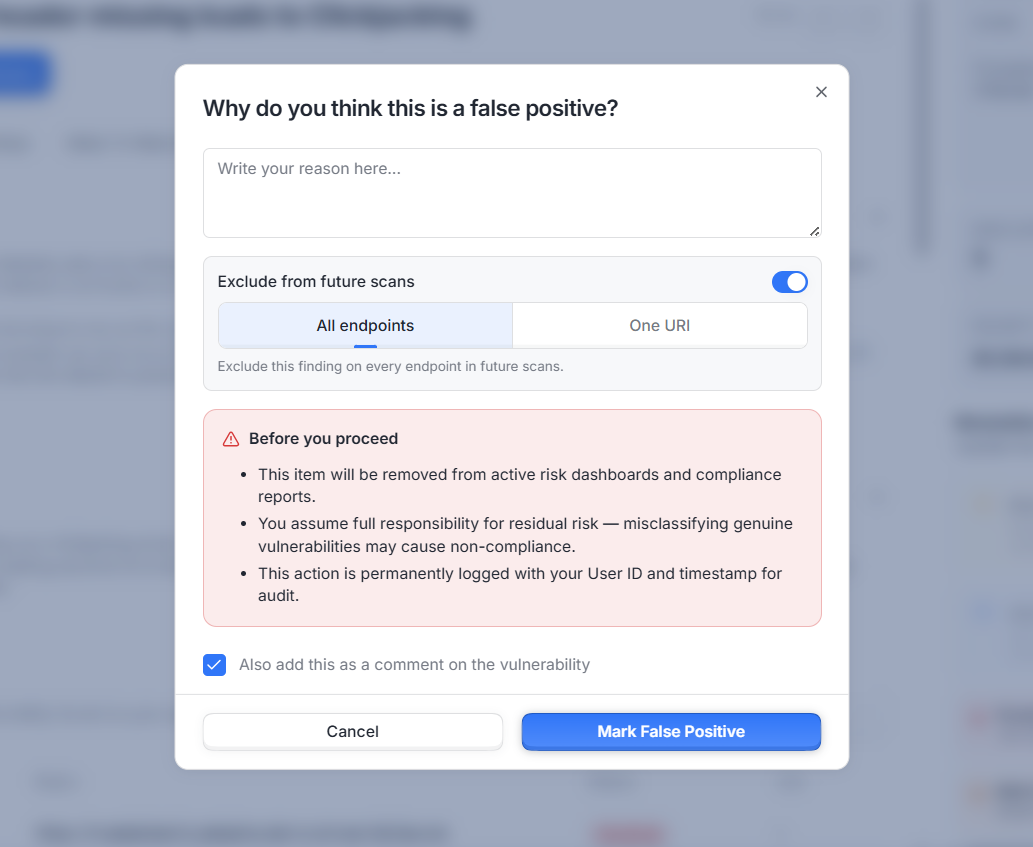
Review your selections and click Mark False Positive.
The vulnerability status will be updated. If you enabled scan exclusion, the selected exclusion will apply to future scans.
How to View and Manage Excluded Scan Rules
If you need to review or remove scan rule exclusions, you can manage them from your target settings.
Navigate to Settings.
Select the relevant target.
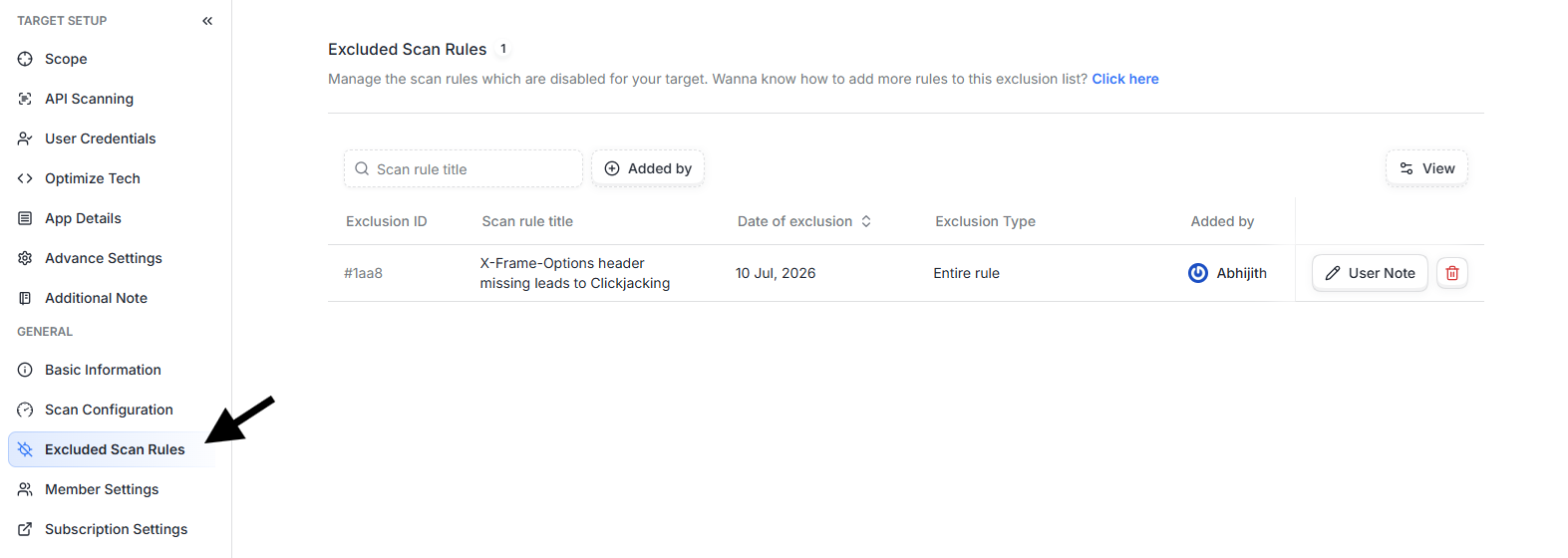
Scroll down to the Excluded Scan Rules section.
Here you can:
View all scan rule exclusions configured for the target.
See the Scan Rule Title, Date of Exclusion, Exclusion Type, and Added By for each exclusion.
Remove exclusions that are no longer required.
If no exclusions have been configured, the table will remain empty.
You can add new exclusions by marking a vulnerability as a false positive and selecting Exclude from future scans. Any exclusions created through that flow will automatically appear in the Excluded Scan Rules section.
Best Practices
Always verify before marking. Confirm through manual testing that the reported vulnerability is genuinely a false positive before suppressing it.
Add a meaningful reason. A clear explanation helps your team and Astra's engineers understand why the issue was marked as a false positive. If the comment option is enabled, the reason is also added as a vulnerability comment and synced to Jira when Jira Sync is enabled.
Use exclusions sparingly. If the finding is specific to a single endpoint, consider using One URI instead of All endpoints to avoid suppressing valid findings elsewhere in the application.
Review excluded scan rules periodically. As your application evolves, previously excluded rules may become relevant again. Periodically review the exclusions configured for your target.
Consider requesting a Vetted Scan. If you regularly encounter false positives, consider running a Vetted Scan. Vetted Scans include a manual review by Astra's security engineers to eliminate false positives before results are delivered.
Troubleshooting
I marked a vulnerability as a false positive, but it still appears in my results.
This is expected. Marking a vulnerability as a false positive updates its status but does not remove it from historical scan results. The vulnerability will continue to appear with a False Positive status. If you also excluded it from future scans, the exclusion only applies to subsequent scans.
I accidentally marked a real vulnerability as a false positive. How do I undo it?
Open the vulnerability details panel and change its status back to Unsolved using the status dropdown. If you also created an exclusion, remove it from the Excluded Scan Rules section under the target settings.
The "Mark False Positive" option is not visible.
This option is available only for vulnerabilities identified through automated scans. For manual pentest findings, use the comments section to discuss the finding with Astra's security engineers or contact Astra Support.
I excluded a vulnerability, but it still appeared in a future scan.
Verify whether the exclusion was created for All endpoints or One URI. If One URI was selected, the same vulnerability may still appear on other endpoints. You can review the exclusion under the Excluded Scan Rules section. If everything looks correct and the issue persists, please contact Astra Support with the vulnerability ID.
Can I exclude a vulnerability without marking it as a false positive?
To add a new exclusion, mark the relevant vulnerability as a false positive and select the appropriate Exclude from future scans option. The exclusion will then appear in the Excluded Scan Rules section, where it can be reviewed or removed later.