How to: Request a Rescan After Fixing Vulnerabilities
Last updated: August 18, 2026
Introduction
After fixing vulnerabilities identified during a Manual Pentest or an Automated Web DAST scan, you can request a rescan to verify that your remediation has been successfully implemented.
Astra provides two types of rescans:
Manual Rescan – Verified by Astra's security engineers (available for Pentest findings).
Automated Rescan – Verified instantly by Astra's automated scanner.
Prerequisites
Before requesting a rescan, ensure that:
For Manual Scans (Pentest)
At least 50% of the Critical and High severity vulnerabilities have been fixed.
The request is made within the 30-day rescan window.
Your subscription includes an available Manual Rescan.
For Automated Scans (DAST)
The vulnerabilities were identified by Astra's automated scanner.
The vulnerabilities are listed under the Unsolved section.
Requesting a Rescan for Pentest Findings
Step 1
From the left navigation menu, expand Pentest (PTaaS) and select Pentests.
Step 2
Open the pentest engagement for which you'd like to request a rescan.
Step 3
Select the vulnerabilities you've fixed by checking the corresponding checkboxes.
Only vulnerabilities in the Unsolved section are eligible for rescanning.
Step 4
Click Rescan from the action bar.
Step 5
Choose one of the following options:
Manual Rescan – Sends the selected vulnerabilities to Astra's security engineers for verification.
Automated Rescan – Immediately validates eligible vulnerabilities using Astra's automated scanner.
Step 6
Confirm your request.
You can monitor the progress from the Pentest details page.
Requesting a Rescan for Autonomous Pentest Findings
For Autonomous Pentest, one Manual Rescan is available to verify fixes made to the identified vulnerabilities.
Step 1
Open the relevant Autonomous Pentest engagement.
Step 2
Select the vulnerabilities you have fixed by checking the corresponding checkboxes.
Since only one Manual Rescan is available for an Autonomous Pentest, we recommend fixing all applicable vulnerabilities before requesting the rescan.
Step 3
Click Rescan from the action bar and confirm your request.
The selected vulnerabilities will be reviewed by Astra’s security engineers, and their statuses will be updated after verification.
Note: Only one Manual Rescan is available for an Autonomous Pentest. Automated Rescan is currently unavailable for Autonomous Pentest and is planned as part of an upcoming paid upgrade.
Requesting a Rescan for Web DAST Findings
Step 1
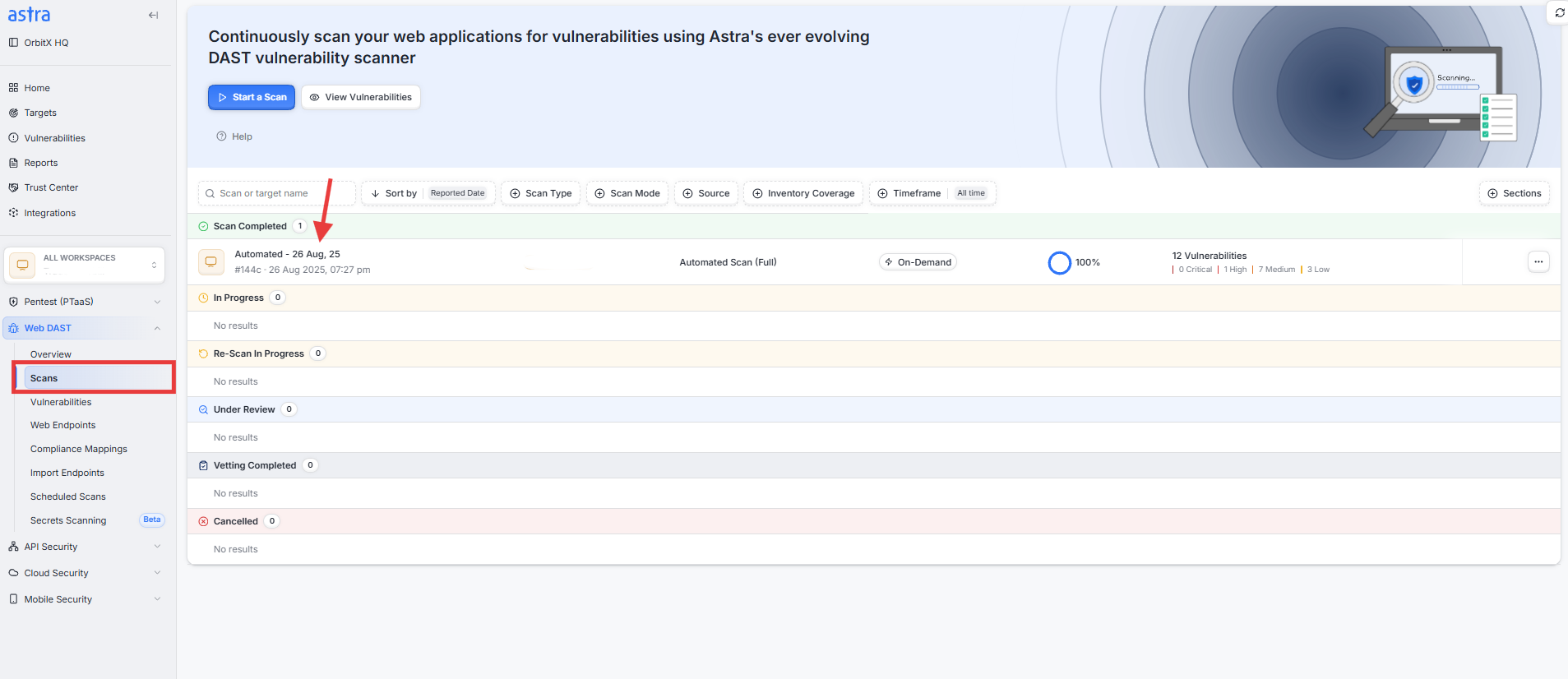
Expand Web DAST from the left navigation menu and select Scans.
Step 2
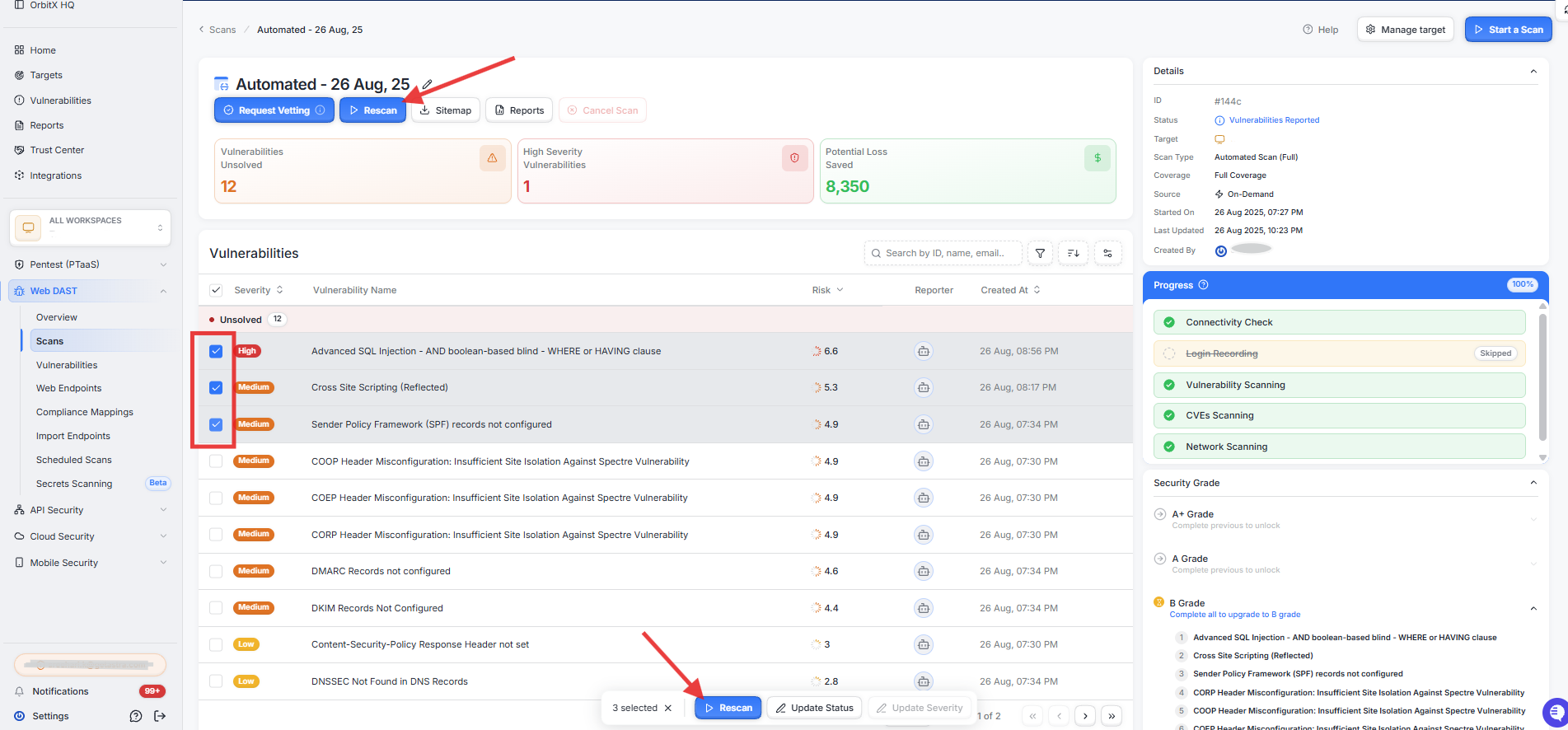
Open the completed scan containing the vulnerabilities you've fixed.
Step 3
Under the Unsolved section, select the vulnerabilities you'd like to verify.
Step 4
Click Rescan.
The automated scanner will immediately begin validating the selected vulnerabilities.
What Happens Next?
Manual Rescan
Reviewed by Astra's security engineers.
Typically completed within 3–9 business days.
Vulnerability statuses are updated after verification.
Automated Rescan
Starts immediately.
Completes within a short period depending on the number of vulnerabilities selected.
Updates the vulnerability status automatically after validation.
Important Notes
Only vulnerabilities in the Unsolved section can be rescanned.
Manual Rescans are available for Pentest findings.
Automated Rescans are available for eligible automated findings.
A vulnerability can only be part of one active rescan at a time.
Manual Rescans must be requested within the eligible rescan window