Setting up a Microsoft Teams Shared Channel with Astra
Last updated: August 4, 2026
Shared Microsoft Teams channels are available exclusively to customers on the Pentest and Enterprise plans. Please contact your Astra account manager if you're interested in enabling this feature.
Astra collaborates with your team using Microsoft Teams shared channels for seamless communication during your security assessments. To enable this, your Microsoft Teams tenant must be configured to allow external shared channels. This guide outlines the steps required to get started.
Prerequisites
Before we can invite you to a shared channel, your Microsoft Teams environment must support Microsoft Teams Connect (Shared Channels) and have appropriate permissions set.
Please ensure:
Your Teams tenant is on a supported Microsoft 365 plan (e.g., Microsoft 365 Business, E3, E5).
The Teams admin has access to set up cross-tenant access policies.
High-Level Setup Flow
1. Send Astra Your Tenant Info
Please share the following details with your Astra point of contact:
Microsoft domain name or tenant ID
Email address of a user in your tenant who has a Teams policy allowing them to "Join external shared channels"
Not sure how to find your tenant ID? Visit Microsoft's portal, navigate to Azure Active Directory > Overview, and copy the Tenant ID.
2. Astra Configures Inbound Settings
Once we receive your information, we will:
Add your tenant to our cross-tenant access policy (inbound) to allow external communication.
Prepare our shared channel for your user.
Meanwhile, your Teams admin will need to configure outbound access on your side. See step 3 below.
3. You Configure Outbound Access to Astra
Your Microsoft Teams administrator must:
Enable External Collaboration in Microsoft Entra Admin Center
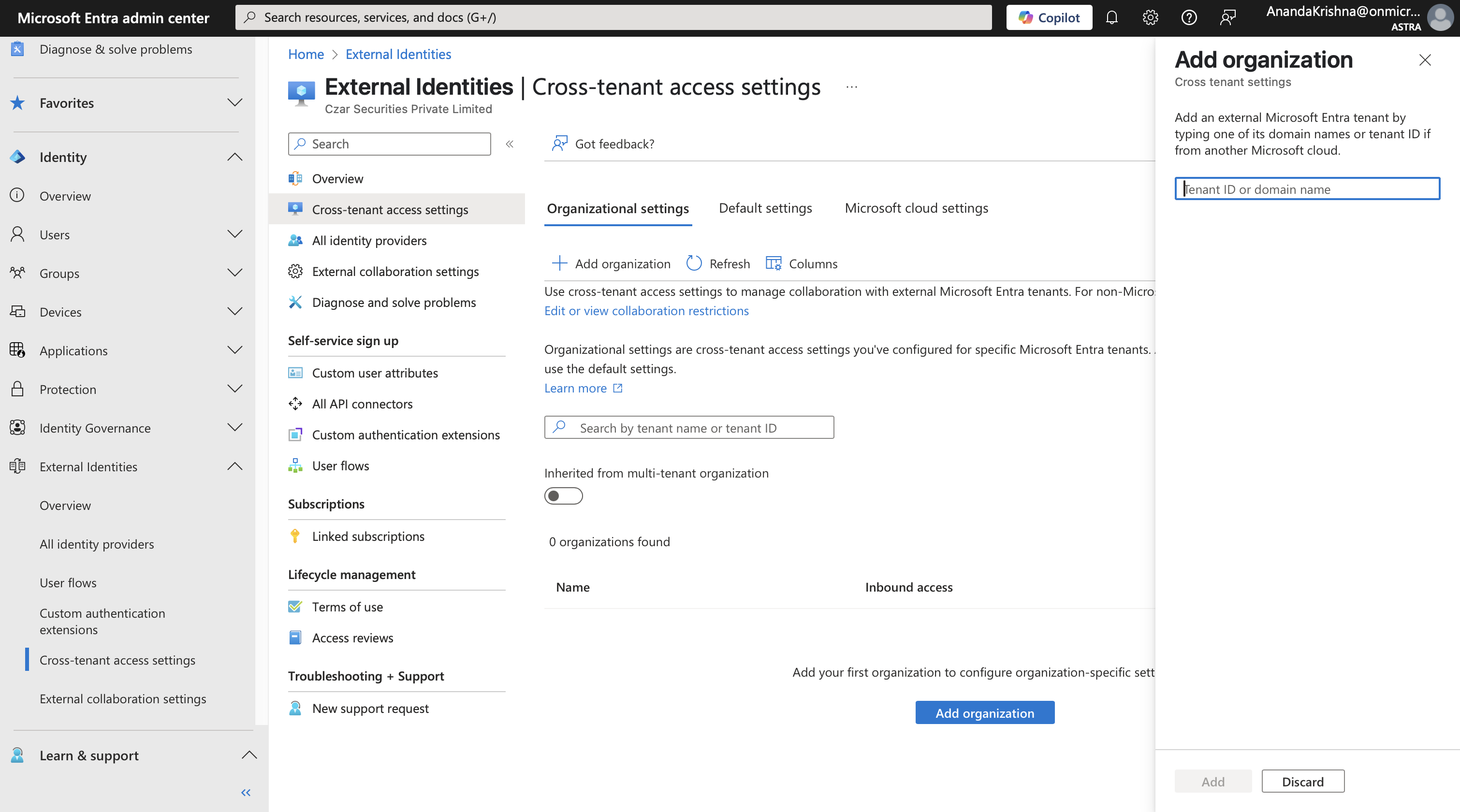
Navigate to External Identities > Cross-tenant access settings
Under Organizational settings, click on Add organization and enter Astra’s tenant (we will share our tenant ID with you).
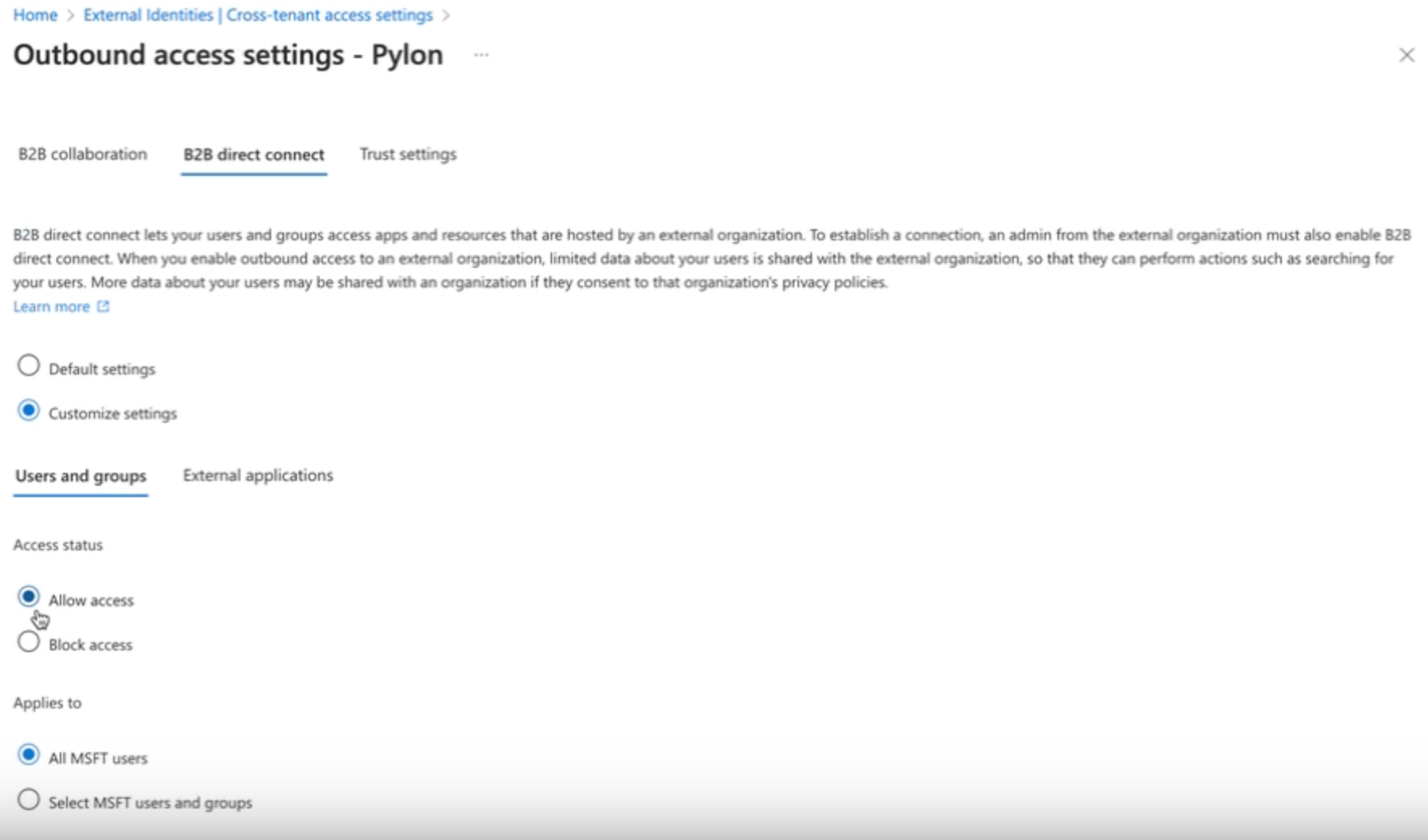
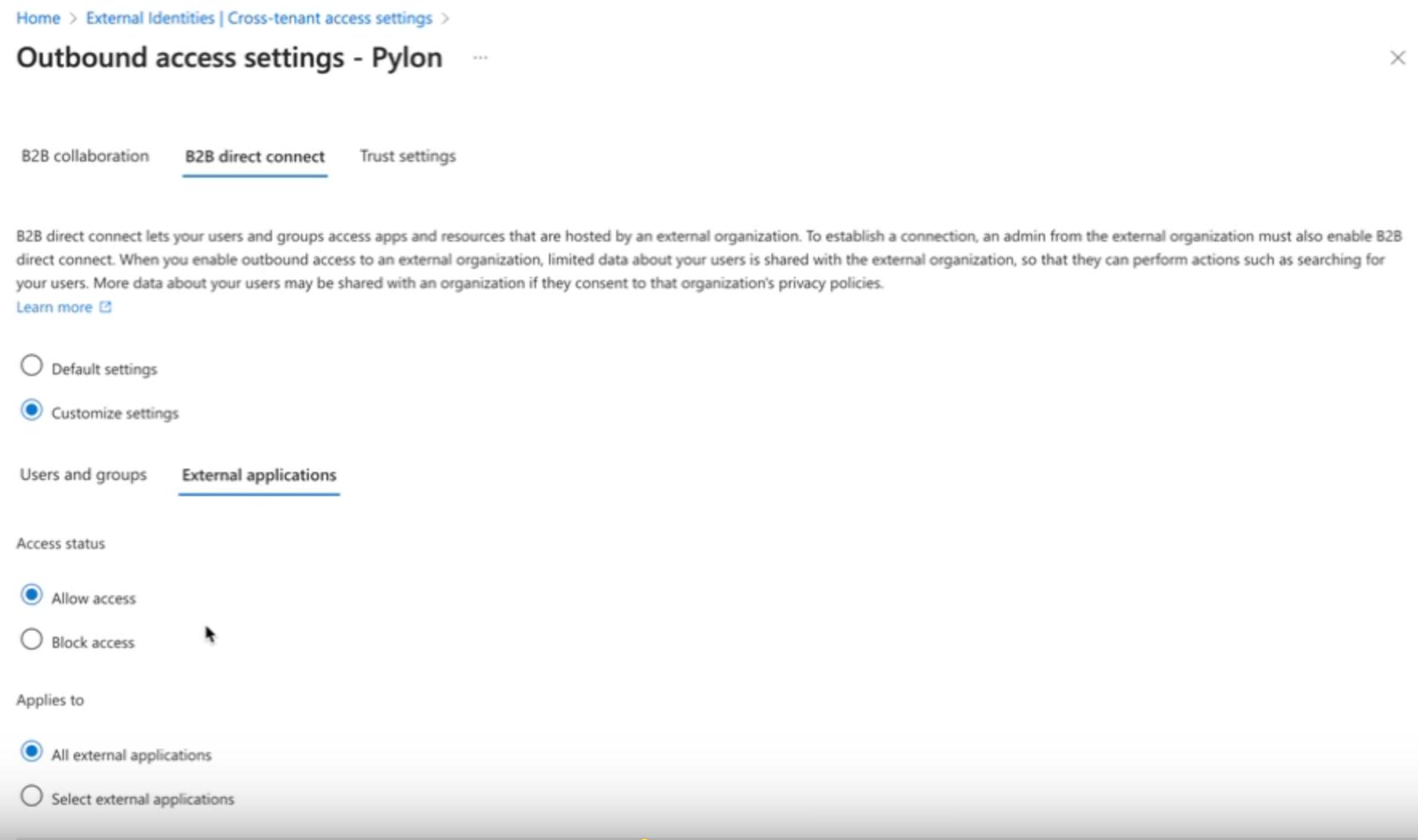
Under Outbound access for the Astra tenant, go to the B2B direct connect tab and ensure the following:
Access status is set to Allow access under the Users and groups tab
Access status is set to Allow access under the External applications tab
It might take a couple of hours for these security settings to percolate through Microsoft systems, before users can be invited to the shared channel.
You can also refer the official Microsoft documentation to Collaborate with external participants in a shared channel (IT Admins)
Assign the Correct Teams Policy
Ensure the user's Microsoft Teams policy has:
Join external shared channels: Enabled
You can do this via Microsoft Teams Admin Center under Teams Policies, or by using PowerShell.
Please ensure the users have this policy enabled so that they can be invited to shared channels
4. Astra Sends the Shared Channel Invite
Once both inbound and outbound settings are in place:
Astra will invite the specified user to the shared Teams channel
The user will receive an invite and can begin collaborating with us
If you encounter any issues during the setup, feel free to reach out to your Astra account manager by creating a support ticket.