Overview: Target Switcher
Last updated: August 7, 2026
Summary
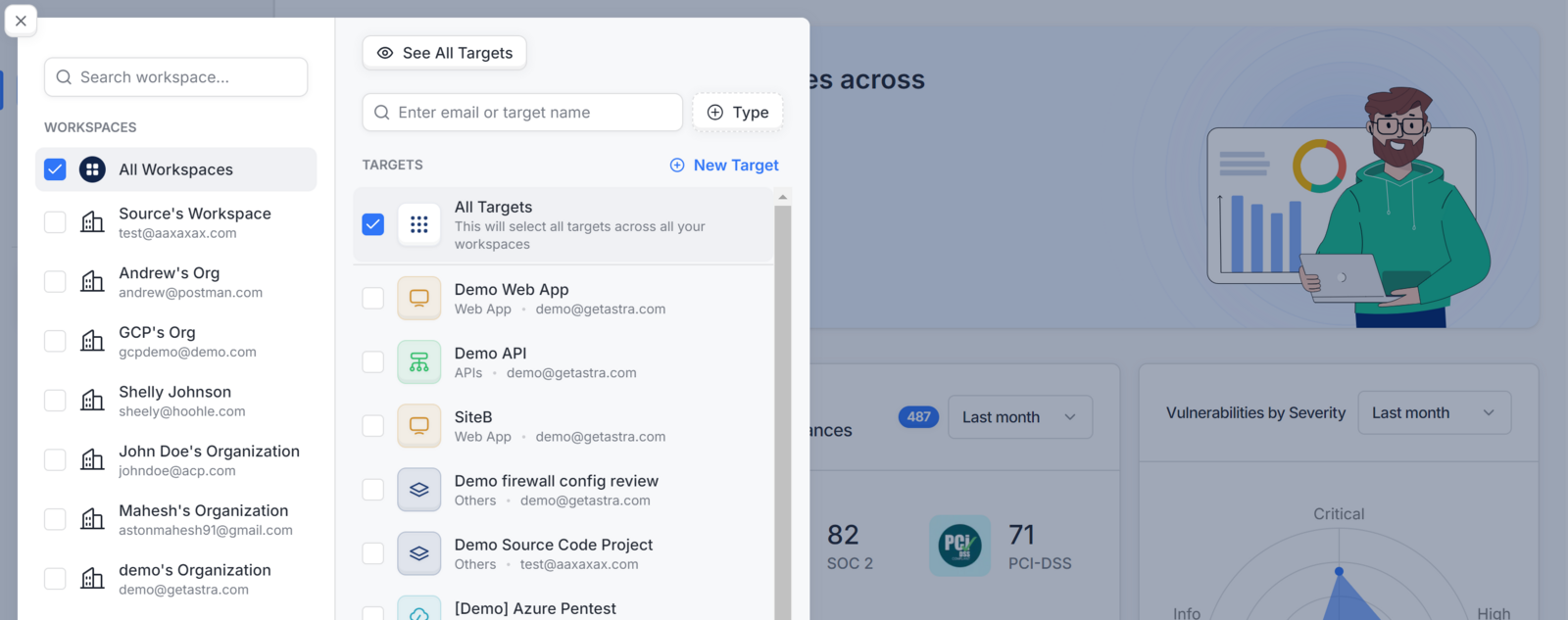
The Target Switcher is a powerful navigation and filtering tool that allows you to control the data scope of your dashboard by selecting specific workspaces or targets. It ensures that the information you see is relevant to the specific project or department you are currently managing.
Who should read this
Security Analysts and Developers who manage multiple applications and need to isolate findings for a specific target.
Organization Admins who oversee several business units and use the switcher to toggle between different workspaces.
Key Functions & Component Breakdown
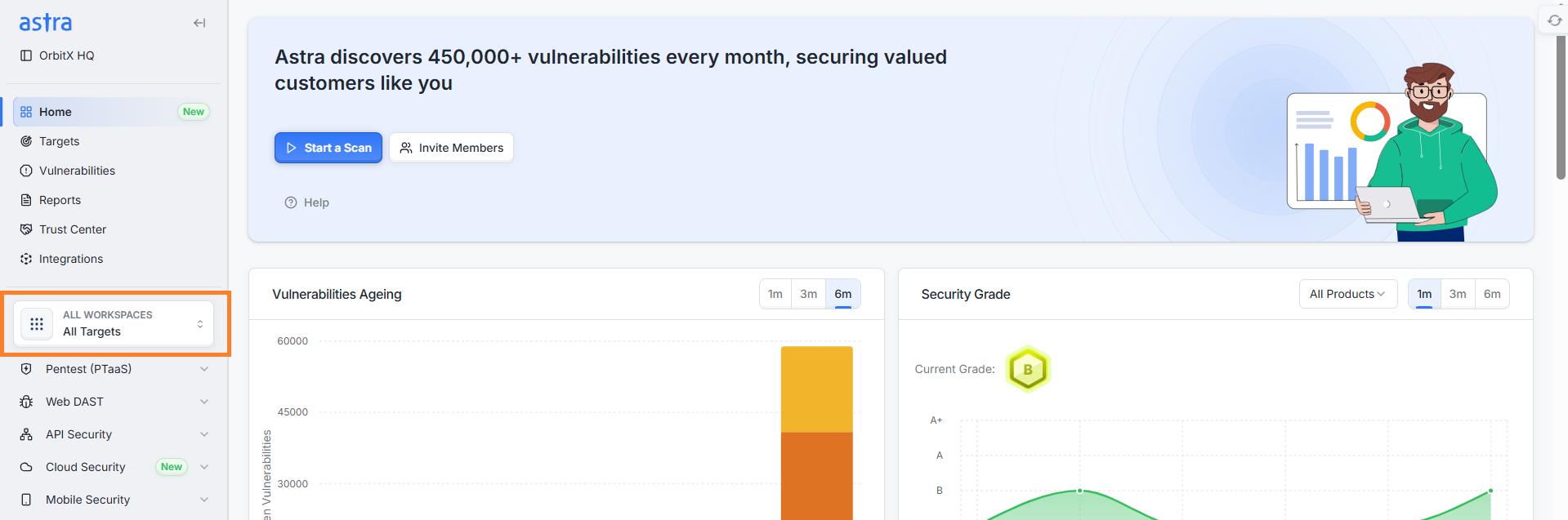
The Target Switcher is accessed via an icon in the left sidebar and opens a panel divided into two main sections:
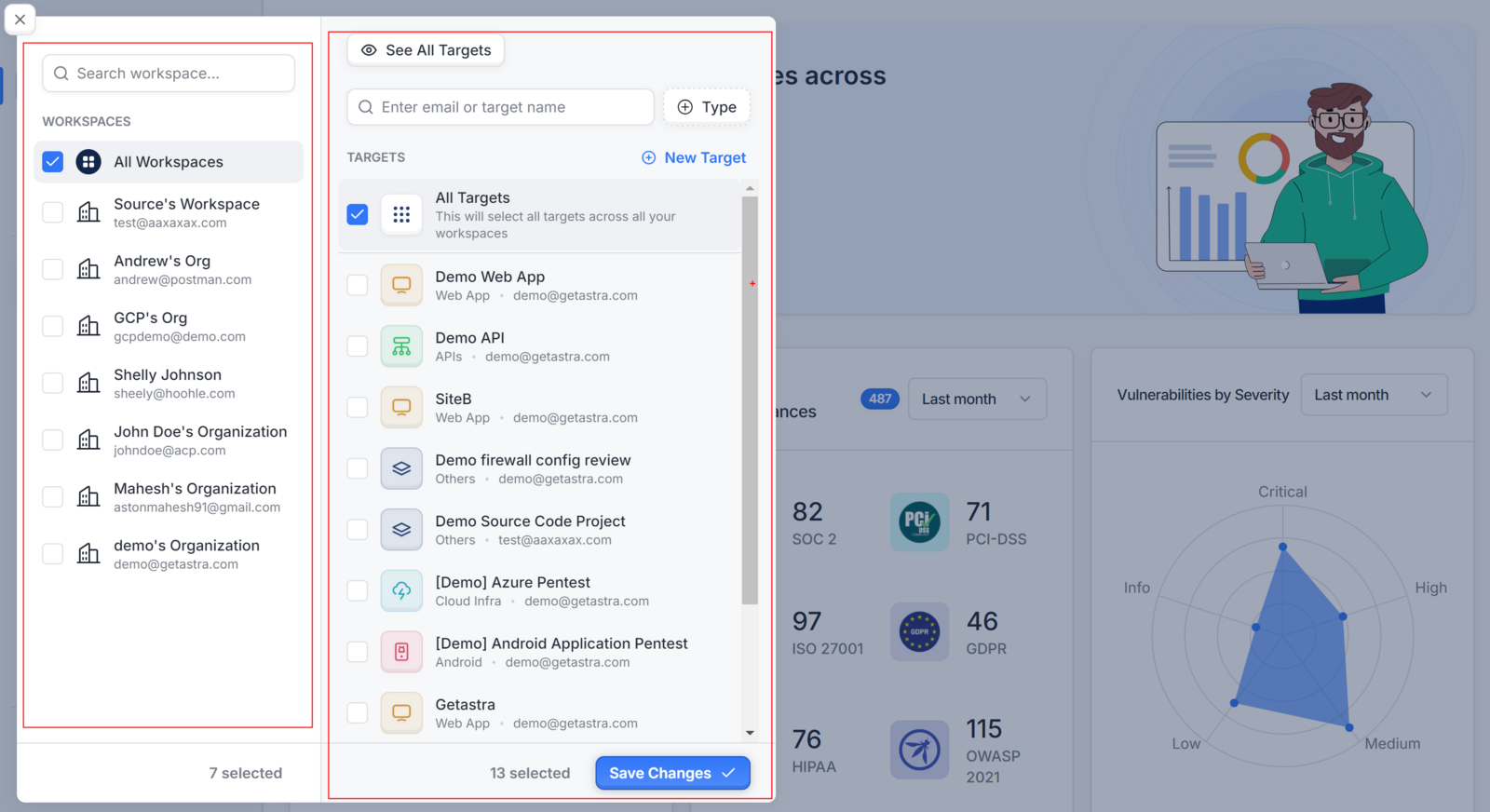
Workspaces List (Left Section): Displays every workspace you have access to within the organization.
Targets List (Right Section): Dynamically updates to show the specific targets (web apps, APIs, etc.) associated with the workspace(s) selected on the left.
Search and Filters: Both sections include search bars to help you quickly locate a specific workspace or target by name.
Global vs. Filtered Pages
It is important to note that the platform is organized hierarchically. Pages located above the Target Switcher in the UI remain global, meaning they always show an overview of all your assets. Pages below the switcher are dynamically updated based on your selection:
Global (Unaffected) Pages: Dashboard, Targets, Reports, and Integrations.
Filtered Pages: Continuous Scans, Vulnerabilities, and Compliance views update instantly once a selection is applied.
Actions
Apply Filters: After selecting one or multiple workspaces and targets, you can see the relevant view on dashboard
See All Targets: Click this button to be redirected to the main Targets Page for comprehensive management.
Add New Target: Use the New Target button to initiate the checkout flow and purchase additional assets for your workspace.
Best Practices
Multi-Select for Comparison: You can select multiple workspaces simultaneously to view an aggregated list of vulnerabilities across different business units.
Clear Cache if Out of Sync: If the Target Switcher does not appear to update the data correctly, you can use the Command Menu (Cmd+K or Ctrl+Shift+K) to clear the application cache.