Set up user credentials with AI Sign-in
Last updated: November 12, 2026
User credentials tell Astra how to sign in to a web application so that scans and pentests can test the pages behind a login. When Enable AI Sign-in is turned on for a target, an AI agent signs in as each user credential, and Astra checks every user credential before a scan uses it.
This article explains who can use AI Sign-in, how to turn it on, what happens to a target's existing login details, how sign-in checks work, and how the setup differs from the previous login form. For step-by-step instructions on adding and managing user credentials, read How to add a user credential for a web target.
Before you begin
AI Sign-in depends on the target type, the plan and the target's AI settings.
AI Sign-in is available for web application targets whose plan includes Autonomous Pentest or Hybrid Pentest.
Enable AI Features must be on for the target. The Enable AI Sign-in toggle appears only while Enable AI Features is on.
A target created on a plan that includes Autonomous Pentest or Hybrid Pentest starts with Enable AI Features and Enable AI Sign-in already turned on.
Targets without AI Sign-in continue to use the previous login form under User Credentials.
Turn on AI Sign-in
AI Sign-in is turned on per target from the target's Basic Information page.
Open the target and go to Basic Information in the target settings.
Make sure Enable AI Features is on.
Turn on Enable AI Sign-in ("Enable AI to sign in with the user credentials you add for this target").
Click Save Changes.
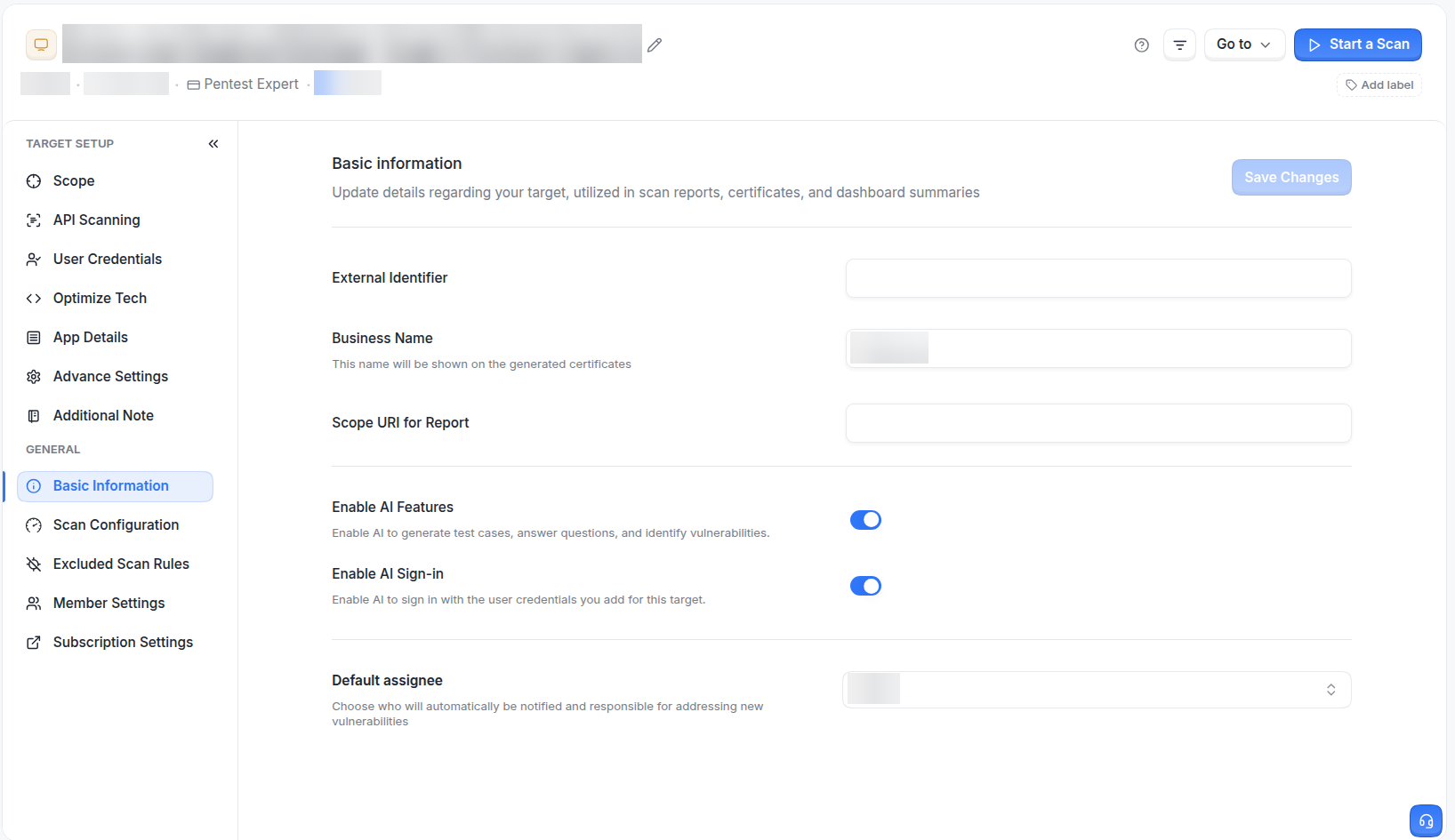
The Basic Information page of a target, with Enable AI Features and Enable AI Sign-in turned on.
After the change is saved, the target's User Credentials page shows the user credential screens described below.
Note
Turning off Enable AI Features also turns off Enable AI Sign-in.
How AI Sign-in works
Each user credential describes one account in the application and how that account signs in. Setting one up has three parts, shown on the User Credentials page:
Choose The Login Method: how the account signs in, such as Username + Password, Password + Authenticator, SSO Only, SSO + Authenticator or Authenticated Header.
Add Sign-In Details: the account details, the Privilege Level and the Sign-In Instructions, plus an optional login recording or custom script.
Save The User Credential: Save and verify saves the user credential and starts a sign-in check, in which an AI agent signs in as that account.
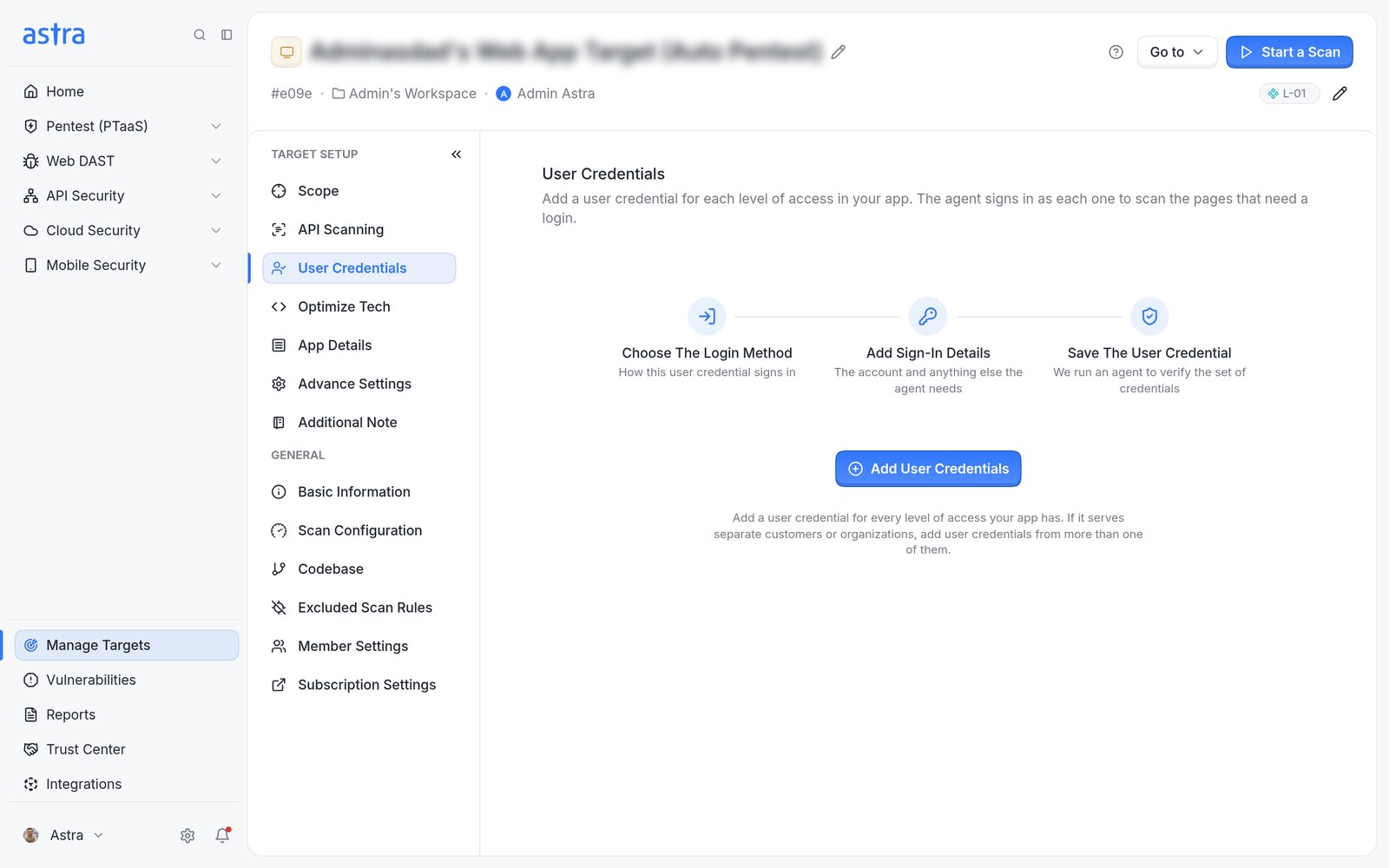
The User Credentials page before any user credential is added, showing the three parts of the setup.
Add a user credential for every level of access the application has, for example an administrator and a regular user. If the application serves separate customers or organizations, add user credentials from more than one of them. Astra uses the Privilege Level to check that each kind of user only reaches what it should.
The how-to article walks through each login method and the fields it needs, writing Sign-In Instructions, adding a login recording or custom script, reading the result of a sign-in check, and editing, duplicating or deleting user credentials. Read more in How to add a user credential for a web target.
What happens to existing login details
When Enable AI Sign-in is turned on for a target that has no user credentials yet, Astra copies the target's existing login details into the new setup:
Each role from the previous Testing Credentials list becomes a user credential, with the same name, username and password.
Privileged User becomes Privileged, and Normal User becomes Non-Privileged.
Each copied user credential uses the Username + Password login method.
The target's existing login recording and custom script are attached to every copied user credential.
Each copied user credential gets general Sign-In Instructions: sign in with the given username and password, follow the attached login recording or custom script if there is one, and confirm the sign-in worked. The instructions can be edited like any other field.
Astra then starts a sign-in check for each user credential that has not been checked yet. If the target already has user credentials, nothing is copied and the existing user credentials are kept as they are.
Review each copied user credential after the check finishes. If a check fails, open the user credential, update the details or the instructions, and click Save and verify.
Sign-in checks and statuses
Every saved user credential shows a Status on the User Credentials page. A scan uses a user credential only after it is Verified.
Status | What it means |
|---|---|
Pending | The sign-in check has not run yet. |
In progress | The agent is signing in as this user credential. The user credential can be viewed but not edited until the check finishes. |
Verified | Astra signed in successfully. Scans can use this user credential. |
Failed | Astra could not sign in. The reason is shown in the user credential. |
Incomplete | Required details are missing, such as the Sign-In Instructions. Astra can't check it or use it in a scan until the details are finished. |
Can't be checked | The user credential uses a login method or sign-in provider that is marked Coming soon. |
If any user credential still needs details, a notice at the top of the page shows how many need to be finished before a scan can use them. To run a check again without changing anything, use Verify Again in the user credential's row menu.
How the new setup differs from the previous login form
Targets without AI Sign-in use the previous form under User Credentials: one login recording or custom script for the whole target, and a Testing Credentials list with a Role type, name, Username and Password for each role, saved with Save Changes.
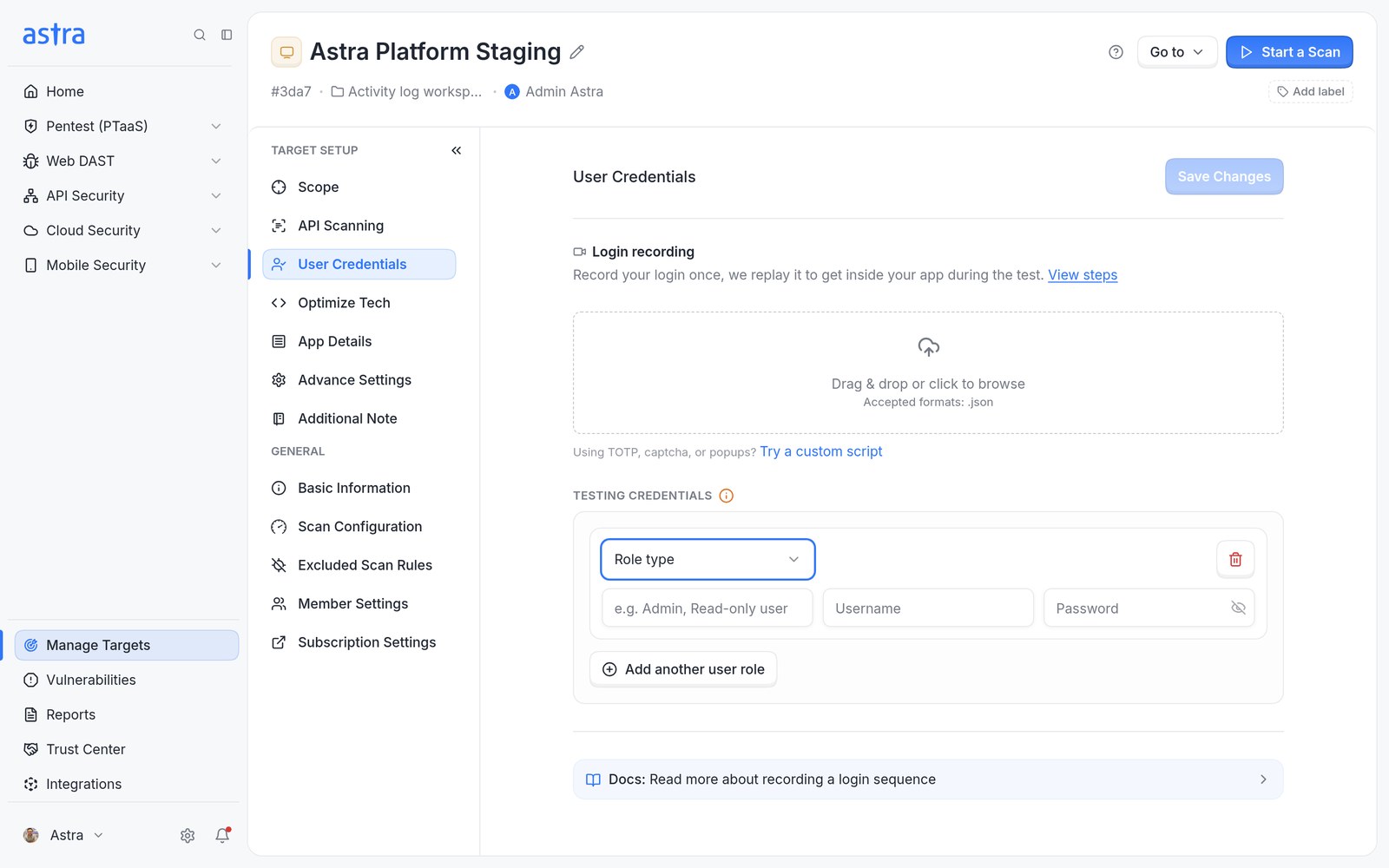
The previous login form, used by targets without AI Sign-in.
Previous login form | User credentials with AI Sign-in | |
|---|---|---|
Login method | Username and password only | Username + Password, Password + Authenticator, SSO Only, SSO + Authenticator or Authenticated Header |
Login recording and custom script | One for the whole target | Optional, per user credential |
Sign-in instructions | Not available | Written per user credential |
Privilege | Privileged User or Normal User | Privileged or Non-Privileged |
Sign-in check | None after saving | Each user credential is checked after Save and verify, with a status in the list |
Saving | All roles saved together with Save Changes | Each user credential is saved on its own |
Turn off AI Sign-in
To go back to the previous login form, turn off Enable AI Sign-in on Basic Information and click Save Changes.
The User Credentials page shows the previous login form again, with the target's earlier login recording, custom script and testing credentials.
User credentials added in the new setup are not deleted. They are shown again if Enable AI Sign-in is turned back on.
Changes made in the new setup are not copied back to the previous login form.