What Are the Different Vulnerability Scan Types?
Last updated: August 7, 2026
Different Scan Modes
When you click on 'Start a Scan' button from the dashboard, you'll be given a choice to run three modes of scans. We've described below what each of these types of scans means:
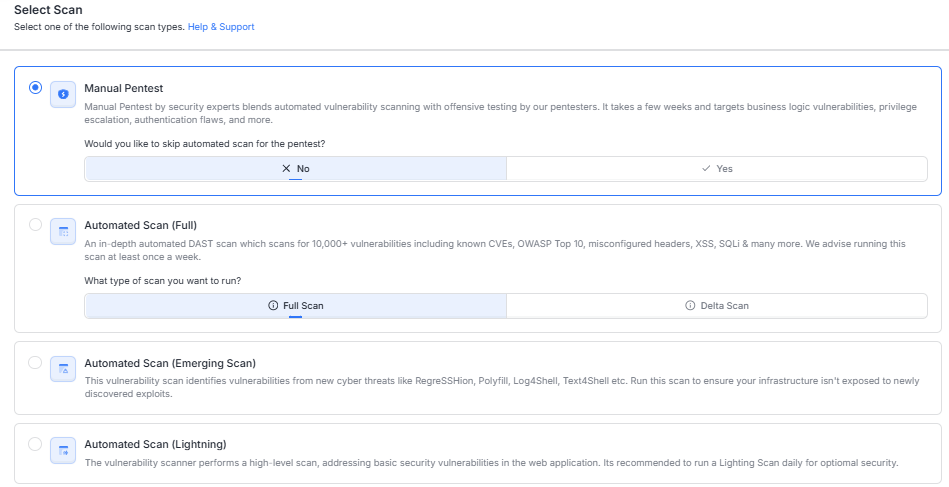
Manual Pentest: Manual Pentest comprise of automated vulnerability scan + vetted results + a complete penetration test by our security experts. In a Pentest, our security experts uncover vulnerabilities which are logical flaws and often beyond the detection capabilities of automated scanners. The entire exercise takes a week or two depending on the scope. In the case of manual Pentest, after automated scan completes a ticket is auto-generated where our security engineers get in touch with you requesting details for manual Pentest if required. Our 'Pentest' plan covers these types of tests.
Automated Scan (Full): Our advanced vulnerability scanner thoroughly checks your application's endpoints for vulnerabilities, including high-level issues like header misconfigurations and sensitive data leaks, as well as low-level bugs like SSTI, XSS, SQLi, and RCE. You can configure it to scan behind login, and scans typically take 12-48 hours depending on application scope. While false positives may occur, running a Full Scan at least once a week is recommended. These scans are included in all our plans.
**Automated Scan (Emerging Scan): This scan identifies vulnerabilities from emerging cyber threats like RegreSSHion, Polyfill, Log4Shell, and Text4Shell, helping secure your infrastructure against newly discovered exploits.
**Automated Scan (Lightning Scan): The vulnerability scanner performs high-level scans to address basic web application vulnerabilities. For optimal security, running a Lightning Scan daily is recommended.
How to initiate Vetting?
|| A Vetted Scan is a vulnerability scan reviewed and validated by security experts to ensure accuracy and minimize false positives.
Login to the Dashboard and click on Continuous Scans page
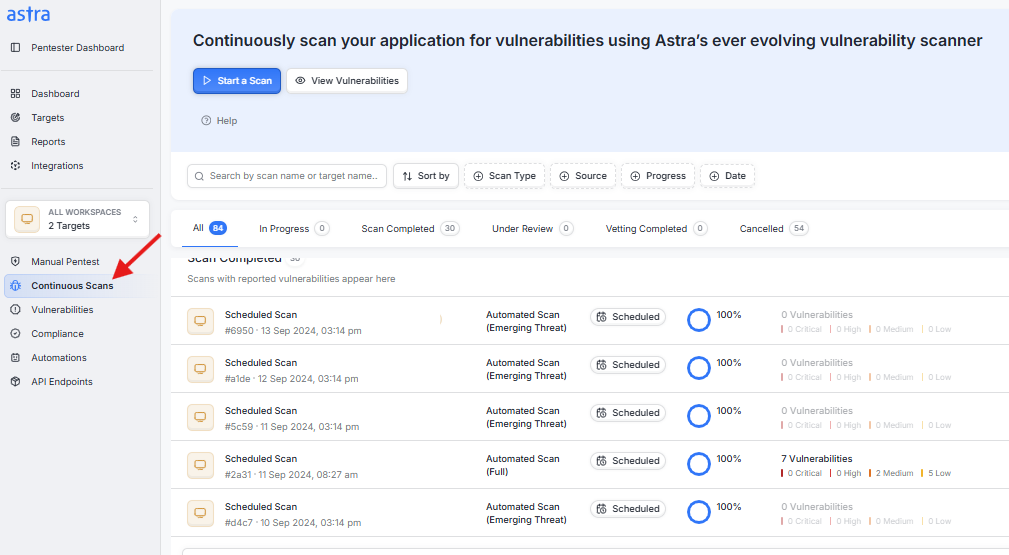
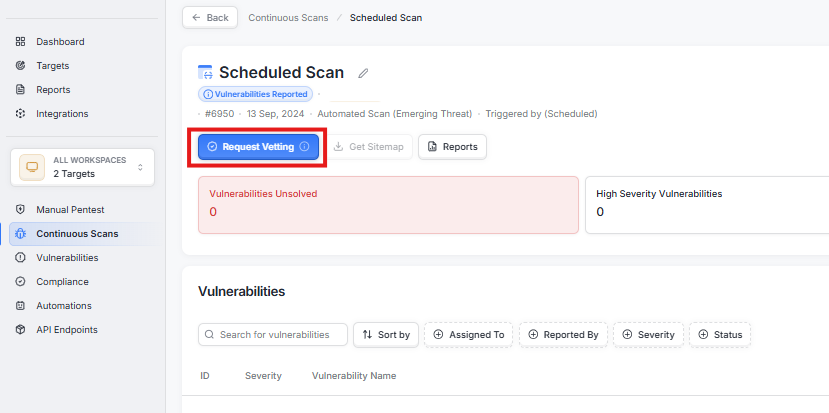
Open the scan from the list that requires vetting by our security experts, and click on Request Vetting button