How to Verify Credentials in Your Postman Collection
Last updated: October 14, 2026
Introduction
Your Postman collection tells Astra which endpoints to scan, and the credentials in it decide how far the scanner gets. If a token has expired or an environment variable holds the wrong value, the scanner/pentester won't be able to test your target.
Credential Verification checks this before you scan. An AI agent reads your collection, environment file, and target authentication, sends requests to your endpoints using the credentials it finds, and classifies each endpoint. It reports which endpoints are authenticated, which didn't need authentication, and which need your attention. If any endpoints need attention, see Troubleshooting.
NOTE: Credential Verification is available for API and Web targets on selected plans.
What Gets Checked
Credential Verification checks your collection, environment file, and target together. The AI agent resolves the credentials for each endpoint from:
Collection: the authorization configured on your Postman collection
Environment: variables in the Postman environment file uploaded with the collection
Target: the authentication saved on the target in Astra (API targets only)
NOTE: Verification is read-only. The AI agent only sends non-destructive requests: it doesn't create, change, or delete any data on your API, and credential values never appear in the report.
Prerequisites
Before running Credential Verification, ensure:
A Postman collection is uploaded to the target. The environment file is optional, but upload it if your collection uses {{variables}} for tokens or keys.
The target's URL is saved:
API targets: the API base URL of the target
Web targets: the API base URL in the API Scanning step
Your API is reachable from Astra. If it restricts inbound traffic by IP, whitelist Astra's scanner IPs.
NOTE: Credential Verification currently supports Postman collections only. Hoppscotch collections and HAR files are not supported.
Instructions
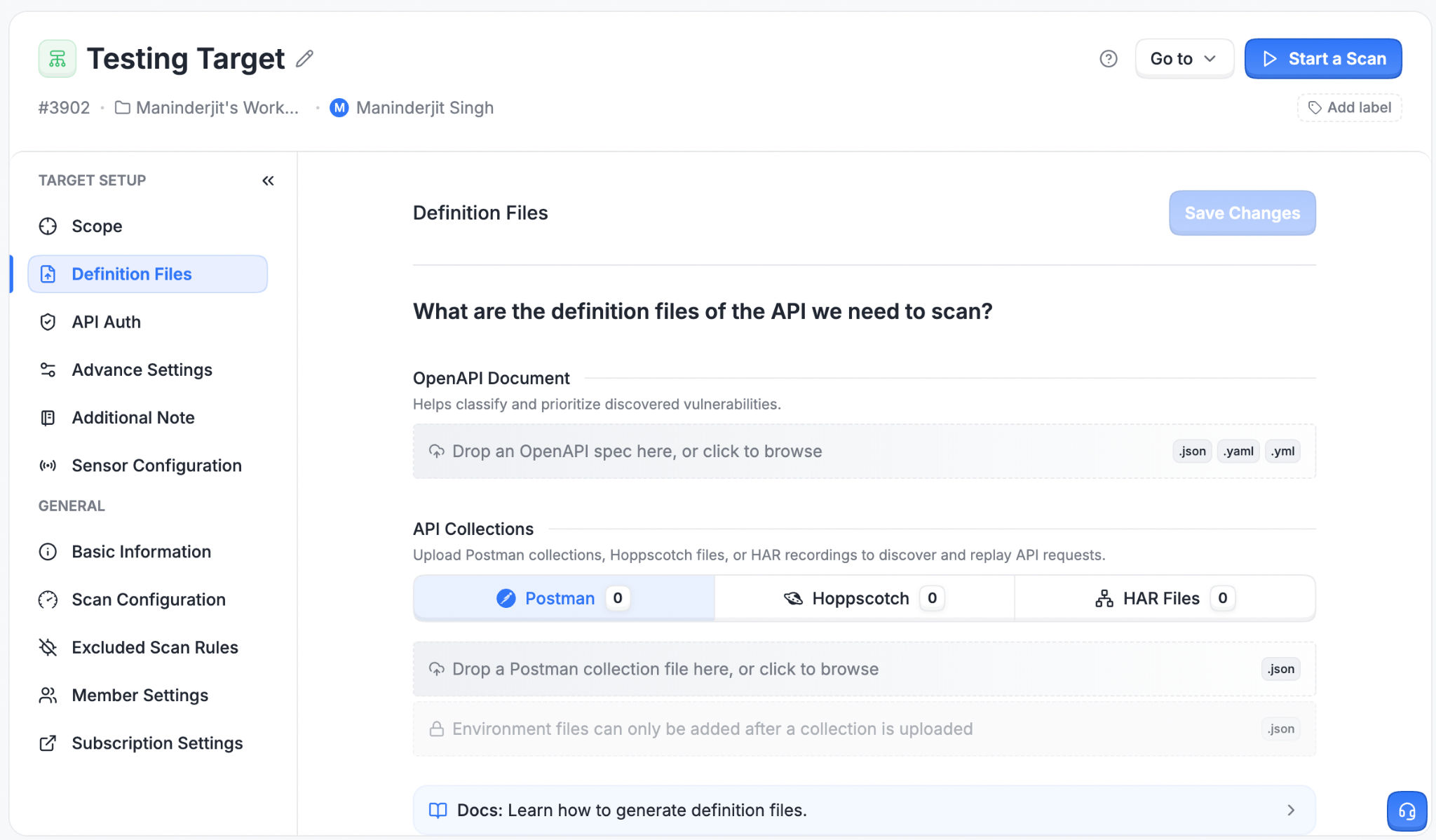
Step 1: Upload your Postman files
Open the target setup wizard from the Targets page.
Go to the step where definition files are uploaded:
API targets: the Definition Files step
Web targets: the API Scanning step. Enter your API base URL first.
Under Postman, upload your collection file and, if applicable, your environment file.
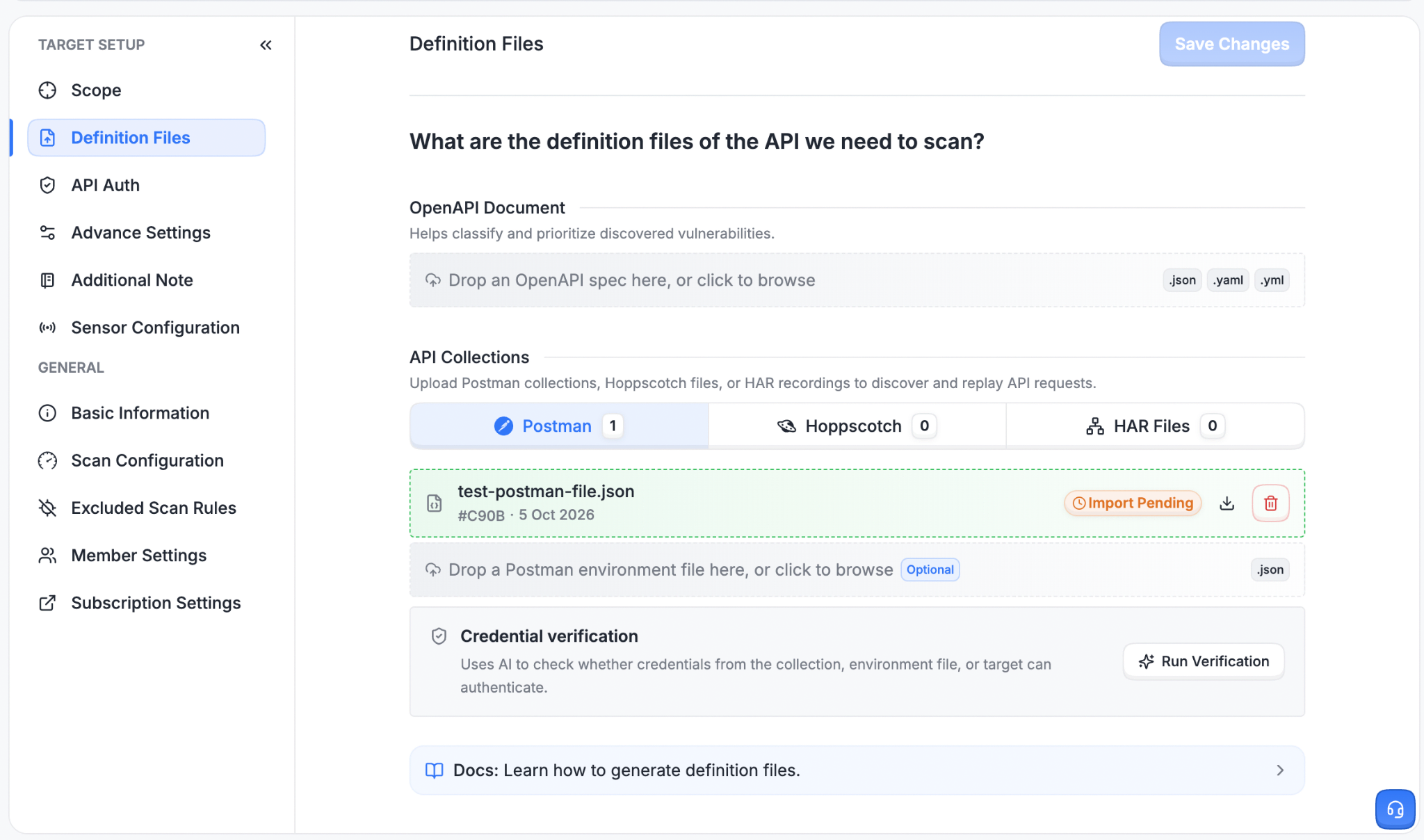
Step 2: Run verification
In the Credential verification panel below your Postman files, click Run Verification.
The status changes to AI analysis running while the AI agent tests your endpoints. Verification usually takes a few minutes.
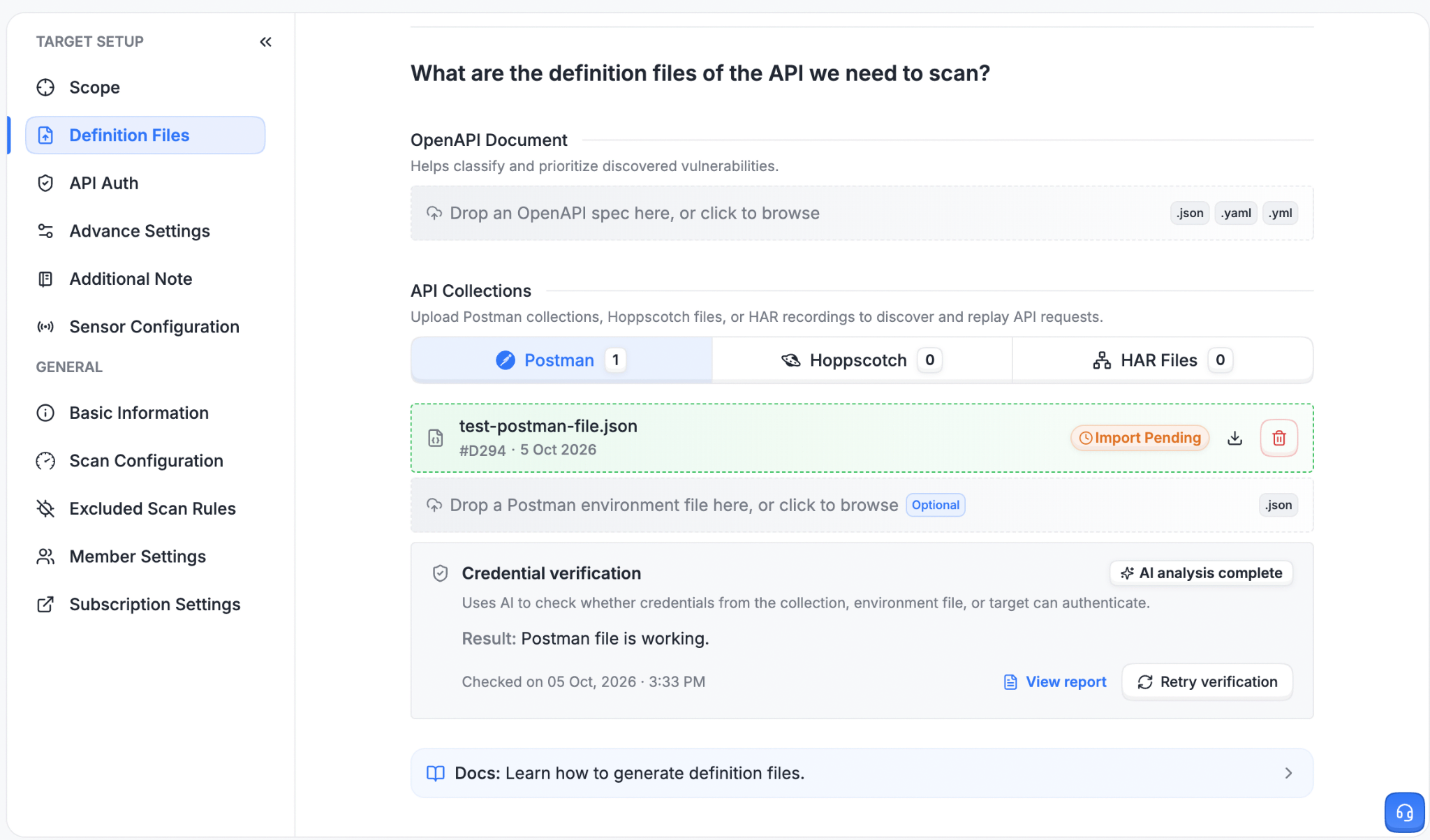
Step 3: Review the result
When verification finishes, the panel shows AI analysis complete, a one-line Result and the time of the check.
Click View report to see the result for each endpoint. If you update your collection, environment file, or credentials, click Retry verification to check again.
Troubleshooting
If endpoints are marked as needing your attention, check the most common causes below. After fixing the issue, click Retry verification.
Cause | What you'll notice | How to fix |
|---|---|---|
Expired token | Endpoints that worked before now fail authentication | Generate a fresh token and update it in the collection, environment file, or target authentication |
Empty or unresolved {{variables}} | API are untested due to missing {{variable}} values | Upload the environment file, and make sure every variable used in the collection is defined with a value and its name matches exactly |
Wrong base URL | Most or all endpoints fail, or return not-found errors | Check the API base URL saved on the target (API targets) or in the API Scanning step (Web targets) |
Blocked IPs | Requests time out or are refused | Whitelist Astra's scanner IPs. Reach out to support for the current IP range |
Insufficient role or scope | Some endpoints authenticate but are denied access | Use credentials for a user or token whose role or scopes can access every endpoint you want scanned |
Best Practices
Verify after every change to your credentials - Re-run verification whenever you upload a new collection, replace an environment file, or rotate the target's credentials. This confirms your next scan will reach your authenticated endpoints.
Verify against a stable environment - Point the target at a staging or pre-production environment that mirrors production. Credentials verified there are the same ones the scanner will use.
Summary
Credential Verification uses AI to confirm that the credentials in your Postman collection, environment file, and target can authenticate against your API before you start a scan. Upload your Postman files, click Run Verification, and review the result in a few minutes. Re-run it whenever your files or credentials change, so your scans always reach your authenticated endpoints.
For assistance, raise a support ticket from the Astra dashboard or write to help@getastra.com.